
Ever notice that some AI tools are great at building one page, but not always a complete website?
Ask AI to create a single page, and it can deliver something impressive. Ask it to build an entire site, and inconsistencies can start to appear. A slightly different blue on page two. Smaller headings on page five. Before long, you’re cleaning up after the AI instead of building with it.
Design Systems in Beaver Builder AI help solve that problem. They give AI a shared visual foundation to work from, including your colors, fonts, spacing, and other design values. Pages assigned to the same Design System can use that foundation to stay visually consistent as you build.
In a previous article, we explored the difference between Design Systems and Design Kits. Now, we’ll take a closer look at what a Design System contains, how it’s created, and how you can manage it as your site evolves.
Table of Contents
- What Is a Beaver Builder Design System?
- What's Inside a Beaver Builder Design System?
- How to Create a Design System in Beaver Builder AI
- Design System vs. Global Styles
- Can You Have Multiple Design Systems on One Site?
- How to Manage Your Design Systems in WordPress
- Design Systems in Beaver Builder v.12+
- What's Next?
- Design System FAQs
What Is a Beaver Builder Design System?
A Design System provides a shared visual foundation for every page assigned to it. It’s a named collection of design tokens, base CSS, optional JavaScript, and a creative brief that work together to define how those pages look and behave:
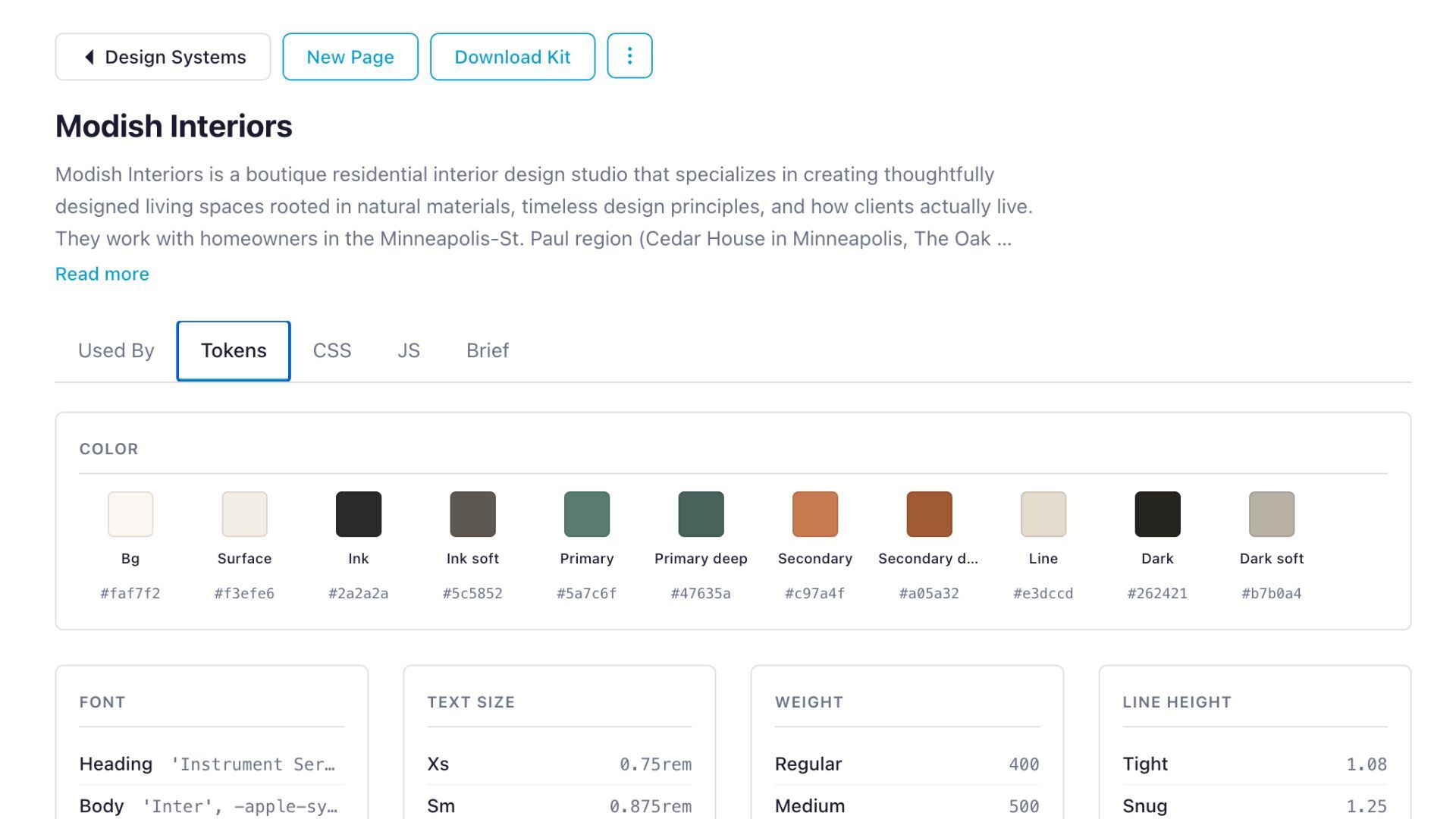
Each page uses only one Design System. When you update a shared Design System setting, the change is reflected across every page assigned to it.
What’s Inside a Beaver Builder Design System?
Go to Beaver Builder > Design Systems to view and manage your Design Systems. You can also access the Design System assigned to the current page from Tools > Design System.
In the Design System panel, you’ll find:
- Used By: Shows which pages are assigned to the Design System.
- Tokens: CSS custom properties that define colors, typography, spacing, border radii, shadows, and other visual values.
- CSS: Base CSS for shared styling.
- JS: Optional JavaScript for shared functionality.
- Brief: Business information and creative direction that give AI context for the design.
How to Create a Design System in Beaver Builder AI
You can create a Design System in three main ways:
Generate Your First Page
Describe the page you want in the built-in chat sidebar, and Beaver Builder AI creates a Design System as part of the process:
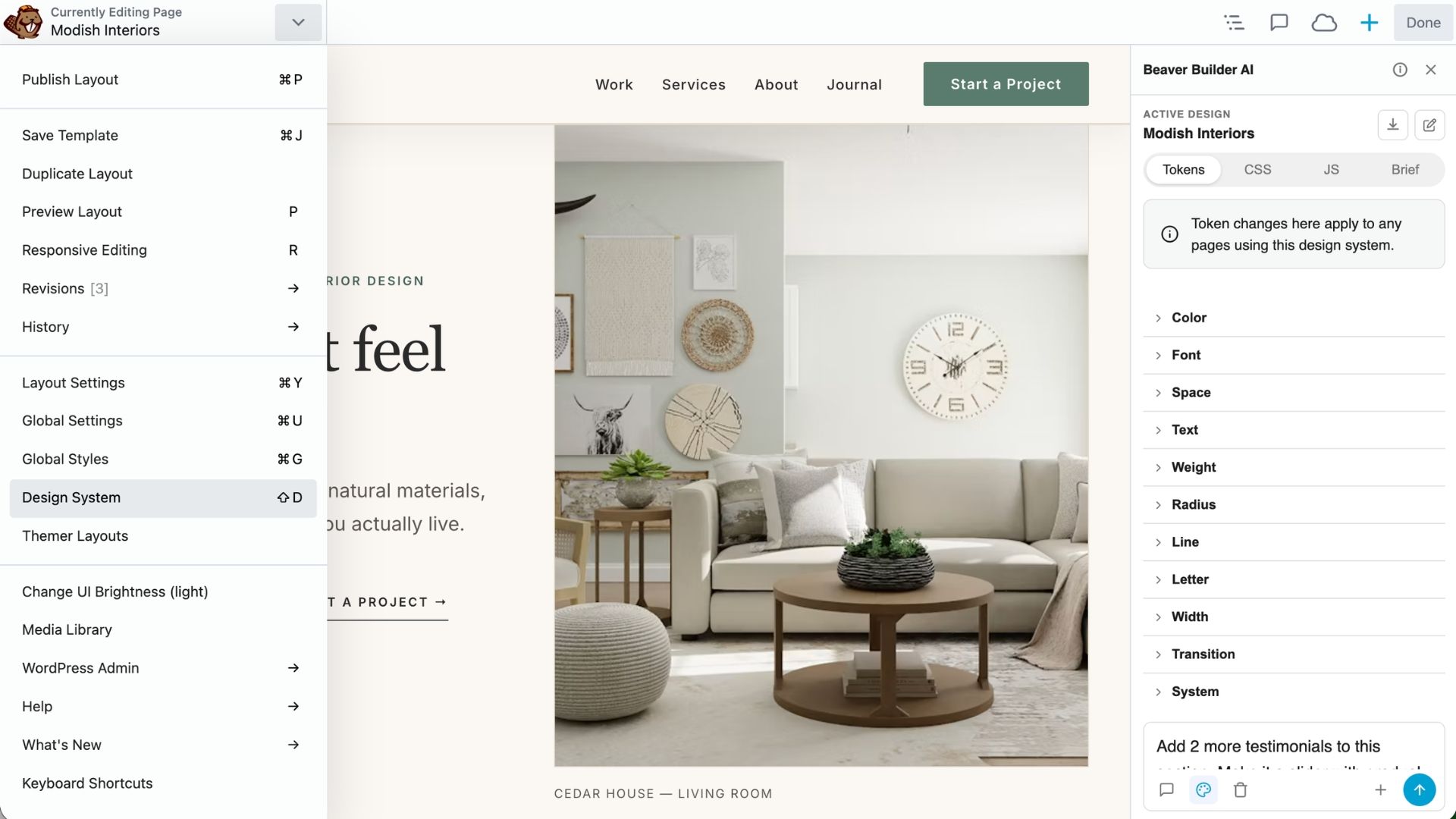
Your prompt helps shape the Design System’s visual direction, so providing information about your brand, audience, goals, and preferred look can give the AI a stronger foundation to work from.
Start From a Starter Kit
Beaver Builder AI includes pre-designed Design Kits with a Design System already built in. You can find them under Beaver Builder > Design Systems > Design Kits:
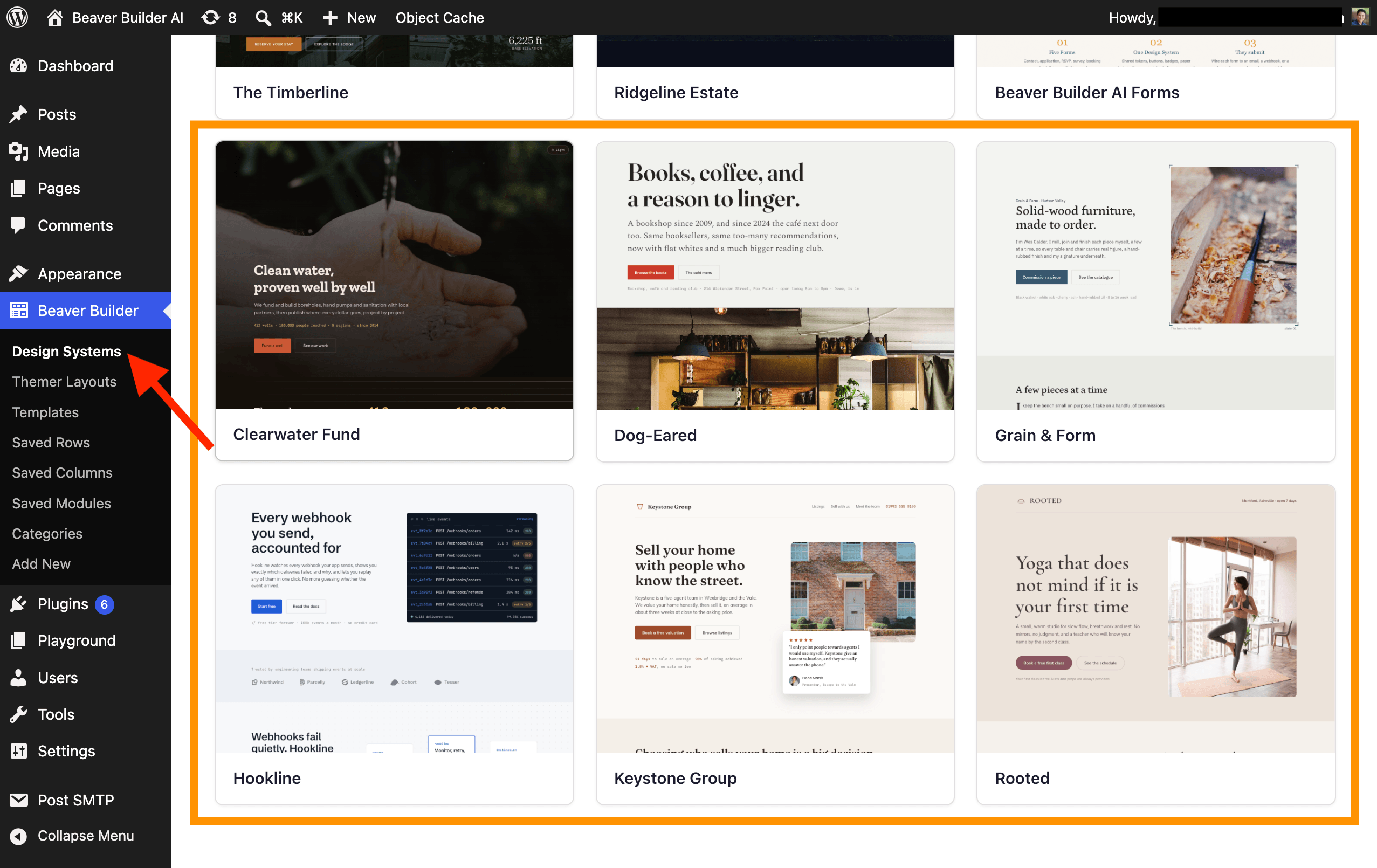
Select a Design Kit and create a page from it, and the kit’s Design System is imported and automatically assigned to the new page.
Connect an MCP Agent
An AI agent connected through MCP, such as Claude Desktop, Claude Code, Cursor, or Windsurf, can create a Design System directly on your site:
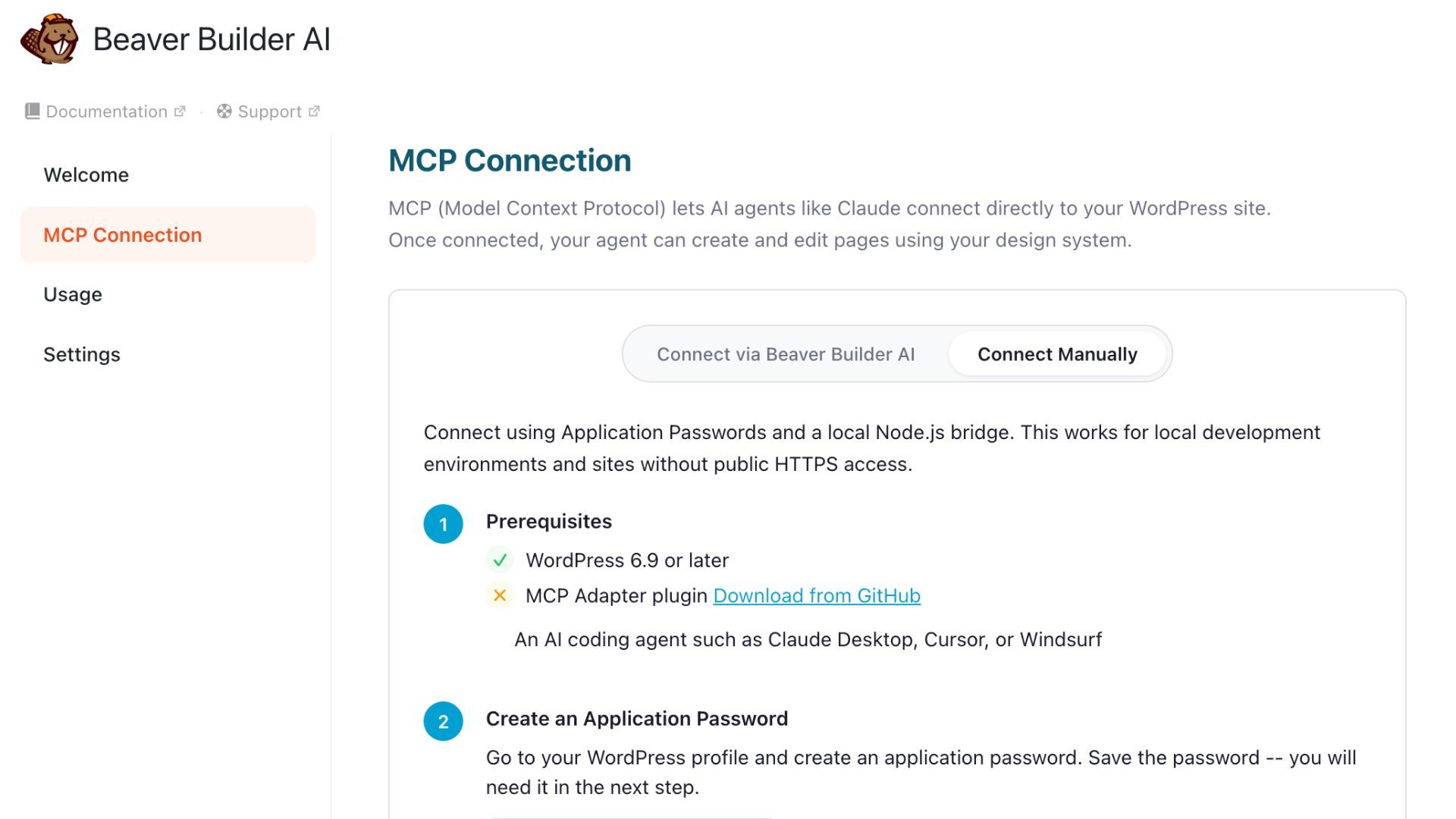
After connecting the agent under Settings > Beaver Builder AI > MCP Connection, you can use it to create and manage Design Systems from your AI workflow.
Note: The first Design System created on a site automatically becomes the site default. You can change the default from the Design Systems tab.
Design System vs. Global Styles
Beaver Builder already has Global Styles, so it’s fair to ask how they differ from a Design System.
Global Styles apply to all Beaver Builder pages, while a Design System applies only to pages assigned to it. If you use the same Design System across your entire site, it can effectively serve as your site’s visual foundation without relying on Global Styles.
If both are being used, the interaction depends on what you’re changing. Beaver Builder Module-level settings take precedence over both Global Styles and Design System styles. Global CSS can also override Design System CSS when you explicitly set conflicting values in Global Styles. If you don’t add conflicting global CSS, it won’t interfere with the Design System.
The three levels work together: Global Styles provide styling for all Beaver Builder pages, a Design System provides styling for the pages assigned to it, and module settings let you make module-specific changes that override both.
Can You Have Multiple Design Systems on One Site?
A site can have multiple Design Systems, with different pages assigned to each one. This lets you use different visual identities within the same WordPress site without requiring separate sites:
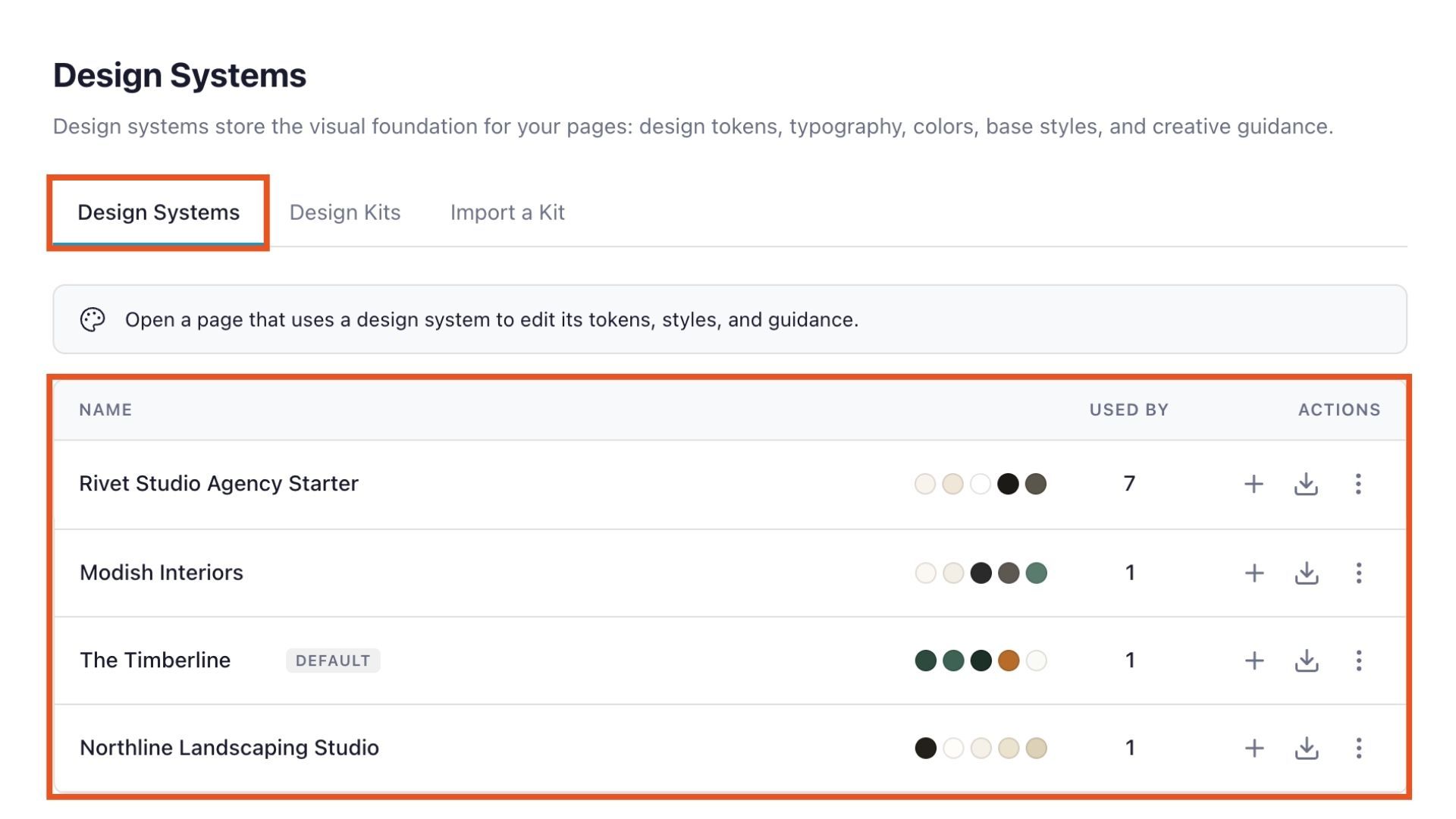
For example, an agency could use one Design System for a client’s main website and another for a seasonal campaign, landing-page collection, or sub-brand. Each group of pages can maintain its own visual foundation while remaining part of the same WordPress site.
How to Manage Your Design Systems in WordPress
Once you have created a Design System, you can manage it from the Design Systems page. You can:
- Rename a Design System
- Change the site default
- Download it as a Design Kit
- See which pages, posts, and templates are using it
- Delete it when it’s no longer needed
Some changes are made from the Design Systems page, while others are made from the Design System panel in the editor. For example, you can update the tokens, CSS, JavaScript, and brief from a page that uses the Design System.
Keep in mind that deleting a Design System is permanent. If you want to preserve it for later use, download it as a Design Kit before deleting it.
Design Systems in Beaver Builder v.12+
Starting with Beaver Builder version 12+, Design Systems are decoupled from the Beaver Builder AI chat. Once a Design System has been created, you can continue to edit and manage it in Beaver Builder even when the AI chat is disabled.
In Beaver Builder, open a page that uses the Design System and choose Design System from the Tools menu. When the Beaver Builder AI plugin is disabled, this opens the standalone Design System panel with the same editors for tokens, CSS, JavaScript, and the brief.
This makes it possible to use Beaver Builder AI to create and refine a Design System, then continue managing that foundation in Beaver Builder without relying on the AI plugin.
What’s Next?
Ready to put Design Systems to work? Start by creating a page with Beaver Builder AI and build from there. You can refine your Design System, assign pages to it, and continue building out your site with a consistent visual foundation.
Want to explore the local AI workflow? Learn how Design Kits let you take your Design System into a local AI coding workflow and bring your work back into Beaver Builder when you’re ready.
Design System FAQs
Beginning with Beaver Builder v.12+, Design Systems are decoupled from Beaver Builder AI. You can manage an existing Design System from the Design Systems page and the Design System panel even when the AI chat is disabled, making it possible to build with AI and continue managing the design foundation without relying on the chat.
You can edit tokens directly from the Design System panel without using a prompt. Open a page assigned to the system and access the Design System from the Tools menu.
The page reloads after you confirm the change, applying the new Design System’s tokens, base CSS, fonts, and other settings.
Currentlly, a Design System must no longer be assigned to any pages, posts, or templates before it can be deleted. Reassign or remove the content using the Design System first.

Start here

Beaver Builder AI Demo
Build a page with AI on a site that already has Beaver Builder and Beaver Themer installed. Free AI credits included.
Our Newsletter
Our newsletter is personally written and sent out about once a month. It's not the least bit annoying or spammy.
We promise.
Try Beaver Builder Today
Related articles
Create a Dark Mode Toggle in WordPress
 -
October 15, 2026
-
October 15, 2026
Add a light and dark mode toggle to your WordPress site with Beaver Builder AI and the free Dark Mode…
How to Convert Base44 design to WordPress using Claude and Beaver Builder AI
 -
October 13, 2026
-
October 13, 2026
In this article, I share how I moved a landing page design from Base44 to WordPress using Claude and Beaver…
How to Convert Figma Design to WordPress (Claude + Beaver Builder AI)
 -
October 9, 2026
-
October 9, 2026
How do you turn a Figma design into a WordPress site without rebuilding every section by hand? It’s a common…
Join the community
We're here for you
There's a thriving community of builders and we'd love for you to join us. Come by and show off a project, network, or ask a question.


Since 2014
Ready to build?
The WordPress page builder agencies and freelancers have trusted since 2014. Now with AI.