
How to Convert Base44 design to WordPress using Claude and Beaver Builder AI
 -
October 13, 2026
-
October 13, 2026
In this article, I share how I moved a landing page design from Base44 to WordPress using Claude and Beaver Builder AI. Claude rebuilt almost all of it with native Beaver Builder modules, so the page is easy to edit in the front-end drag-and-drop editor.
Base44 is great at designing page mockups. You describe what you want and it builds it. The catch is that the page is hosted on Base44, not on your WordPress site.
That’s fine for a test or a concept design. It’s not ideal when your business already runs on WordPress, or when a client wants to update the site on their own.
So I wanted to find a way to move a landing page concept I made for a made-up mobile dog grooming business, Wag & Roll, from Base44 to WordPress. The good news: with Claude and Beaver Builder AI, I didn’t have to rebuild it by hand.
I walk through the process step by step below. I also recorded a step-by-step video you can watch, and I share some tips along the way.
Table of contents
- What you need before you start
- Connect Claude to your site (one time)
- Publish your Base44 page so Claude can read it
- Give Claude the Base44 link and one prompt
- The two questions Claude asked me
- What the finished page looks like in Beaver Builder
- Frequently asked questions
- Wrapping up
What you need before you start
| What you need | Details |
|---|---|
| Claude and the Claude Desktop app | I ran this in Cowork in the desktop app, where Claude can open pages in its built-in browser. A full page build takes a while and uses a good chunk of your usage, so a paid plan gives you more room. |
| A WordPress site on version 6.9 or later | It has to be publicly reachable over HTTPS. A local install on your computer won’t work. |
| Beaver Builder with an active license | Beaver Builder AI comes with the Plus, Professional, and Unlimited plans. The pricing page has the details. |
| The Beaver Builder AI plugin | It’s a separate plugin. Customers download it from their My Account page. |
| The MCP Adapter plugin | An official WordPress plugin that lets AI agents like Claude work with your site. |
| Pretty permalinks | Post name works. I’ll show you where to set it below. |
| A published Base44 page | Claude needs a public link to study. |
New to Beaver Builder AI? The setup post covers the install.
Connect Claude to your site (one time)
If you already connected Claude to this site for the Claude design to WordPress tutorial, skip to the next section.
Choose your MCP layout settings
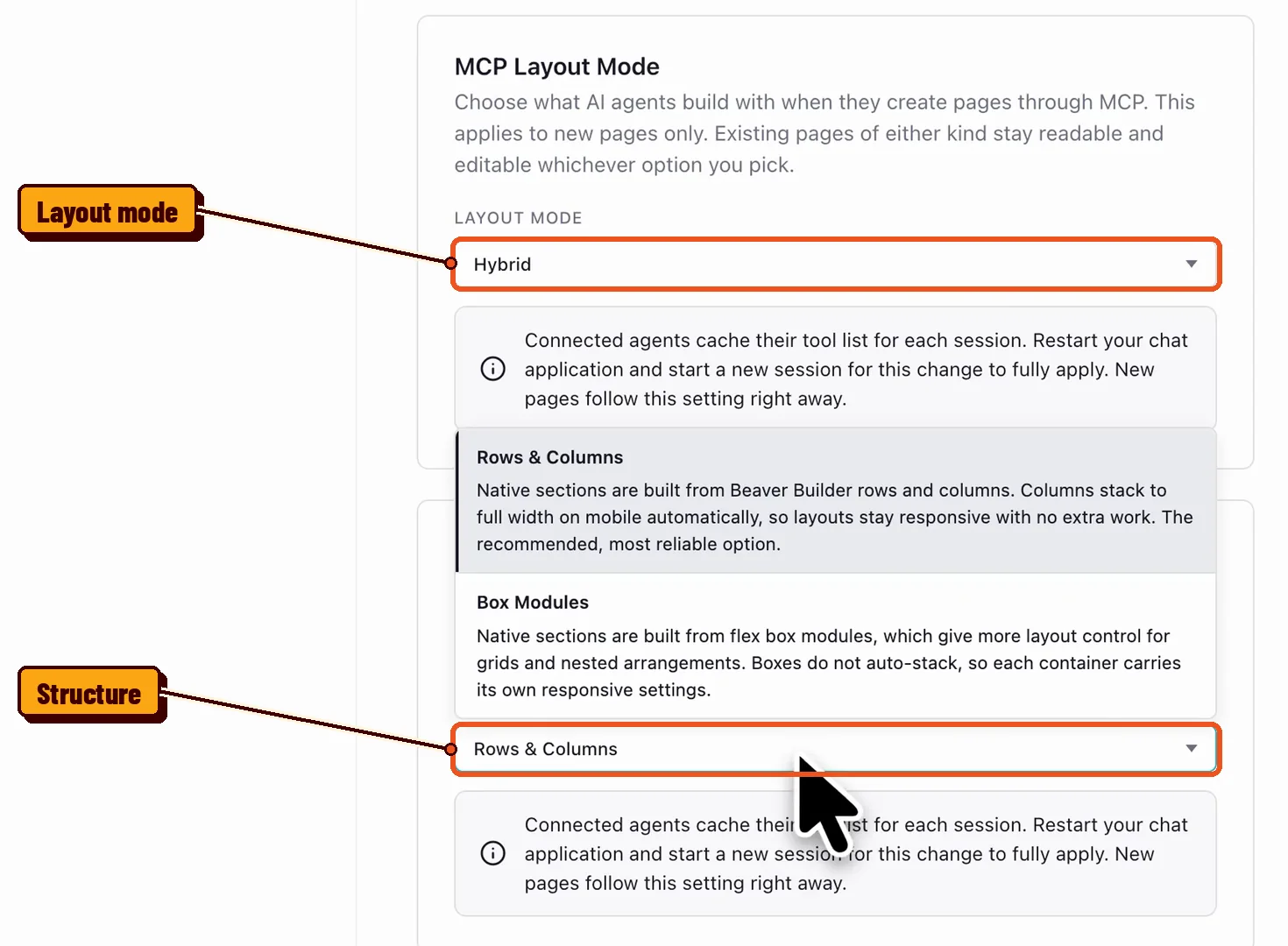
Go to Settings > Beaver Builder AI. Two settings control what Claude builds with.
MCP Layout Mode picks Native Modules, Custom Modules, or Hybrid. Custom Modules means the AI writes its own HTML, CSS, and JavaScript for sections the standard modules can’t reproduce.
MCP Layout Structure picks Rows & Columns or Box Modules. I used Hybrid with Rows & Columns, then told Claude in my prompt to stick to native modules wherever it could.
These settings only apply to new pages. After you change one, the screen tells you to restart your chat app and start a new session. My teammate Jennifer explains each option in Beaver Builder AI MCP layout settings.
Check the requirements and copy your MCP endpoint URL
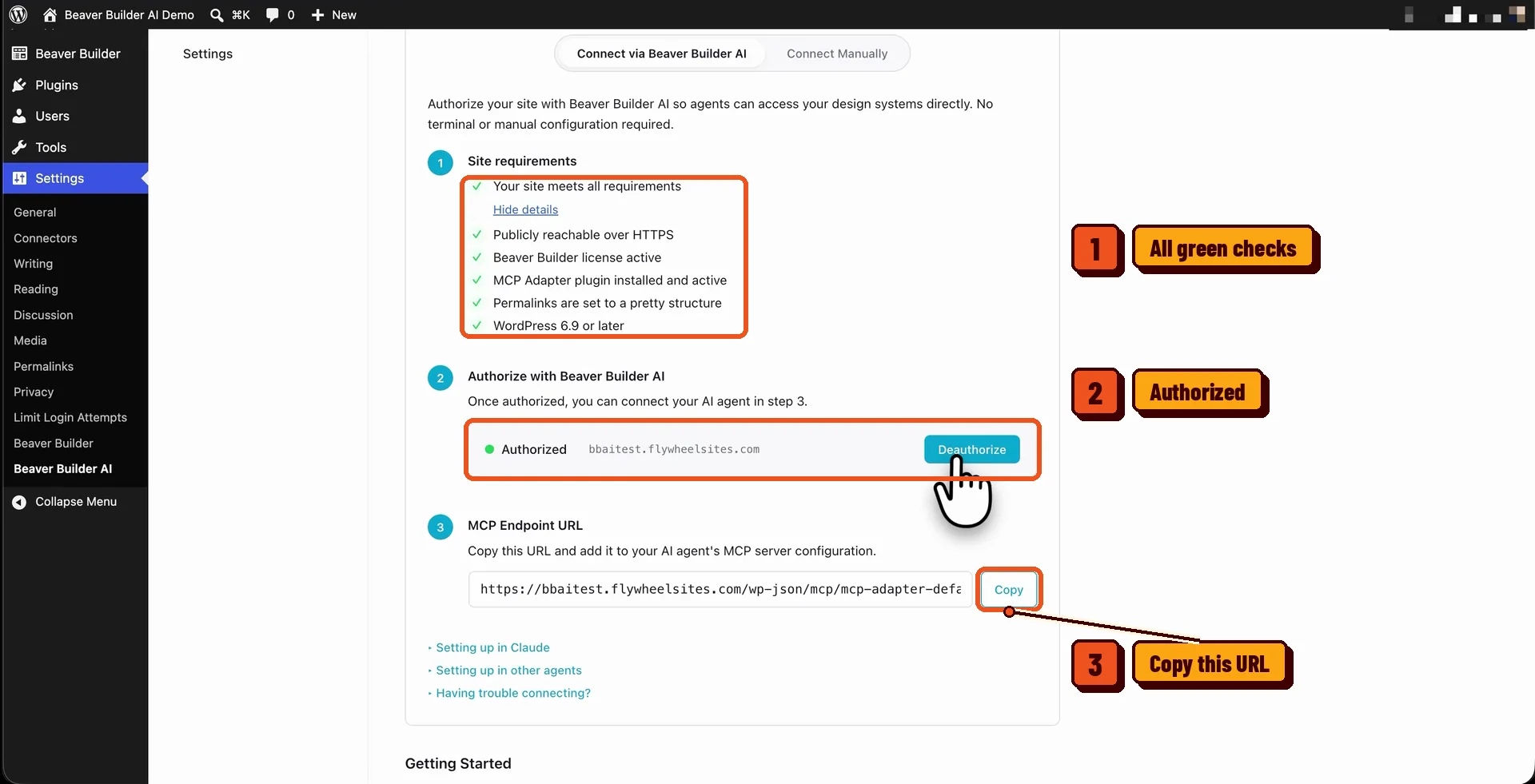
Open the MCP Connection tab and choose Connect via Beaver Builder AI. Every site requirement should have a green check.
Next, authorize your site with Beaver Builder AI in step 2 of that screen (mine was already authorized). Then click Copy next to the MCP Endpoint URL.
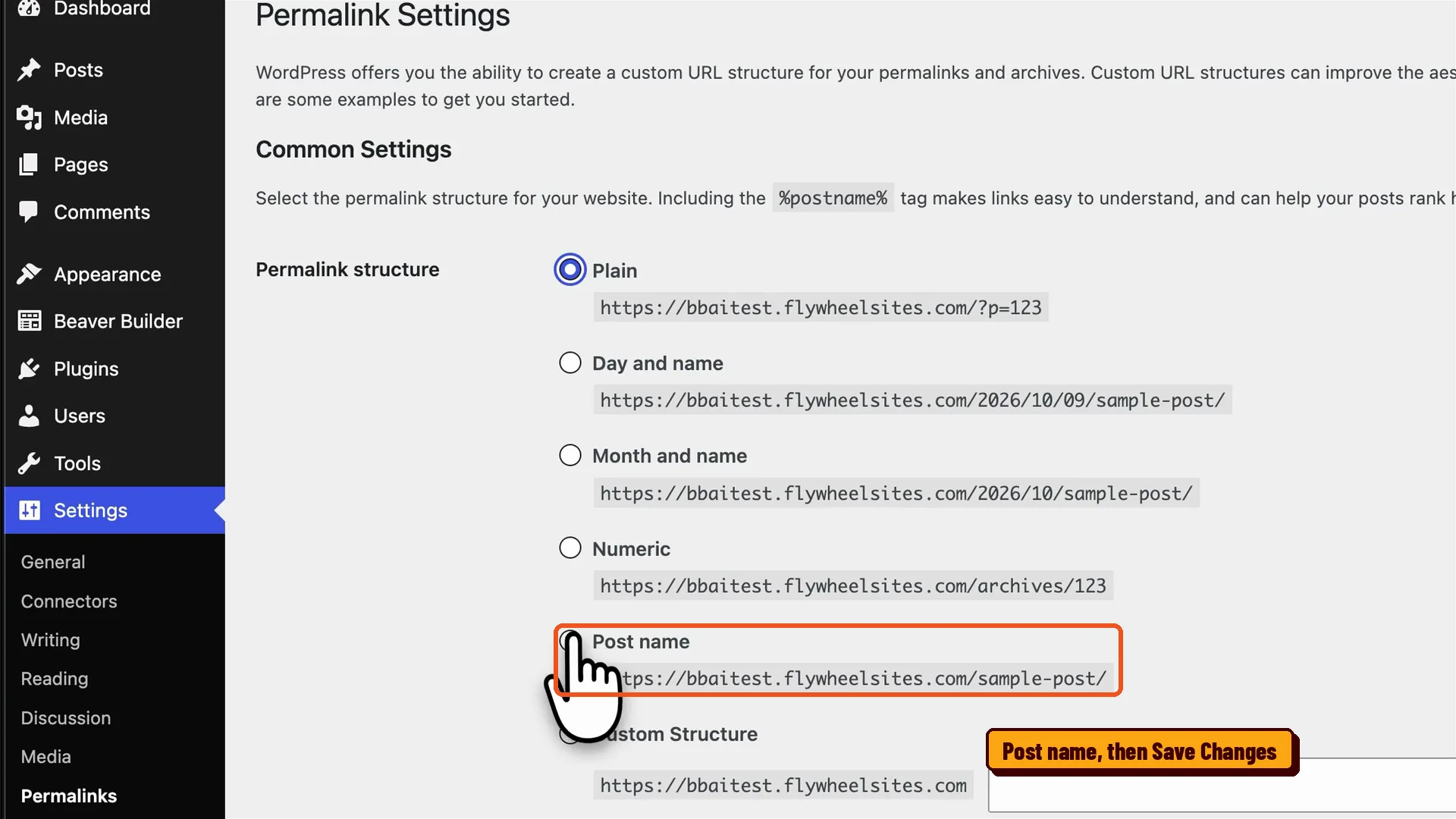
If the permalinks check fails, your site is probably on Plain. Go to Settings > Permalinks, pick Post name, and save. WordPress has a permalinks guide if you want the background.
Add the connector in Claude
In the Claude Desktop app, click the + button, hover over Connectors, and click Add connector. Give it any name you like, paste the URL you copied, click Continue, and authorize.
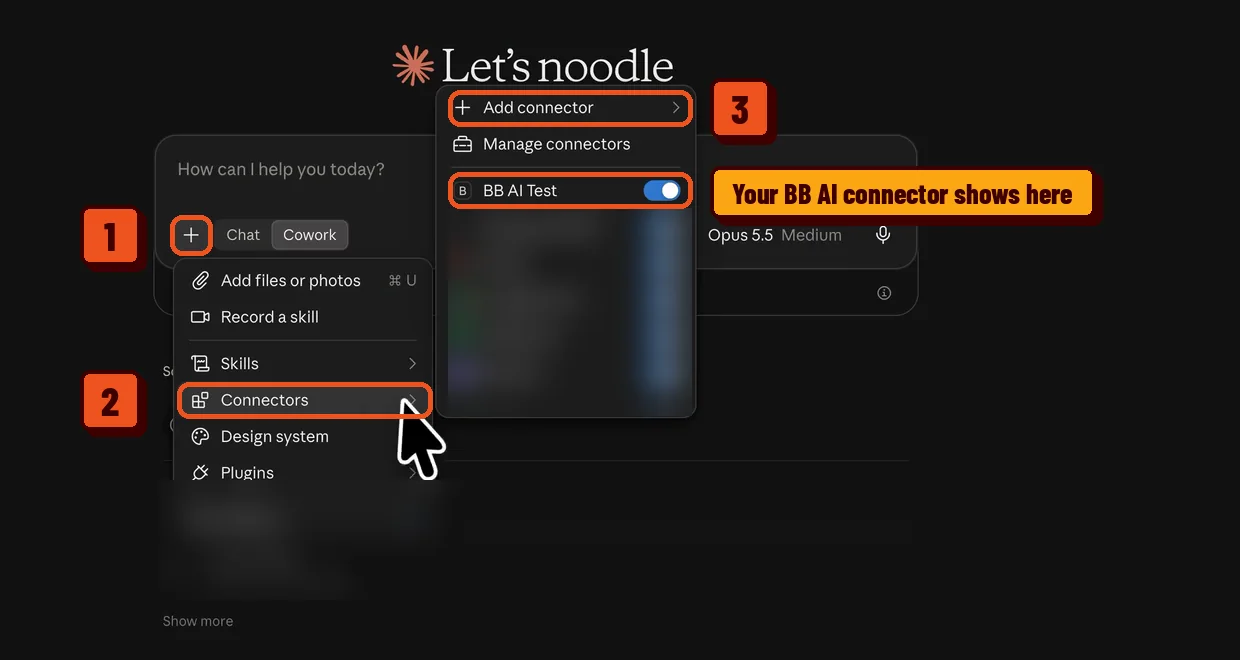
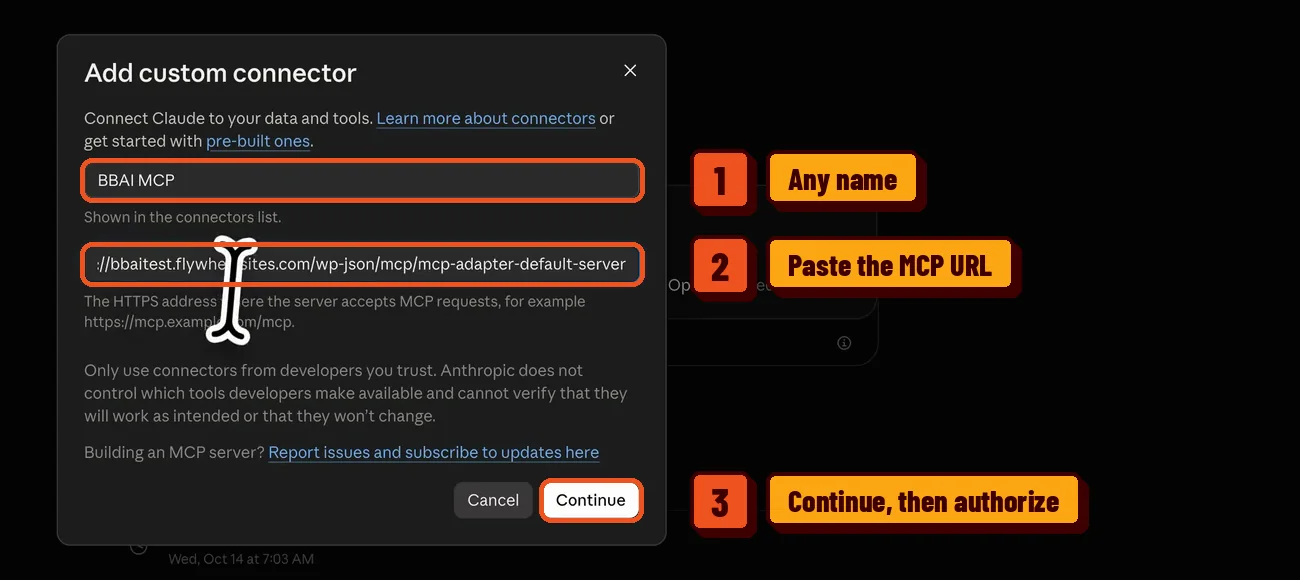
To confirm it worked, open that same Connectors menu. Your site’s connector should be in the list with its toggle on.
Custom connectors work on every Claude plan. Anthropic’s help article notes that Free accounts are limited to one.
Publish your Base44 page so Claude can read it
Claude can’t read a page it can’t open. So publish your design in Base44 before you prompt anything.
Click Publish in the top right corner. Leave App visibility on Public, then click Publish in the panel.
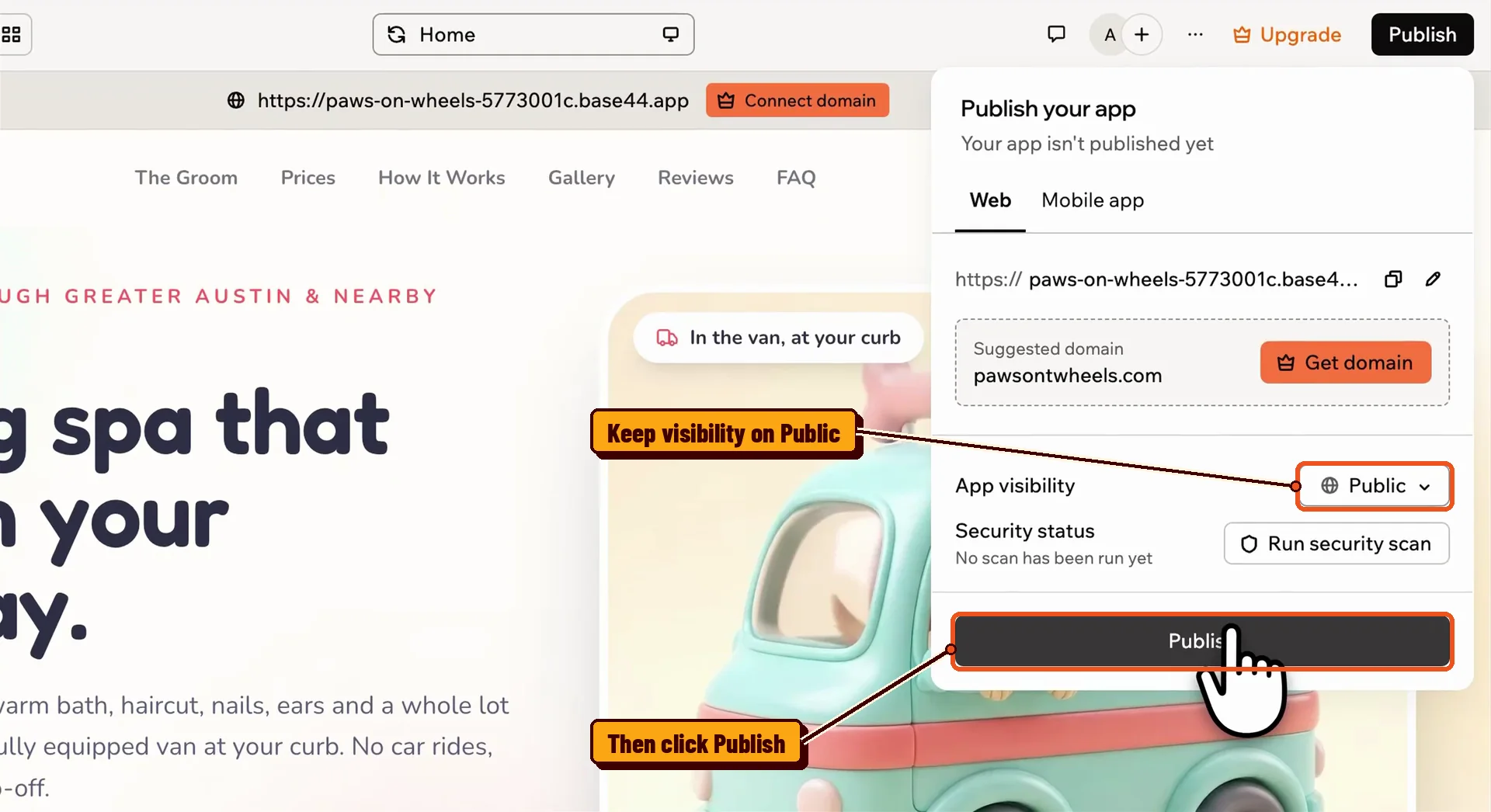
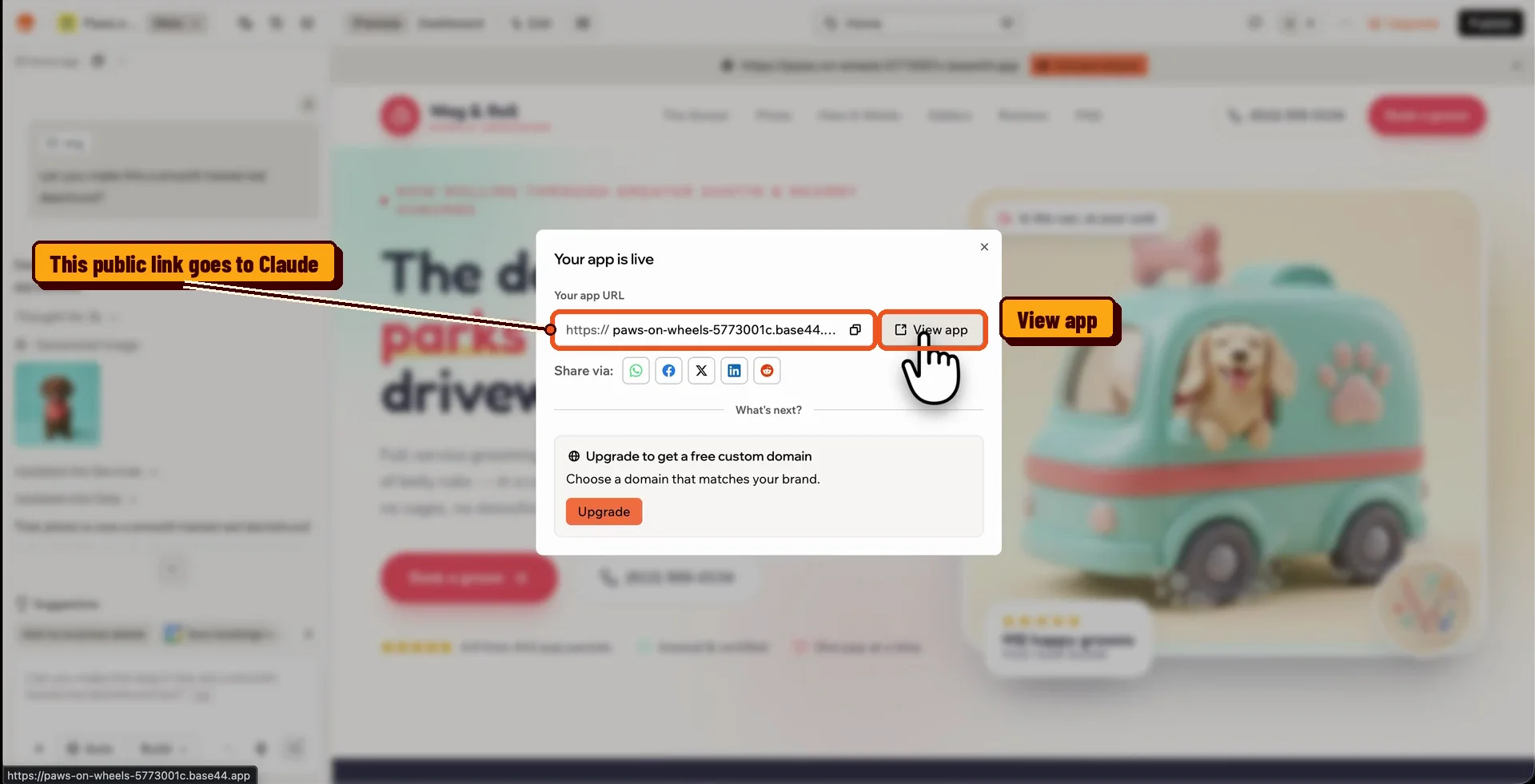
Base44 tells you your app is live and gives you a link. Click View app to check it, then copy that URL. That’s what you’ll hand to Claude.
Give Claude the Base44 link and one prompt
First, I asked Claude to make sure it could reach my WordPress site. It asked permission to use the Beaver Builder AI connection, I allowed it, and it confirmed the connection worked. That quick check can save you from a failed build later.
Then I pasted my Base44 link in the chat and gave Claude this prompt:
Hey Claude, I have this landing page built on Base44. I shared my link. Can you convert this design into my WordPress website using Beaver Builder AI native modules? I like to use rows, columns, box module as much as possible. If there are any sections that you think you can’t do with native modules, please let me know. And in those cases, I want to use the custom HTML module. Let me know if you have any questions. Thank you.
I added the last two sentences on purpose. They tell Claude to bring the hard sections back to me instead of making the call on its own.
Claude asked to open the page in its browser, then scrolled through it on its own. It studied the whole page before it built anything.

The two questions Claude asked me
Partway through the build, Claude paused with two questions. Both were about sections native modules can’t copy exactly.
Read the options instead of clicking the first one. Your answers decide how editable the WordPress page will be.
The booking form
My Base44 page has a fill-in-the-blank form (“Hi Wag & Roll! I’m ___ and my dog ___…”). Claude pointed out that Base44 handles the submit on its own backend, and that backend doesn’t come over to WordPress. It gave me three choices.
Option | What you get | The catch |
|---|---|---|
| Native Contact Form (Claude’s recommendation) | The real Beaver Builder Contact Form module. It emails you when someone submits. | Standard stacked fields, so you lose the fill-in-the-blank look. |
| HTML look-alike | An HTML module that copies the design exactly. | The submit button won’t send anywhere until you connect it to a form service. |
| Both, side by side | The look-alike with a native form under it, so you can compare. | You delete one when you’re done. |
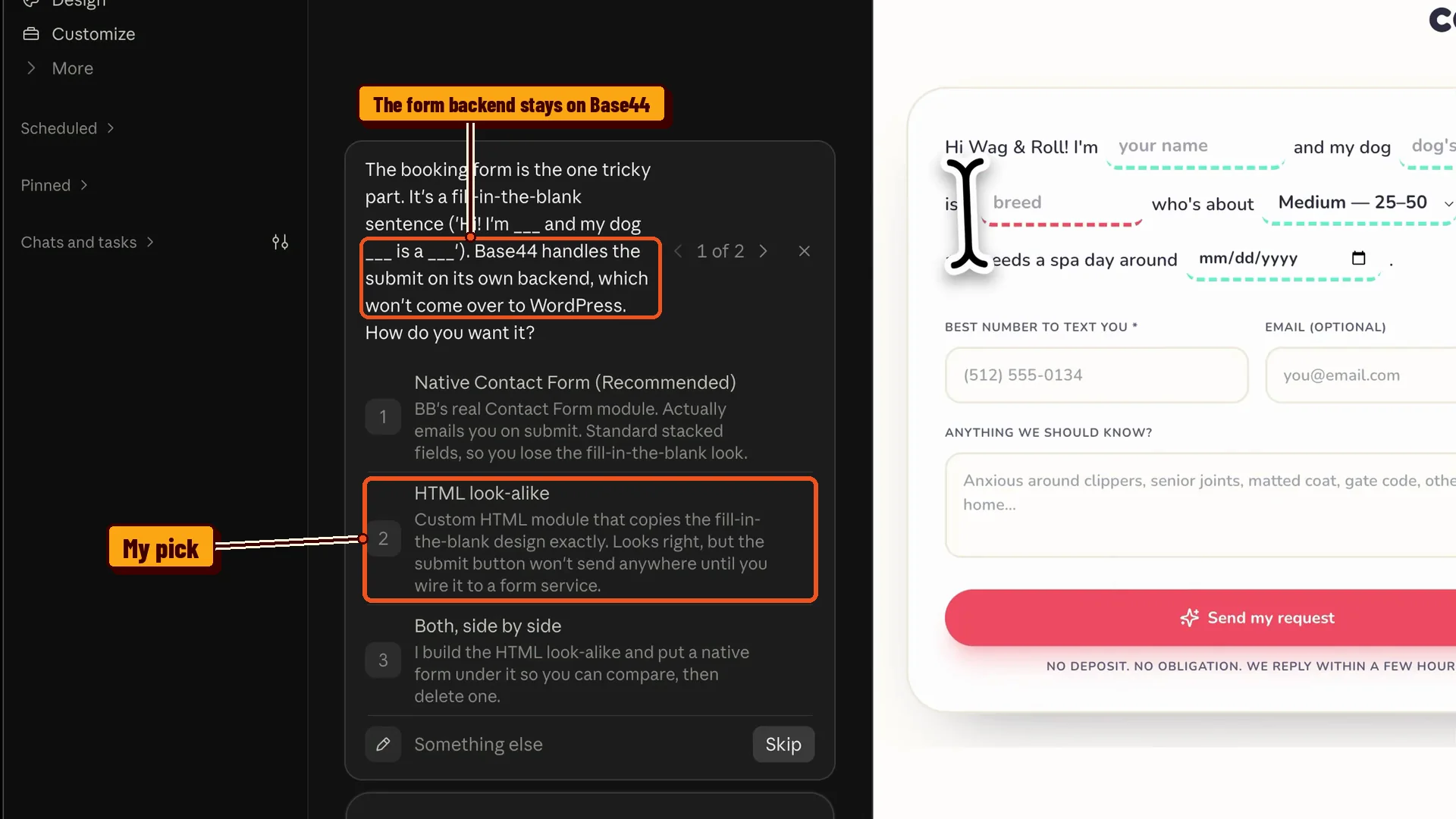
I picked the HTML look-alike because I wanted the design. If you do the same, connect that form before you publish. Otherwise visitors fill it out and nothing happens.
Wag & Roll isn’t a real business, so my demo form isn’t connected to anything.
If you’d rather have a form that works on day one, pick the native Contact Form.
The dog gallery
The design has two rows of dog photos scrolling sideways in opposite directions. Claude said native modules can’t animate like that. It offered an animated HTML module or a still 5×2 grid of the same 10 photos built from native modules.
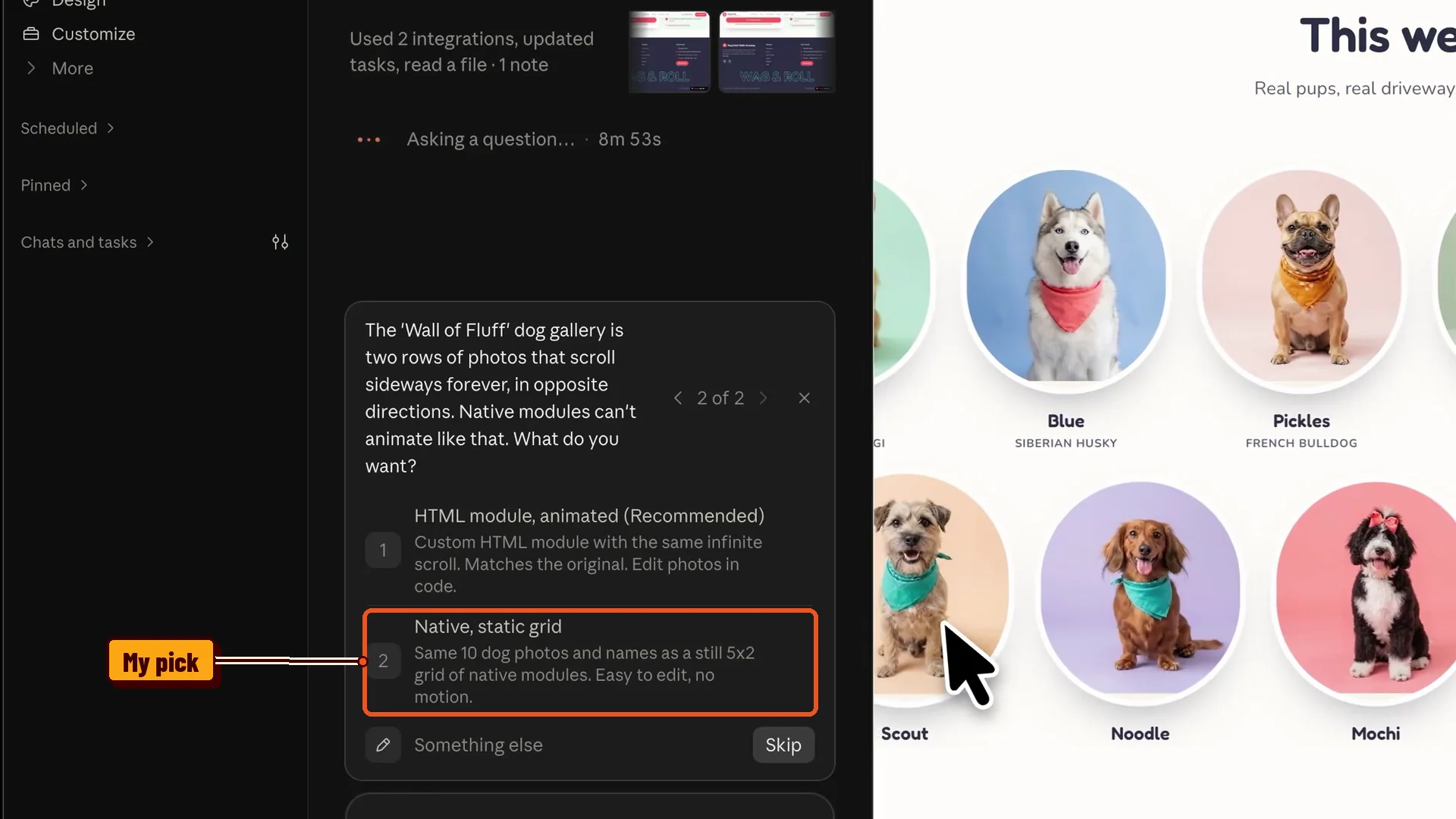
Claude recommended the animated version, but I went native. A still grid is easier to edit later, and swapping a photo is a click instead of a code change.
Animated is a fine choice too. You’re trading motion for easy edits.
Last, Claude asked me to log in to WordPress in its browser so it could check its own work. I logged in, told it I was done, and it finished up.
What the finished page looks like in Beaver Builder
Claude said the page was done and shared a preview link. It looked very close to the Base44 version, and the photos and copy all came over.
To see what it’s built from, open the page in Beaver Builder and click the Outline panel icon. You’ll see rows, columns, and native modules like Heading, Text Editor, Photo, and Button Group.
That list is the whole point. You edit this page the same way you’d edit one you built by hand.
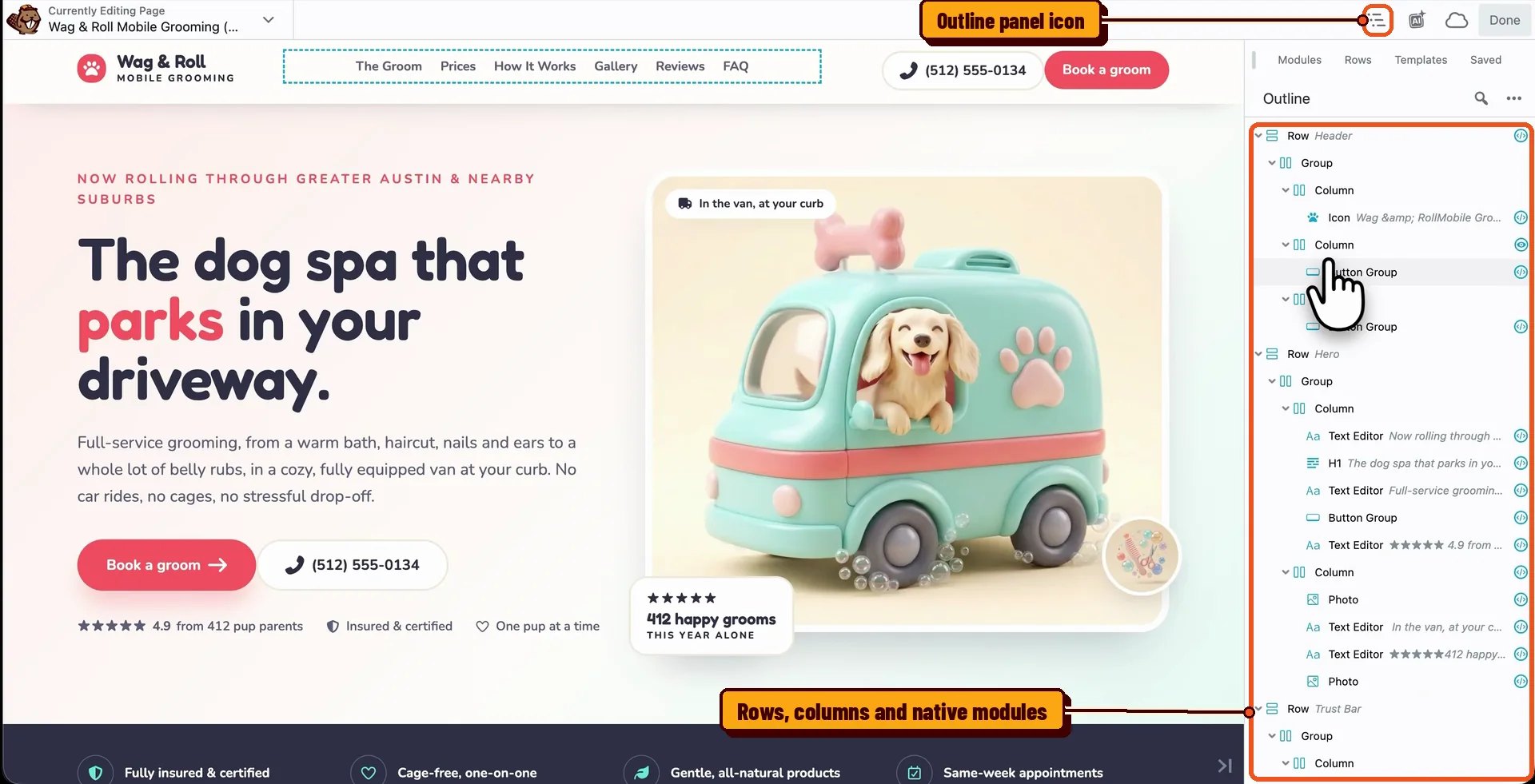
You can drag sections around, duplicate them, delete them, and change text right on the page.
The images moved too. Open Media > Library and you’ll see the photos Claude uploaded, so the page doesn’t depend on files hosted somewhere else.
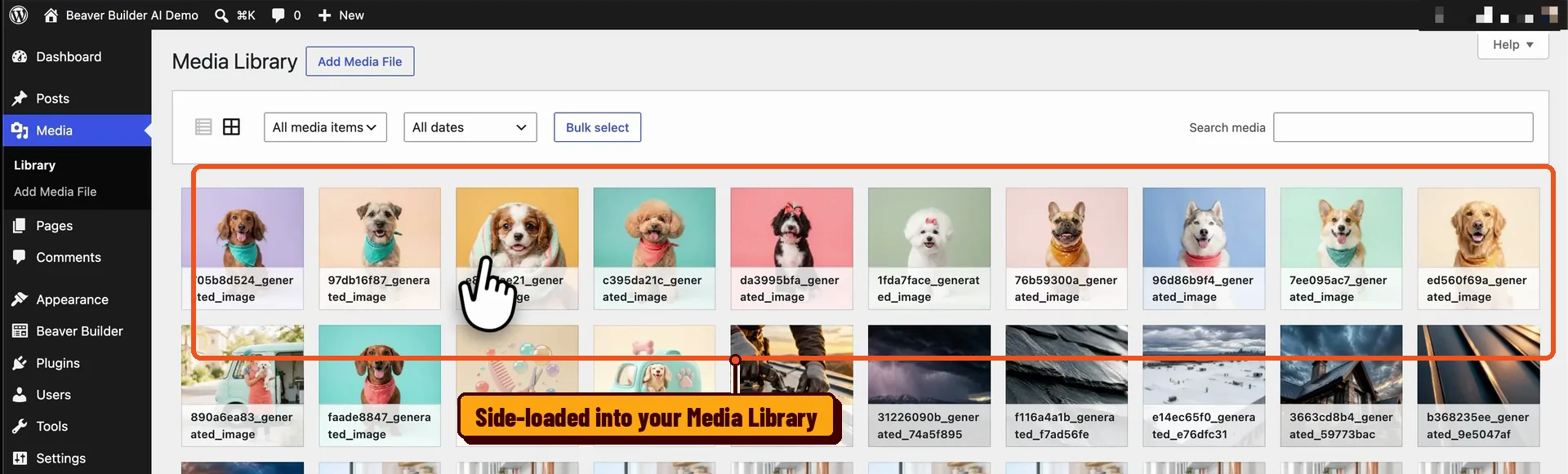
When the preview looks right, click Done, then Publish.
Frequently asked questions
It’s the link between Claude and your WordPress site. MCP (Model Context Protocol) is a standard that lets AI apps like Claude use outside tools, and the MCP Adapter plugin brings it to WordPress. Beaver Builder AI uses it so Claude can build pages with Beaver Builder modules.
Yes. Claude needs to open it. I published mine with Public visibility and gave Claude the link.
It depends on your MCP Layout Mode setting and your prompt. I picked Hybrid and asked for native modules first, with custom HTML only where native couldn’t do the job. Claude checked with me before using it.
Not on their own. Base44 handles submissions on its backend, which stays behind. Use the Contact Form module, or connect your custom HTML form to a form service before you publish.
Yes. It’s built from native rows, columns, and modules, so you edit it in Beaver Builder like any other page. Any section you approved as custom HTML gets edited in code.
Yes. The MCP connection works with other AI agents too. My <a href=”https://www.wpbeaverbuilder.com/convert-chatgpt-site-to-wordpress/”>ChatGPT to WordPress tutorial</a> walks through connecting ChatGPT, and there’s also a walkthrough for <a href=”https://www.wpbeaverbuilder.com/convert-lovable-to-wordpress/”>moving a Lovable design to WordPress</a>.
Wrapping up
Thanks for checking out my article on how to move your Base44 design to WordPress using Claude and Beaver Builder AI.
Want to test Beaver Builder AI before installing anything? Try it free. You get a link to a demo site to try it on.
Already on a Plus, Professional, or Unlimited plan? Grab Beaver Builder AI from your My Account page, and keep the Beaver Builder AI docs handy.
If you have any questions, or you move a Base44 design over yourself, leave a comment below. I’d love to hear which way you picked when Claude asked. Happy building!

Start here

Beaver Builder AI Demo
Build a page with AI on a site that already has Beaver Builder and Beaver Themer installed. Free AI credits included.
Our Newsletter
Our newsletter is personally written and sent out about once a month. It's not the least bit annoying or spammy.
We promise.
Try Beaver Builder Today
Related articles
How to Convert Figma Design to WordPress (Claude + Beaver Builder AI)
 -
October 9, 2026
-
October 9, 2026
How do you turn a Figma design into a WordPress site without rebuilding every section by hand? It’s a common…
How to Build an Editable WordPress Header and Footer With AI
-
October 2, 2026
Headers and footers are among the most repetitive parts of building a WordPress website. AI can speed up the process,…
How to Convert a ChatGPT Site to WordPress (Beaver Builder AI)
-
October 1, 2026
Hey everyone! If you’ve built a website design in ChatGPT, you’ve probably wondered how to get your ChatGPT site to…
Join the community
We're here for you
There's a thriving community of builders and we'd love for you to join us. Come by and show off a project, network, or ask a question.


Since 2014
Ready to build?
The WordPress page builder agencies and freelancers have trusted since 2014. Now with AI.