

Beaver Builder AI MCP Settings: Layout Mode and Layout Structure Explained
 -
September 23, 2026
-
September 23, 2026
Beaver Builder AI has two MCP settings that shape AI-built pages. MCP Layout Mode controls what AI builds with: Native Modules, Custom Modules, or both (Hybrid). MCP Layout Structure controls how AI structures native layouts: Rows and Columns, or Box Modules.
This post walks through each option so that you can choose the setup that works best for you.
Table of Contents
- What Is MCP in Beaver Builder AI?
- What Is MCP Layout Mode?
- What Is MCP Layout Structure?
- Which Settings Should You Use?
- Experiment With Your MCP Settings
- Get Started With Beaver Builder AI and MCP
What Is MCP in Beaver Builder AI?
MCP (Model Context Protocol) allows an AI agent outside of WordPress to connect to your WordPress site and work with Beaver Builder AI. An MCP-connected AI agent can use tools on your site to create and edit pages, build native Beaver Builder layouts, and work with design systems.
You can connect AI agents such as Claude, Cursor, or Windsurf through the MCP connection. Once your AI agent is connected, you can describe what you want to build and let AI create or edit the page. That’s where the MCP Layout Mode and MCP Layout Structure settings come in.
Wondering how to set it up? Watch the MCP Connection Video
What Is MCP Layout Mode?
MCP Layout Mode determines what pages built by a connected AI client are made of.
You can choose between:
- Native Modules
- Custom Modules
- Hybrid
The setting is available under Settings → Beaver Builder AI → Settings:
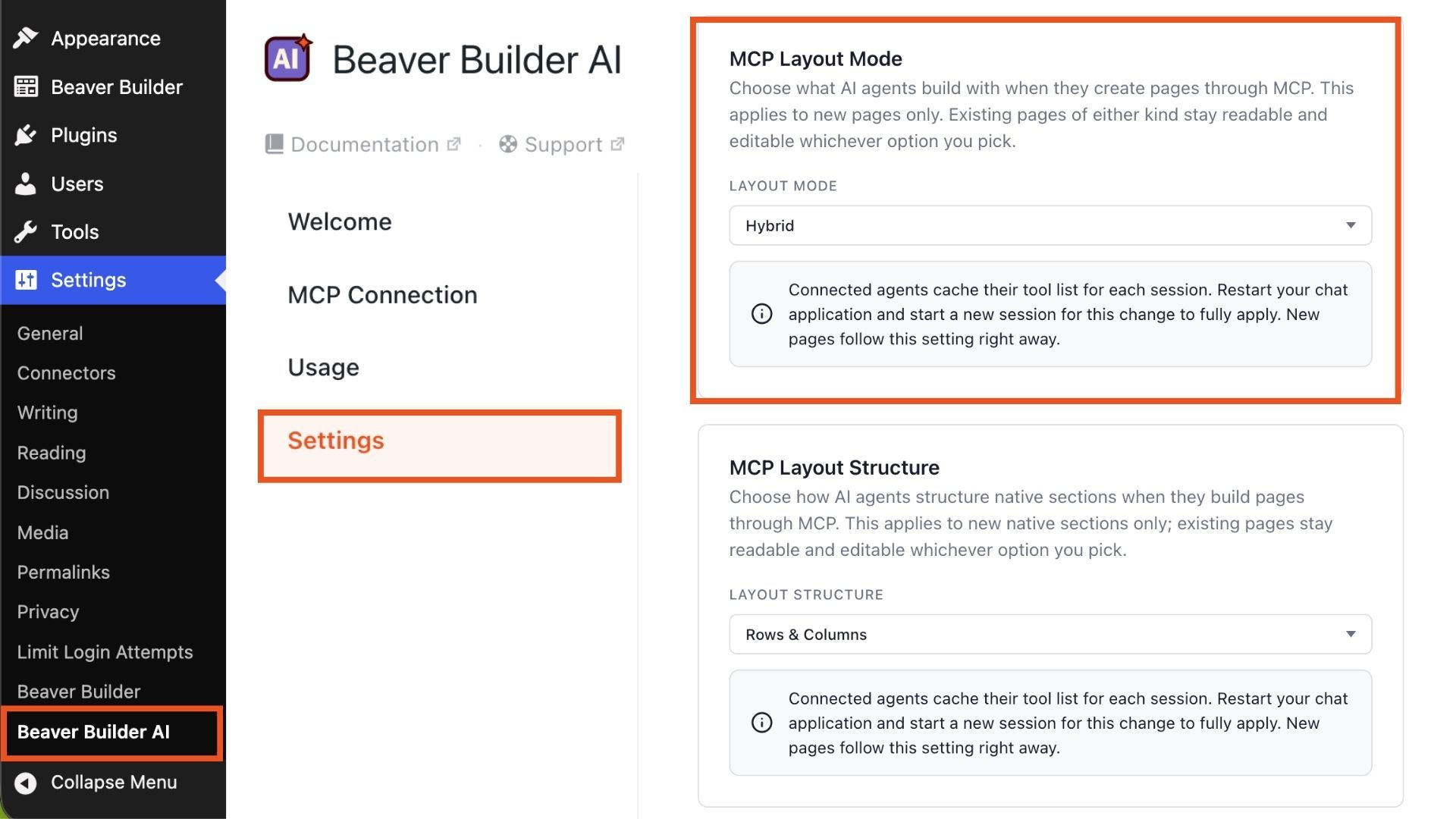
Beaver Builder AI MCP Layout Mode settings panel.
MCP Layout Mode applies to pages built through MCP. It does not change how the Beaver Builder AI chat inside WordPress builds pages.
Native Modules
With Native Modules, a connected AI agent can build pages using actual Beaver Builder rows, columns, and native modules. For example, AI can build a section using headings, text, buttons, images, icons, separators, and other supported native Beaver Builder elements.
This can be especially useful if you already work with Beaver Builder and want AI-generated pages to use the same familiar building blocks you would use when creating a page manually.
Custom Modules
With Custom Modules, AI has more flexibility to create sections that aren’t easily represented by standard Beaver Builder modules. A Custom Module can use generated HTML, CSS, and JavaScript to create a specific design or interaction. This makes Custom Modules useful for more visually complex or specialized sections.
For example, AI could create a custom interactive section, animation, or other design element that would be difficult or time-consuming to reproduce using only standard Beaver Builder modules. Custom Modules are still editable in Beaver Builder, with settings that allow you to modify the generated module.
Hybrid
The Hybrid option allows AI to use both Native and Custom Modules on the same page. This gives the AI agent flexibility to build different sections using the approach that makes the most sense for the page.
For example, a page could use native Beaver Builder modules for a standard content section while using a Custom Module for a section that requires more custom HTML, CSS, or JavaScript.
This can be useful when you want the familiar editing experience of native Beaver Builder modules for some parts of a page while giving AI more flexibility for others.
What Is MCP Layout Structure?
MCP Layout Structure is a setting introduced in Beaver Builder AI 1.0.1 to give you more control over the underlying structure of AI-built native layouts.
You can choose between:
- Rows and Columns
- Box Modules
You can find it just below MCP Layout Mode in Settings → Beaver Builder AI → Settings:
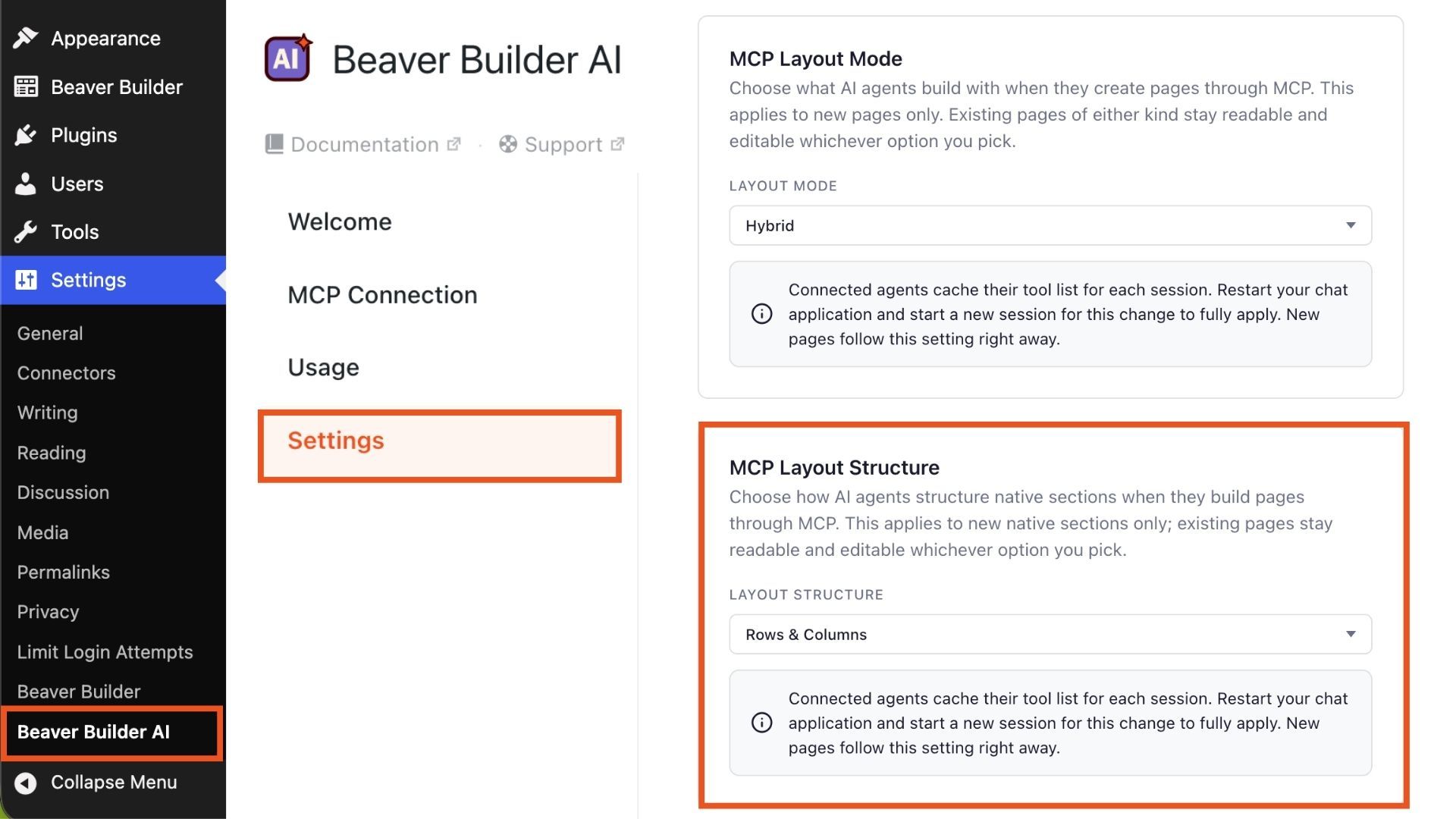
Rows and Columns
With Rows and Columns, AI uses the traditional Beaver Builder layout structure. This is the familiar Beaver Builder approach that many designers and developers already use. If you prefer your AI-generated native layouts to follow the traditional Beaver Builder structure, this is the option to choose.
Box Modules
With Box Modules selected, AI can use Beaver Builder’s Box module as the layout structure. Boxes provide a flexible way to create layouts using modern CSS layout approaches such as Flexbox and CSS Grid. This gives AI another way to organize native sections instead of relying exclusively on traditional rows and columns.
Which Settings Should You Use?
There’s no single configuration that’s right for every website. The best choice depends on the type of pages you’re building and how you want to work with the resulting layouts.
Choose Native Modules if you want familiar Beaver Builder layouts
Native Modules are a good fit when you want to work with standard Beaver Builder elements and continue editing the page visually in Beaver Builder.
Choose Custom Modules when you need more flexibility
Custom Modules give AI more freedom to create designs and interactions that aren’t easily represented by standard modules.
Choose Hybrid when you want both
Hybrid lets AI use native and Custom Modules together, which can be useful when some sections of a page are straightforward while others require a more custom approach.
Choose Rows and Columns if you prefer the traditional structure
Rows and Columns use the familiar Beaver Builder layout hierarchy.
Choose Boxes if you want AI to use Box Modules for native layouts
Boxes provide another way to structure native layouts and can take advantage of modern CSS layout techniques.
Experiment With Your MCP Settings
One of the advantages of these MCP settings is that you can experiment with different approaches when building. Try creating similar pages with different Layout Mode and Layout Structure combinations and compare the results.
Here are some things to consider:
- How closely the result matches your design
- How easy the page is for you, your team, or client to edit
- How much customization you need after AI is done buillding
- How your team or client will maintain the page
- Which approach best fits the types of websites you build
You may find that one configuration works well for most of your projects, or you may prefer different settings for different types of pages.
Get Started With Beaver Builder AI and MCP
If you’re ready to try AI-powered WordPress workflows, Beaver Builder AI lets you connect an external AI agent to your WordPress site through MCP. Start by connecting your AI agent, then experiment with MCP Layout Mode and MCP Layout Structure to find the approach that works best for your workflow.
Ready to try it yourself? Get started with MCP and see how Beaver Builder AI can build and edit WordPress pages directly through your AI agent.

Our Newsletter
Our newsletter is personally written and sent out about once a month. It's not the least bit annoying or spammy.
We promise.
Try Beaver Builder Today

Related articles
How to Transfer a Claude Design to WordPress (Beaver Builder AI)
 -
September 18, 2026
-
September 18, 2026
Designed a page in Claude? Two ways to transfer a Claude design to WordPress with Beaver Builder AI. Both fully...

Beaver Builder AI 1.0.1: Native Layouts, Easier Connection Troubleshooting, and More
-
September 18, 2026
Released 09/14/2026. Requires Beaver Builder 2.11 or later. Full technical changelog: wpbeaverbuilder.com/change-logs Beaver Builder AI 1.0.1 is now available, bringing…

How to Convert a Lovable Design to WordPress Using Beaver Builder AI
-
September 14, 2026
So you built a nice landing page in Lovable, and now you want to move it over to WordPress, where…
Join the community
We're here for you
There's a thriving community of builders and we'd love for you to join us. Come by and show off a project, network, or ask a question.


Since 2014
Ready to build?
The WordPress page builder agencies and freelancers have trusted since 2014. Now with AI.