
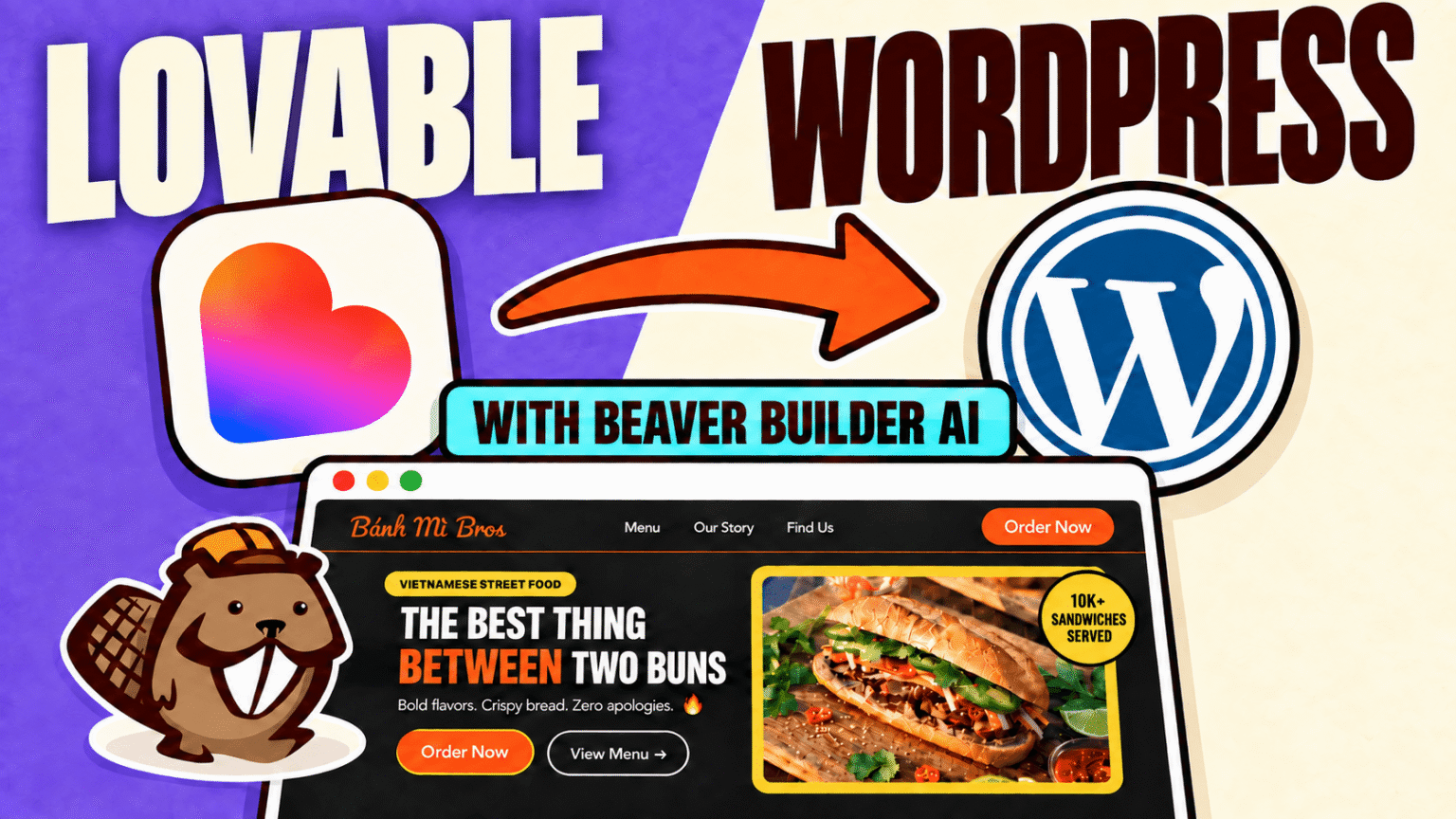
How to Convert a Lovable Design to WordPress Using Beaver Builder AI
 -
September 14, 2026
-
September 14, 2026
So you built a nice landing page in Lovable, and now you want to move it over to WordPress, where you actually own the design and can easily make changes to it. I’ve got good news for you. You can move it over using Beaver Builder AI, and it’s very easy. I’ll walk you through it step by step.
In this article I’ll show you two ways to do it. The first way transfers your design into WordPress with just a few clicks, and your design is fully editable in Beaver Builder. The second way uses Claude, ChatGPT, or another LLM that offers an MCP connection to get you a close to pixel-perfect clone. You get to pick whichever one fits how you like to work.
If you want to follow along, I have a step-by-step video that you can watch:
What You Need Before You Start
Let’s make sure you have some necessary items to accomplish this.
- WordPress site. A fresh install works fine or you can use on an existing site.
- Four plugins: Beaver Builder AI, Beaver Builder, Beaver Themer, and the MCP adapter. (Here’s the nice part. One Beaver Builder license covers all of them plus a theme. Check the pricing page.)
- Beaver Builder theme and a child theme, installed and active.
- Claude Chrome extension. Go to the Chrome Web Store and search “Claude.” You’ll know you’ve got the right one because it’s made by Anthropic and it shows over 15 million users. Install it and pin it to the top right.
Once you’ve verified you have everything required you can head back to your WordPress dashboard for the next steps.
Method 1: Design Kits (Fast and Fully Editable)
Use this one when you want your design in WordPress quickly and you’re okay with it being really close instead of an exact copy.
Design Kits is a Beaver Builder feature that packages up a design and imports it into your site.
Step 1: Download a Design Kit
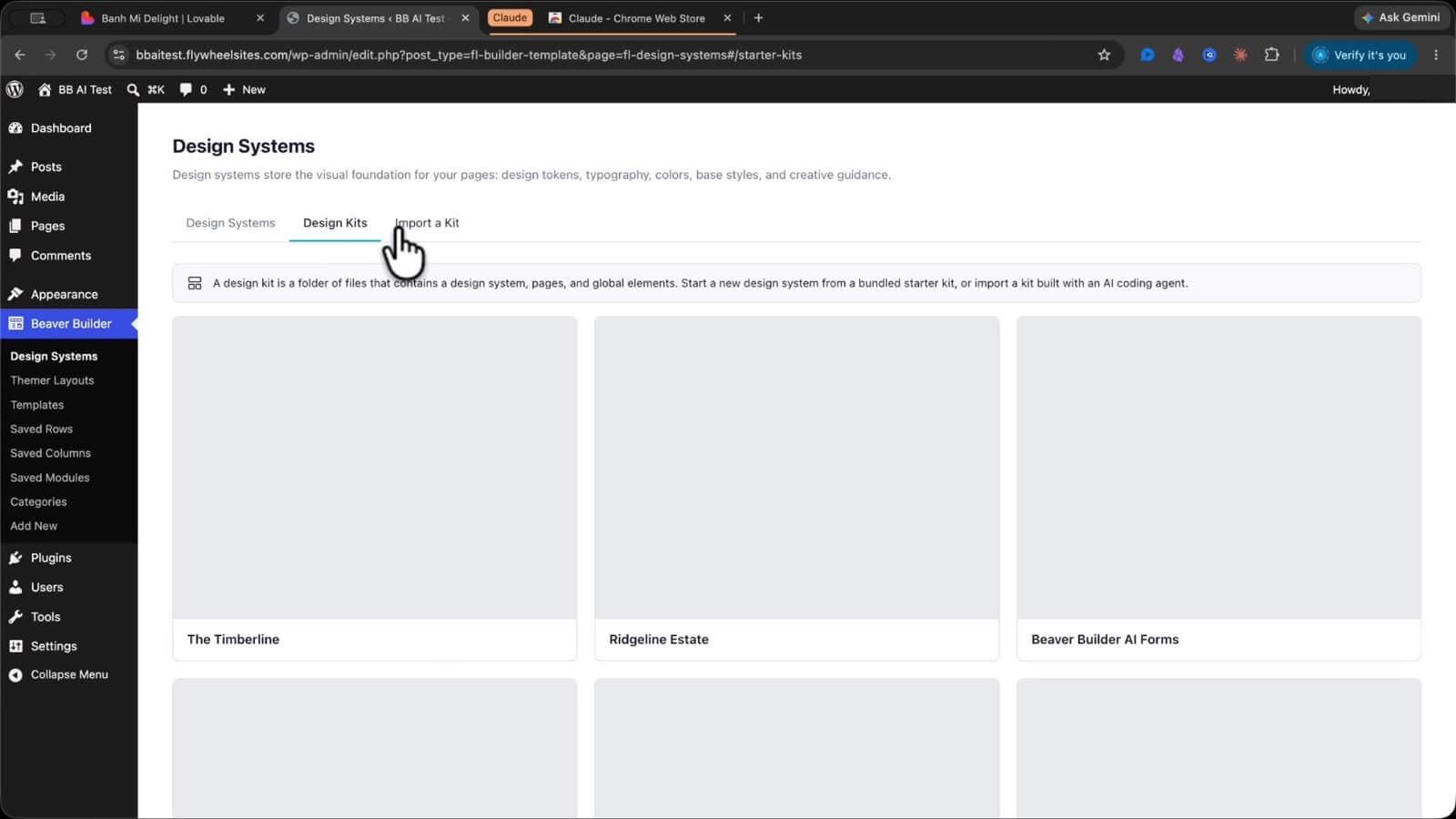
In WordPress, go to Beaver Builder and hover over Design Systems, then click it. You’ll see three tabs: Design System, Design Kits, and Import a Kit. Go ahead and click Import a Kit, then click Download Design Kit
Step 2: Package the Design in Lovable
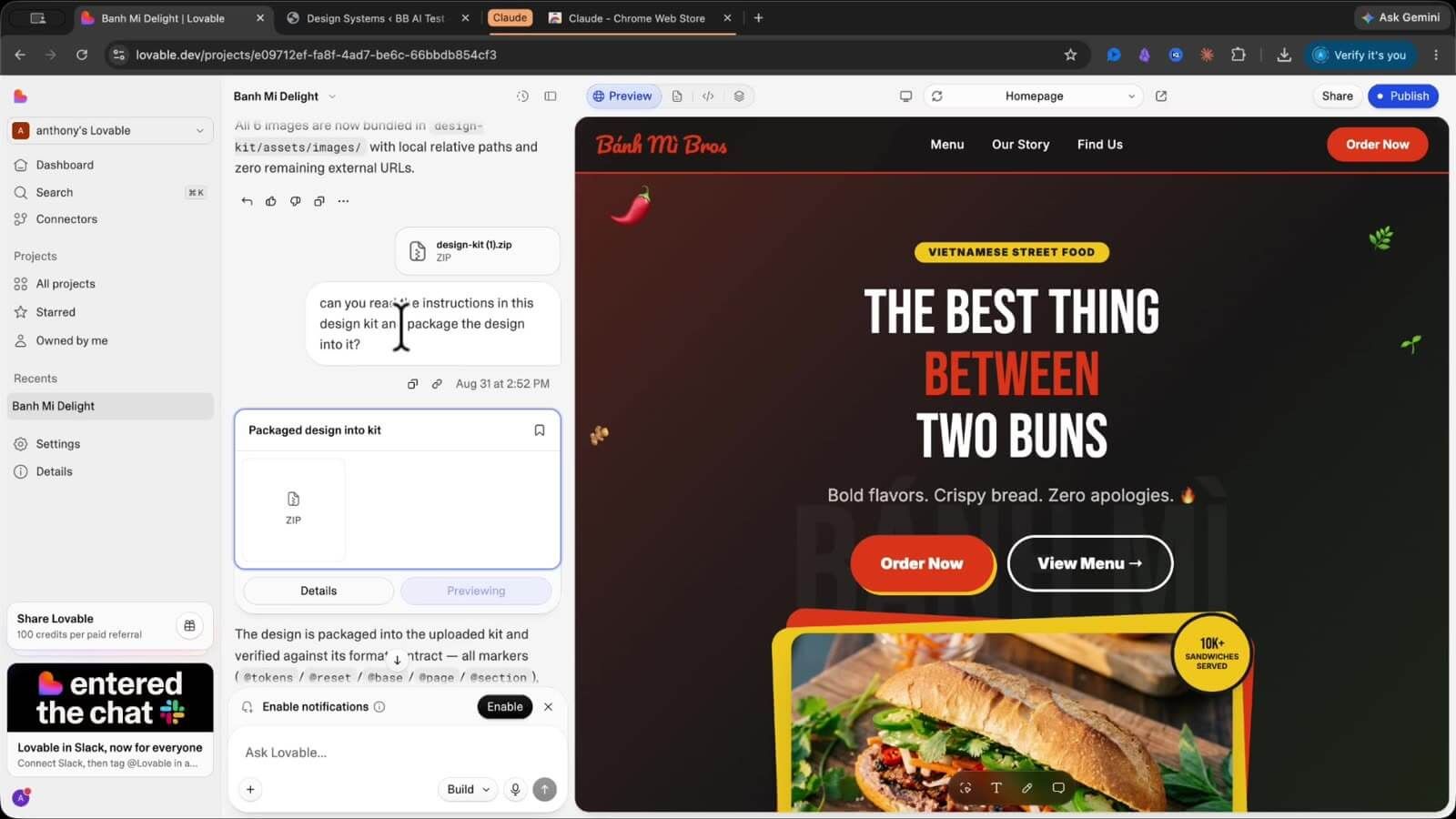
Now here’s the clever part. You take that design kit and hand it to Lovable. Attach the kit file in the Lovable chat and ask it to read the instructions and package your design. Think of it like Lovable zipping up all your design pieces into one neat file for you. Lovable does the work, then you download the zip.
Step 3: Import the Kit into WordPress
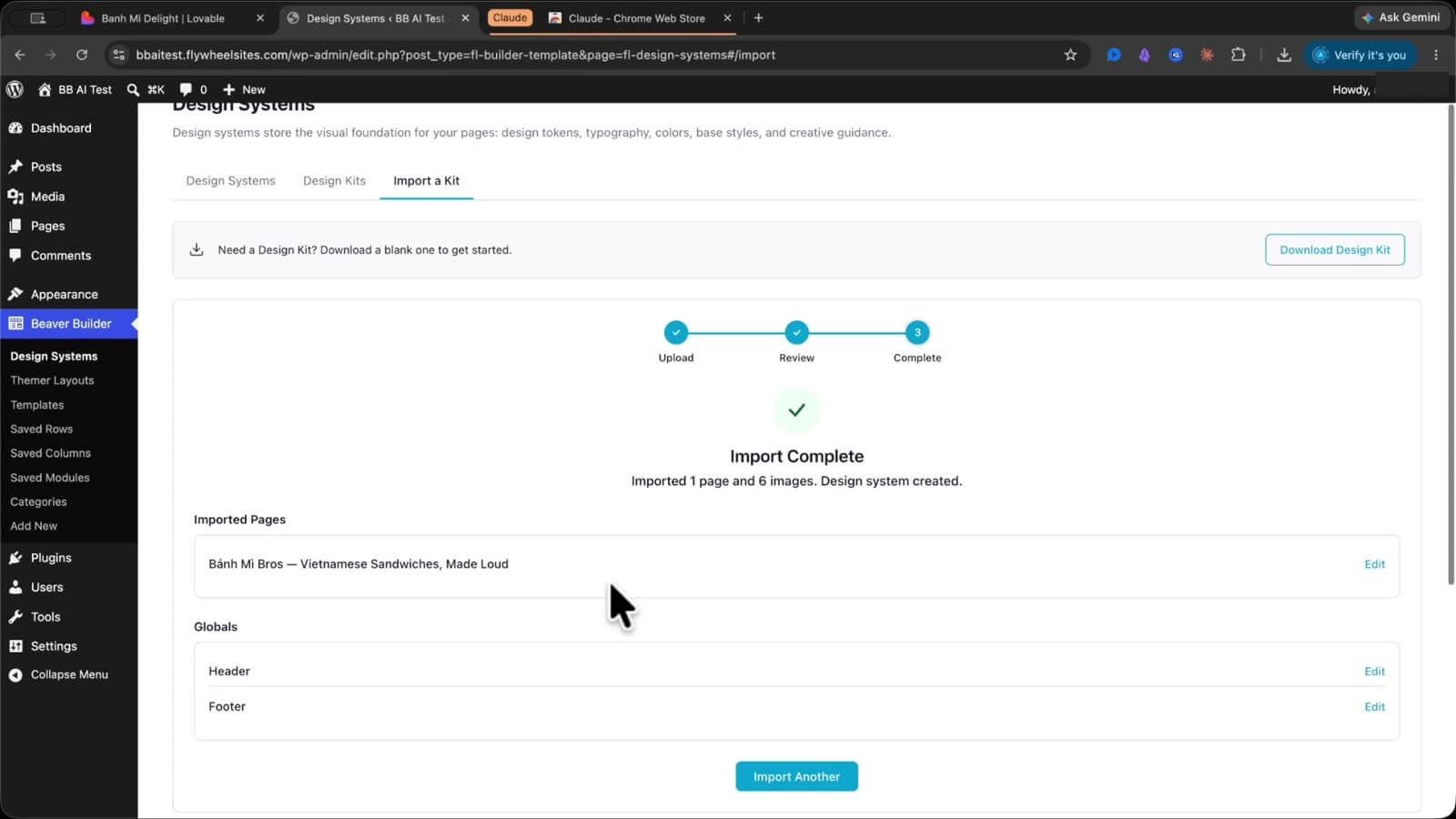
Back in WordPress, go to that Import a Kit screen and drag your zip into the import box. Then click Import.
Give it a second. When it’s done, you’ll see the import is complete. It pulls in your page and side-loads all the images straight into your WordPress media library. No uploading images one by one.
Step 4: Preview Your Page
Head to Pages and preview the one it made. There you go. Your design is a WordPress page now, images and animations and all.
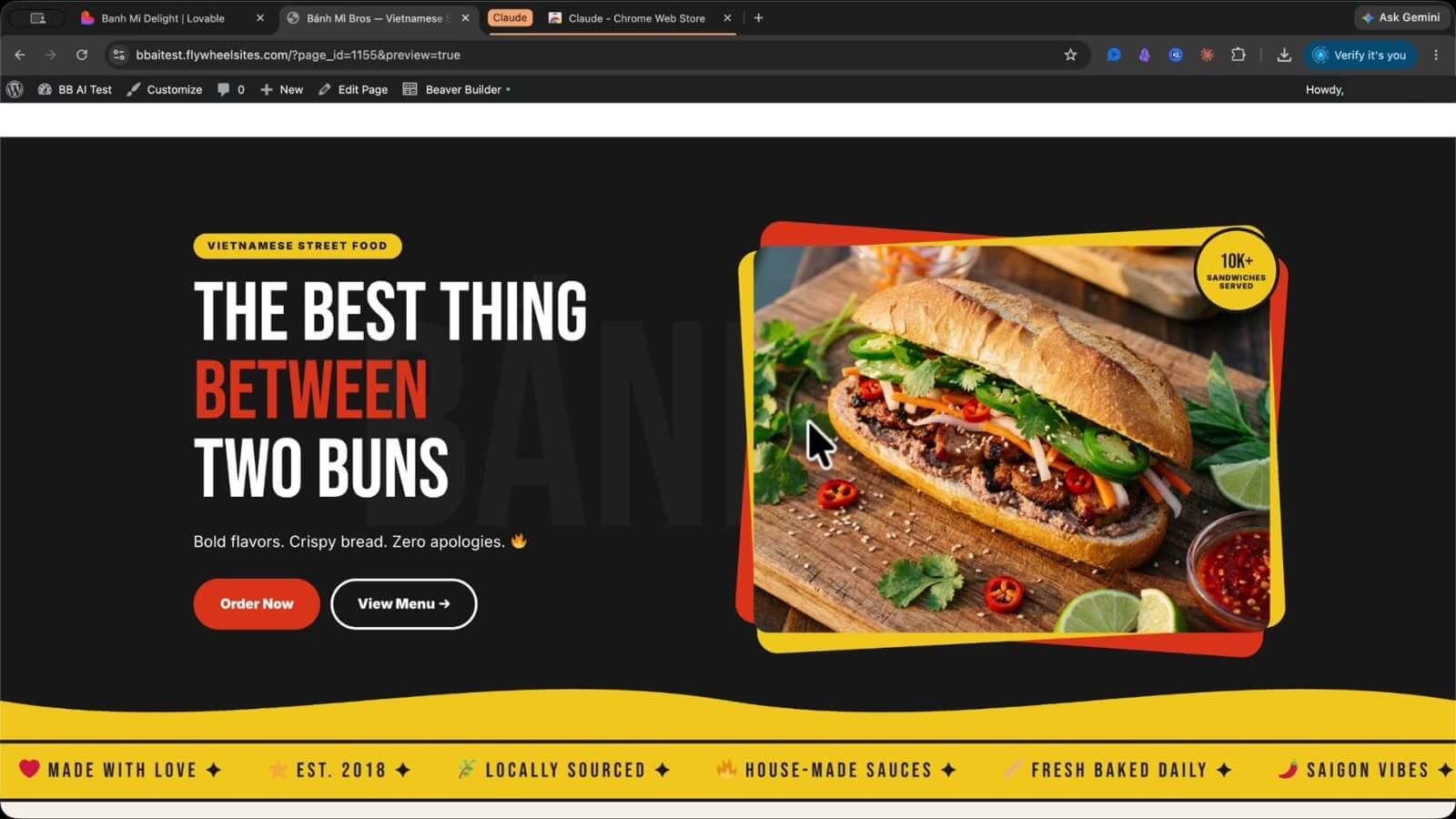
Step 5: Add the Header and Footer with Themer
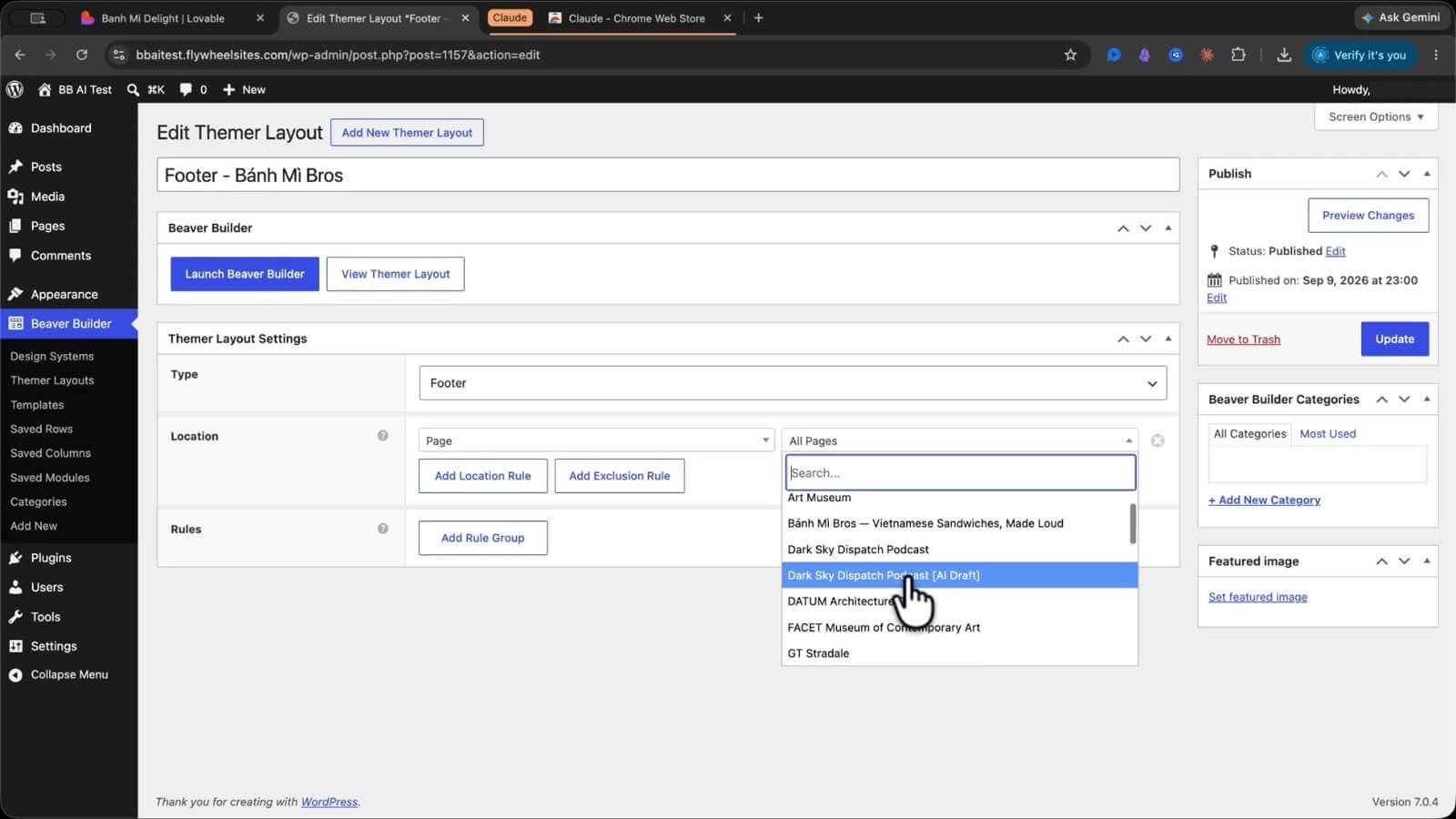
Now you might be looking at this and going, wait, where’s my header and footer? That’s what Beaver Themer is for. Go to Beaver Builder, then Themer Layouts. Edit your header, edit your footer, and set the location for each. I set mine to the exact page, since I’ve got a few different designs on this site. If you want it across the whole site, you can pick Entire Site instead.
Now load the page. Header, footer, design, all there. Beautiful.
Step 6: Page is Fully Editable
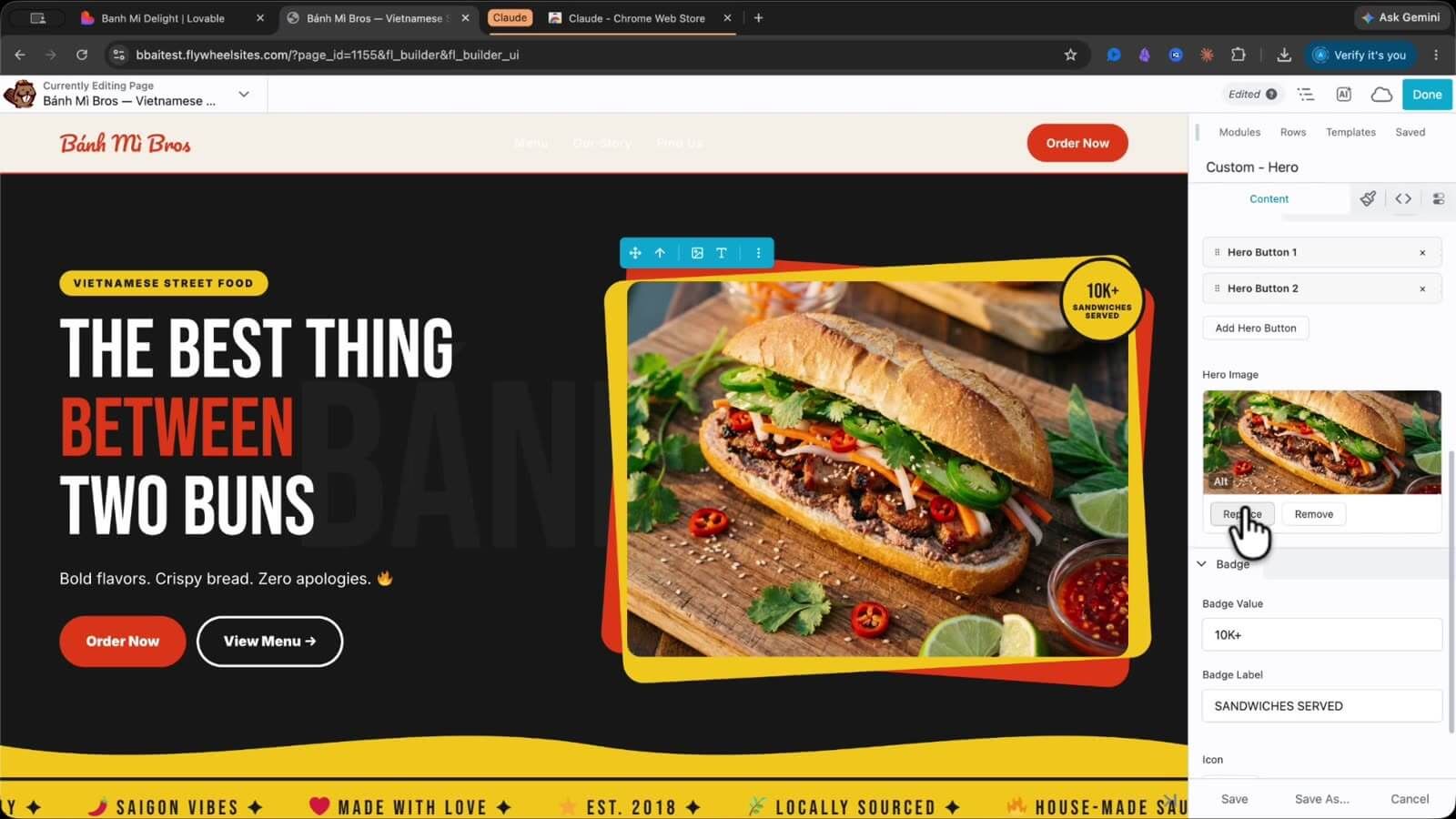
Okay, here’s the part I love. The page is live inside Beaver Builder, so you can actually edit it. Click around and change the words. Open Styles and edit the title, the eyebrow, the body text, or swap out an image. See that little code bracket? Click it and you get to the HTML, CSS, and JavaScript. You can duplicate rows, drag sections around, and delete anything you don’t want.
That’s the big difference from leaving it in Lovable, where you don’t get many editing options. Once it’s in Beaver Builder, it’s yours to play with.
When you’re happy with it, click Done and then Publish.
Method 2: The MCP Connector (Close to Pixel-Perfect)
Use this one when you want a close to pixel-perfect copy of your Lovable design.
Method 1 gets you close. But maybe you’re thinking, that’s great, but it’s not an exact match to my design. Fair enough. If you want the clone to line up closer to your original, you connect Claude, ChatGPT, or another LLM that offers an MCP connection straight to WordPress, using the MCP connector from Beaver Builder AI.
I’ll walk you through it with Claude. Here’s how.
Step 1: Setup Your MCP Connection
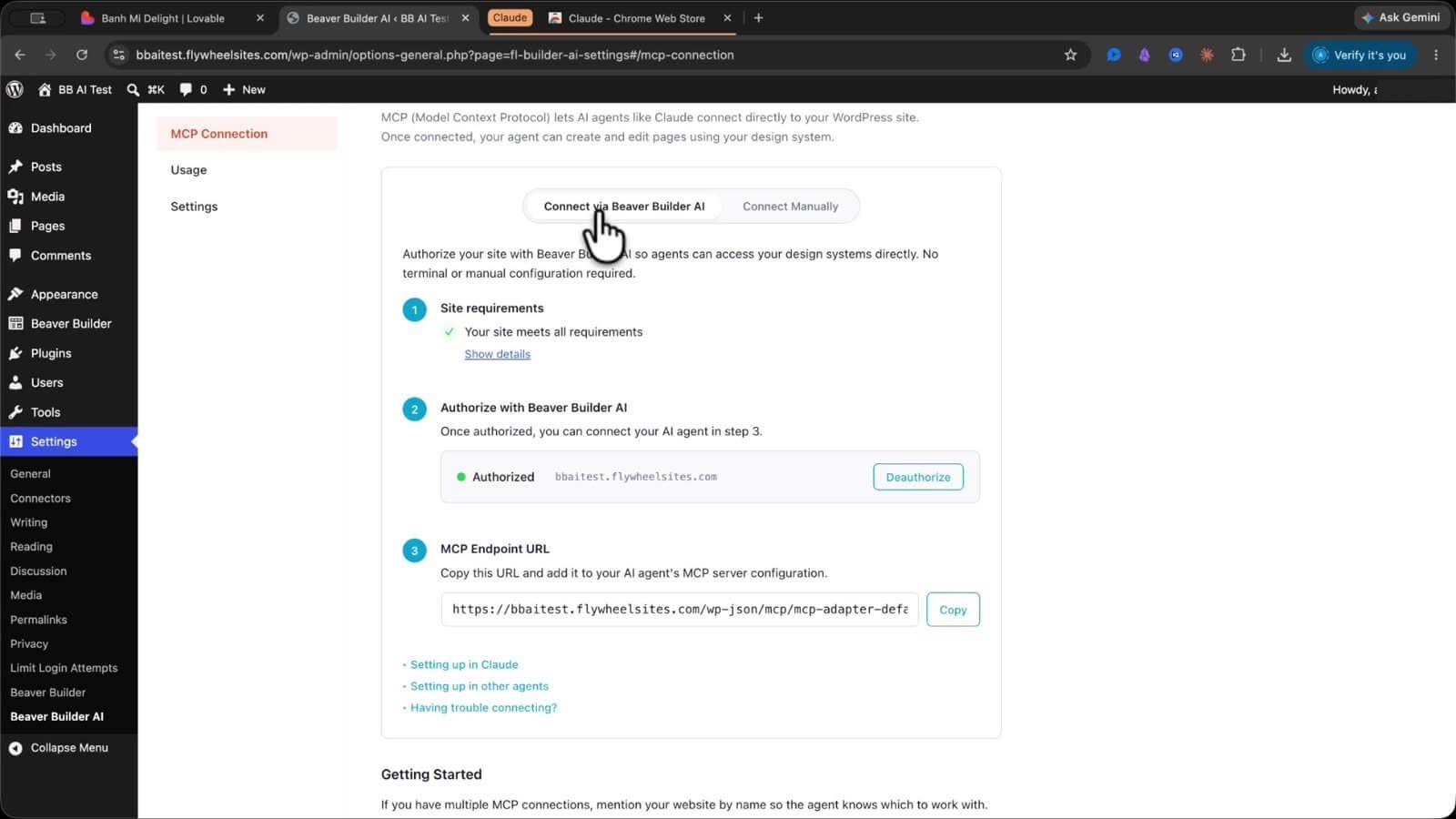
In WordPress, go to Settings and scroll down to Beaver Builder AI. Click the MCP Connection tab. You’ll see two ways to connect: through Beaver Builder AI, or manually. We’re going to use the Beaver Builder AI way.
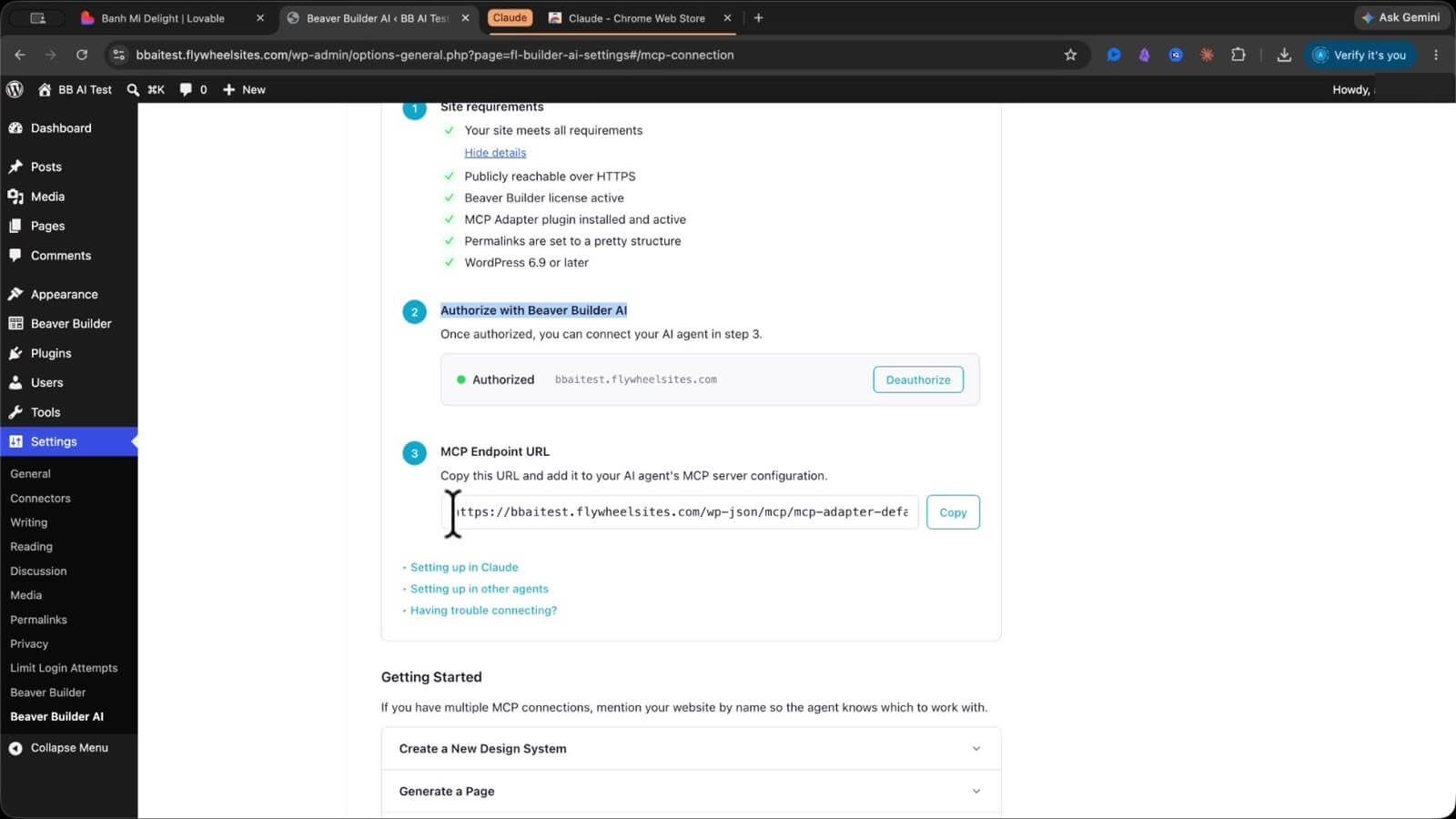
Take a look at the site requirements on that screen. Your site should be on HTTPS, have an active Beaver Builder license, and have the MCP adapter plugin turned on.
Step 2: Set Your Permalinks
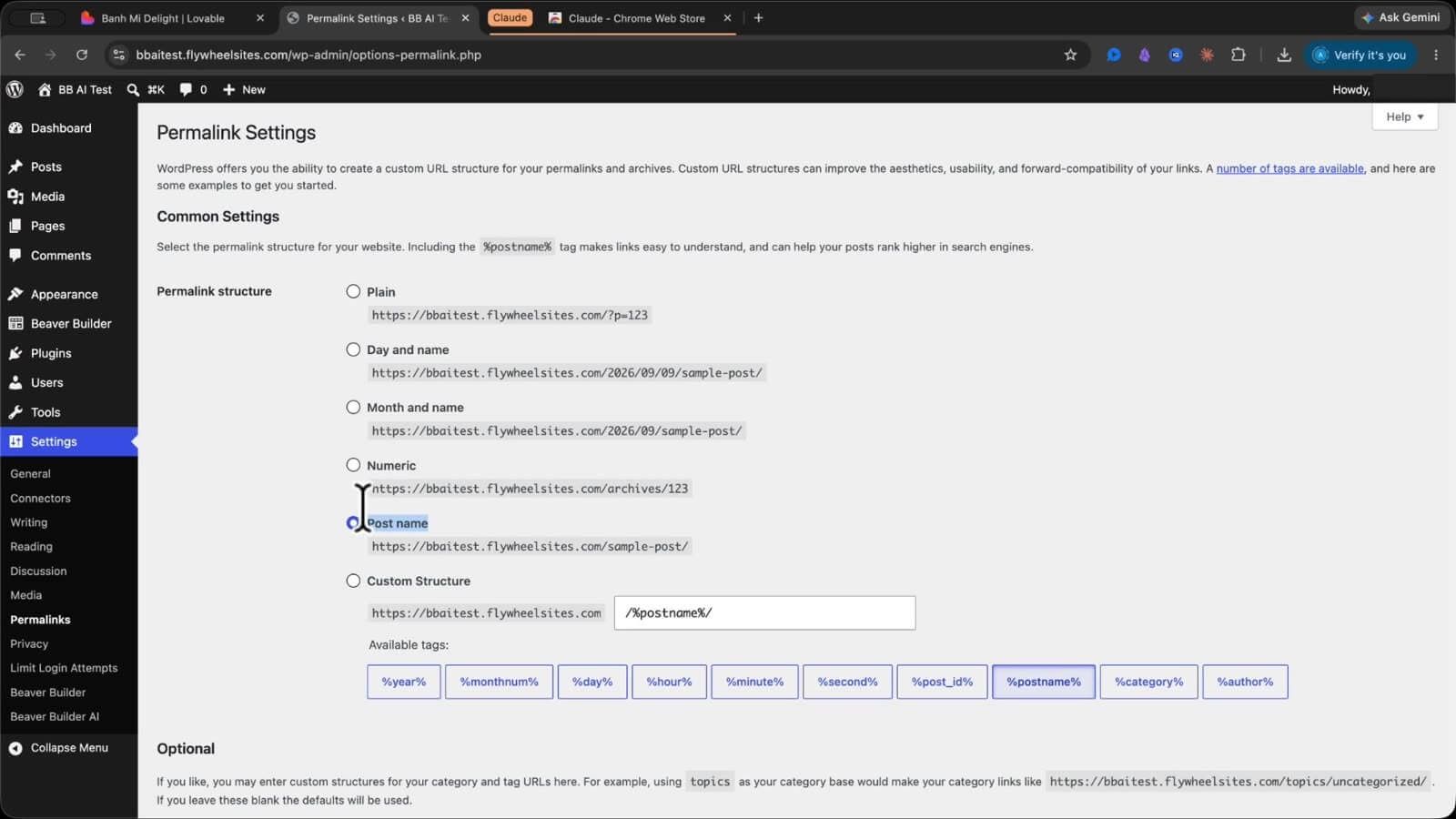
Here’s one people miss. Your permalink structure needs to be set to Post name. Go to Settings, then Permalinks, and pick Post name. A brand new WordPress install is sometimes set to Plain, so switch it and save.
Step 3: Authorize and Copy Your MCP URL
Back on the MCP Connection screen, authorize it for use with Beaver Builder AI. Then copy the MCP URL. Hang on to that, you’re about to paste it into Claude.
Step 4: Add the Connector in Claude
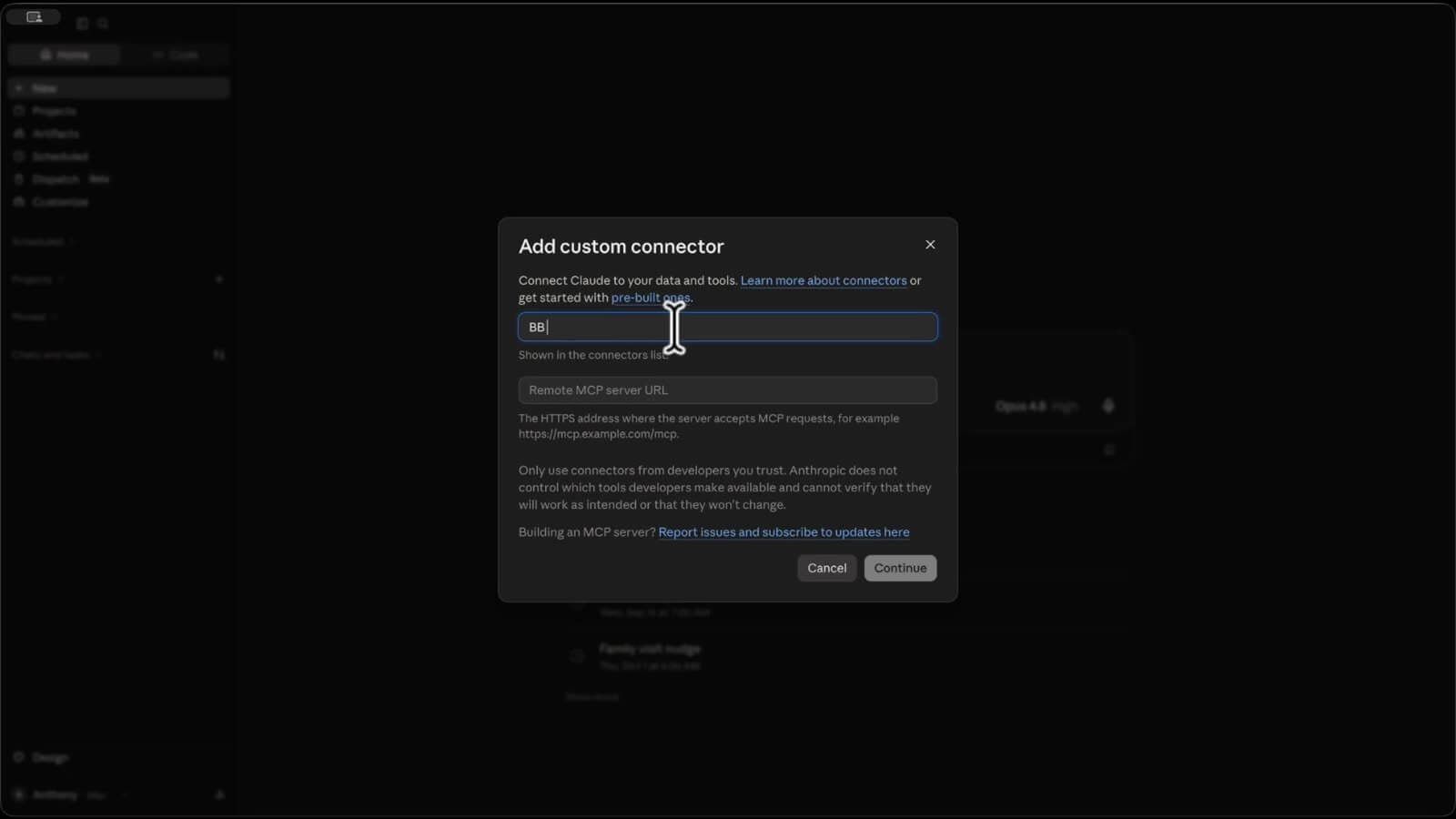
Open Claude. Click the plus button, hover over to Connectors, and click Add Connector. You want to add a custom connector. Give it any name you like, I called mine BB AI, and paste in that MCP URL. Click Continue and approve it. To make sure it worked, open Manage Connectors and look for it in the list.
Step 5: Give Claude the Page and the Prompt
Go to your Lovable site and click Publish, then copy the live URL. Paste that into Claude with a prompt like this:
I have a website design page on Lovable. Can you make me a pixel-perfect clone into my WordPress website using the Beaver Builder AI MCP connector? You can also use the Chrome extension to view the browser, so you can compare the Lovable page and the WordPress page and make it pixel-perfect.
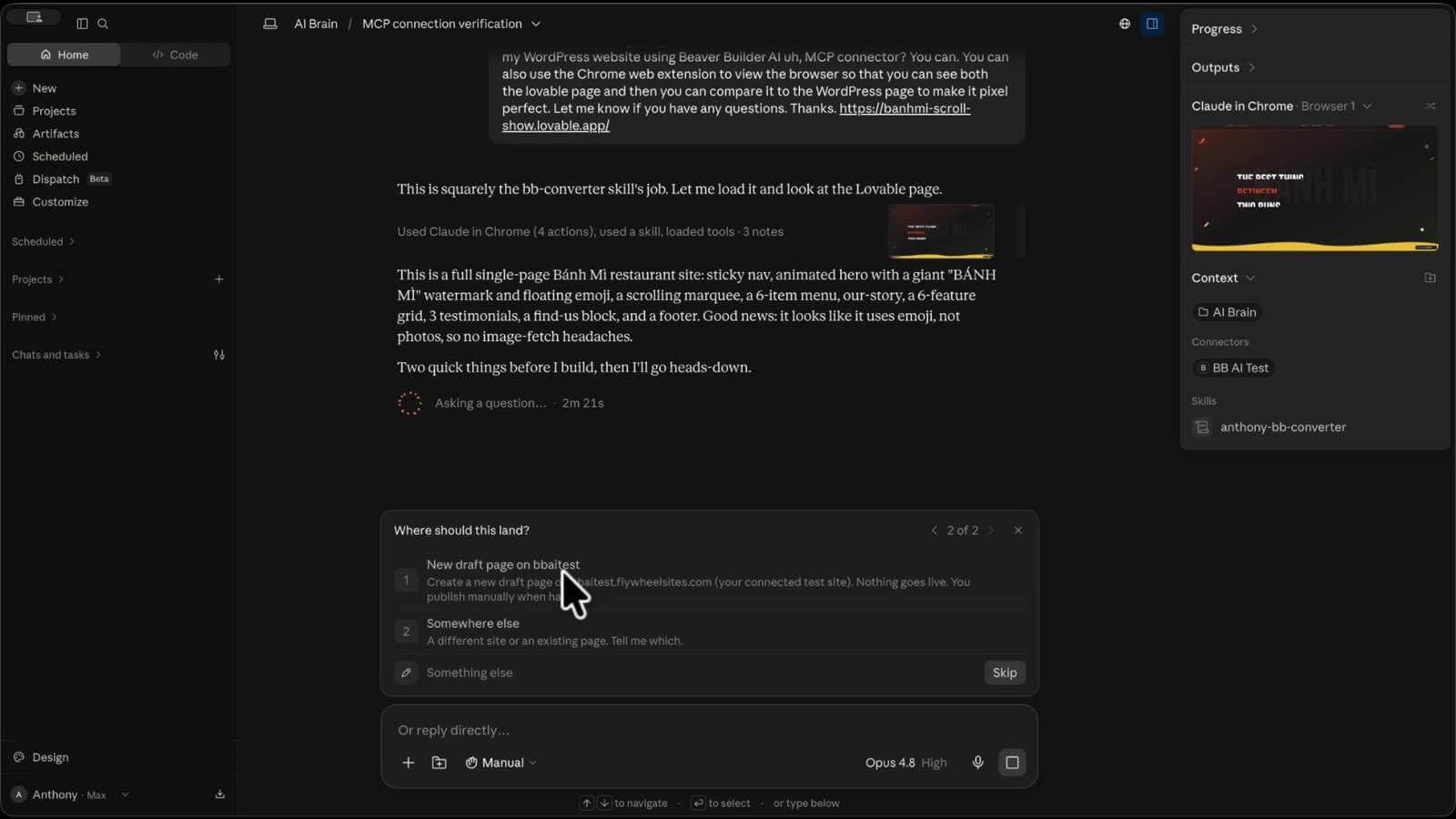
Claude might ask for permission to use your browser. Go ahead and click Allow. When you see a colored outline around the browser tab, that’s Claude looking at the page. Approve the Beaver Builder AI actions when it asks, and then let it work.
It builds the page, uses the Chrome extension to take screenshots, and checks its own work against your Lovable design.
Step 6: Check the Pixel-Perfect Result
When Claude is done, it’ll tell you the clone is built and hand you a preview link.
If a duplicate header shows up, open the page in Edit, set the template to No Header/Footer, and save. Preview again and it’s clean.
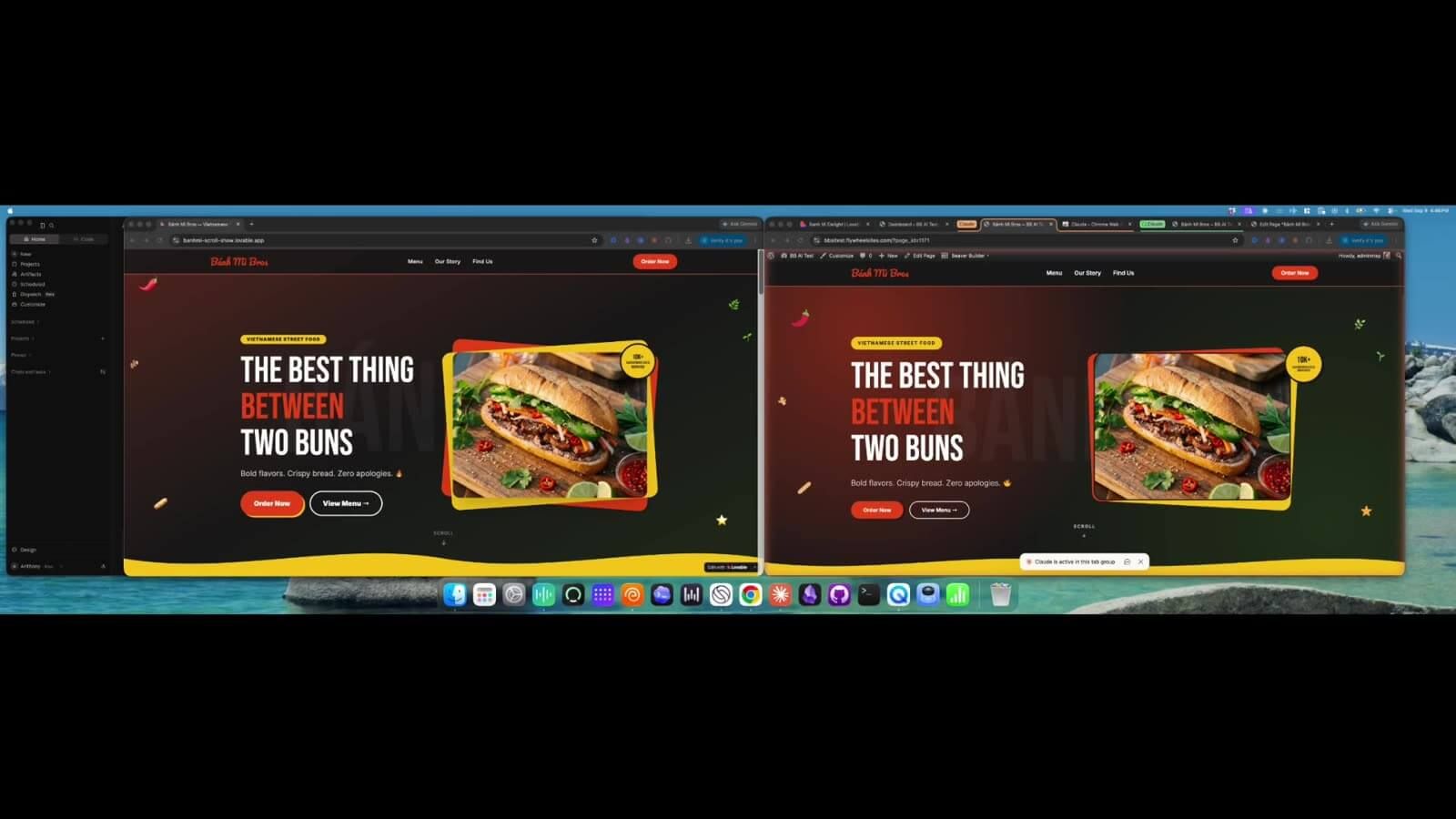
Now for the fun part. Put the two pages side by side. The WordPress version has the images, the content, the scrolling marquee, the rounded card corners, even that subtle hover animation. Look at that. Really close, right down to the details.
Which Method Should You Use?
Both of them get your Lovable AI design into WordPress, and both leave you editing it inside Beaver Builder. So here’s the simple way to choose.
Want it fast and you don’t mind small differences? Go with Design Kits.
Want it as close to the original as possible? Go with the MCP connector and Claude, ChatGPT, or another MCP-capable LLM.
Either way, your design lands on WordPress, where you own it and can change anything you want.
Frequently Asked Questions
Nope. I’m not a coder either. Both methods are point and click, and the MCP method has Claude do the building for you.
Yep. Design Kits drops the images straight into your WordPress media library. The MCP method rebuilds them right on the page.
For sure. The page lands inside Beaver Builder, so you can change text, swap images, move sections, even get into the code.
Design Kits is faster, but it gets you in the ballpark. The MCP connector gets you a close to pixel-perfect clone, lined up with your original.
A WordPress site, the Beaver Builder AI, Page Builder, Themer, and MCP adapter plugins, a Beaver Builder theme, and the Claude Chrome extension.
Wrapping Up
And that’s it. Two ways to convert a Lovable design into WordPress with Beaver Builder AI. One’s fast, one’s pixel-perfect, and both leave you with a site you can actually edit and own.
If you want to watch me do the whole thing start to finish, the full video about how to convert Lovable to WordPress walks through both methods step by step. Hope this helps. Take care.

Start here

Beaver Builder AI Demo
Build a page with AI on a site that already has Beaver Builder and Beaver Themer installed. Free AI credits included.
Our Newsletter
Our newsletter is personally written and sent out about once a month. It's not the least bit annoying or spammy.
We promise.
Try Beaver Builder Today
Related articles
How to Turn a Screenshot Into a WordPress Page With AI
 -
October 29, 2026
-
October 29, 2026
Have you ever had a client send you a screenshot and ask you to make their website look like it?…
Create a Dark Mode Toggle in WordPress
 -
October 15, 2026
-
October 15, 2026
Add a light and dark mode toggle to your WordPress site with Beaver Builder AI and the free Dark Mode…
How to Convert Base44 design to WordPress using Claude and Beaver Builder AI
-
October 13, 2026
In this article, I share how I moved a landing page design from Base44 to WordPress using Claude and Beaver…
Join the community
We're here for you
There's a thriving community of builders and we'd love for you to join us. Come by and show off a project, network, or ask a question.


Since 2014
Ready to build?
The WordPress page builder agencies and freelancers have trusted since 2014. Now with AI.