
How to fix inconsistent spacing in Beaver Builder’s Box Module? Go to Global Settings and enable “Apply to Box.” This makes your global row spacing automatically apply to Box Modules, giving your entire layout a global source for spacing instead of managing it manually in multiple places.
In this post, you will learn why spacing issues happen when using the Box Module and how to fix it.
Why Spacing Gets Inconsistent in the First Place
Beaver Builder gives you a lot of places to control spacing. Rows have top and bottom spacing. Columns have padding. Individual modules have their own margin and padding controls. In addition, Box Modules, which can operate as a top-level container, have their own settings.
The Fix: Apply Global Row Spacing to Box Modules
Beaver Builder 2.10+ adds an option in Global Settings called “Apply to Box.” Enable it, and your global row spacing automatically applies to Box Modules placed at the top level of your layout:
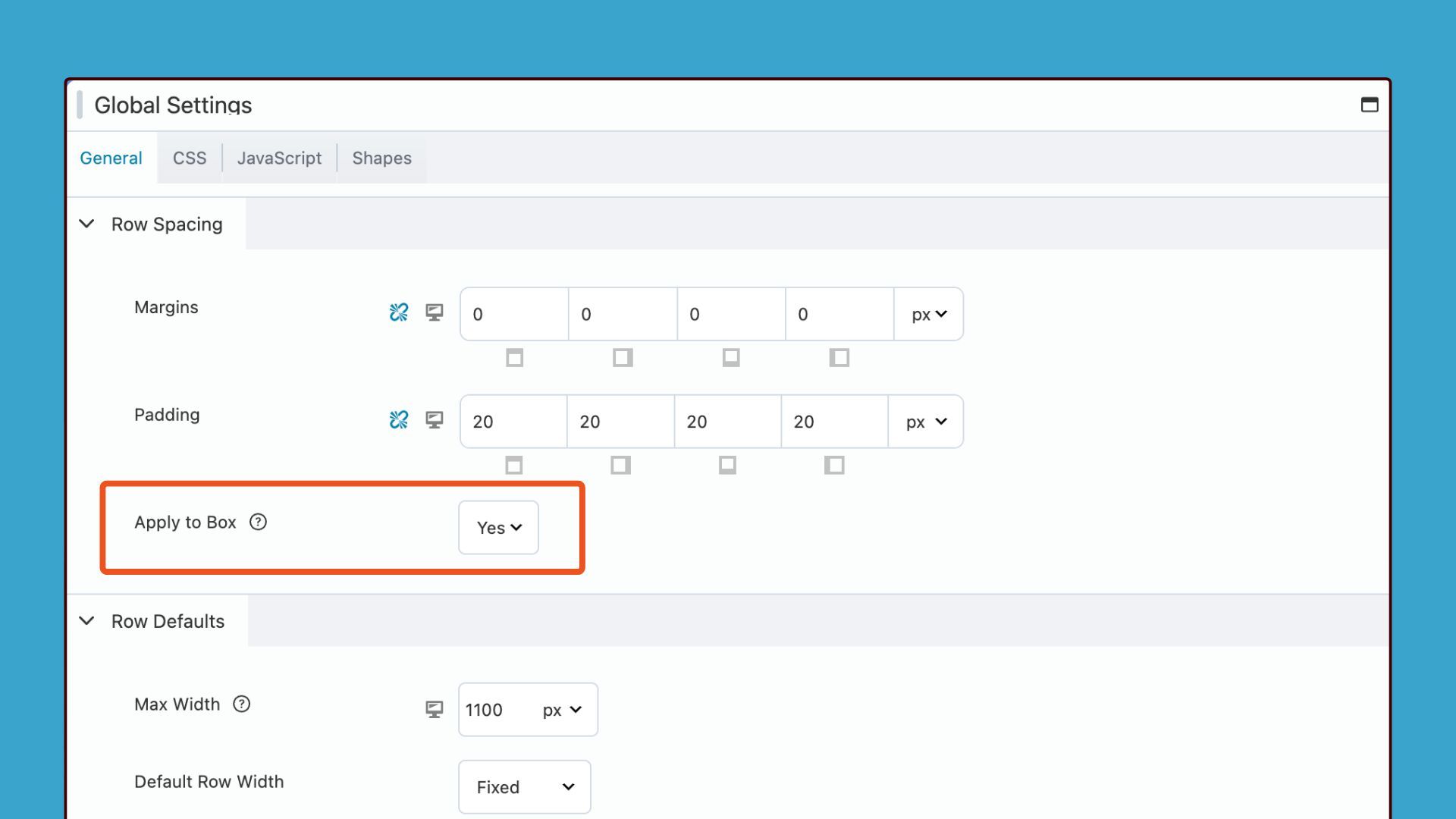
One toggle, and your spacing system becomes consistent across rows and Box Modules without touching each one individually.
In practice, the workflow changes significantly. You drop in a Box Module, keep building, and the spacing takes care of itself. You define your spacing once, in one place, and the builder applies it consistently.
Where to Find the “Apply to Box” Setting
You’ll find the “Apply to Box” option inside Beaver Builder’s Global Settings:
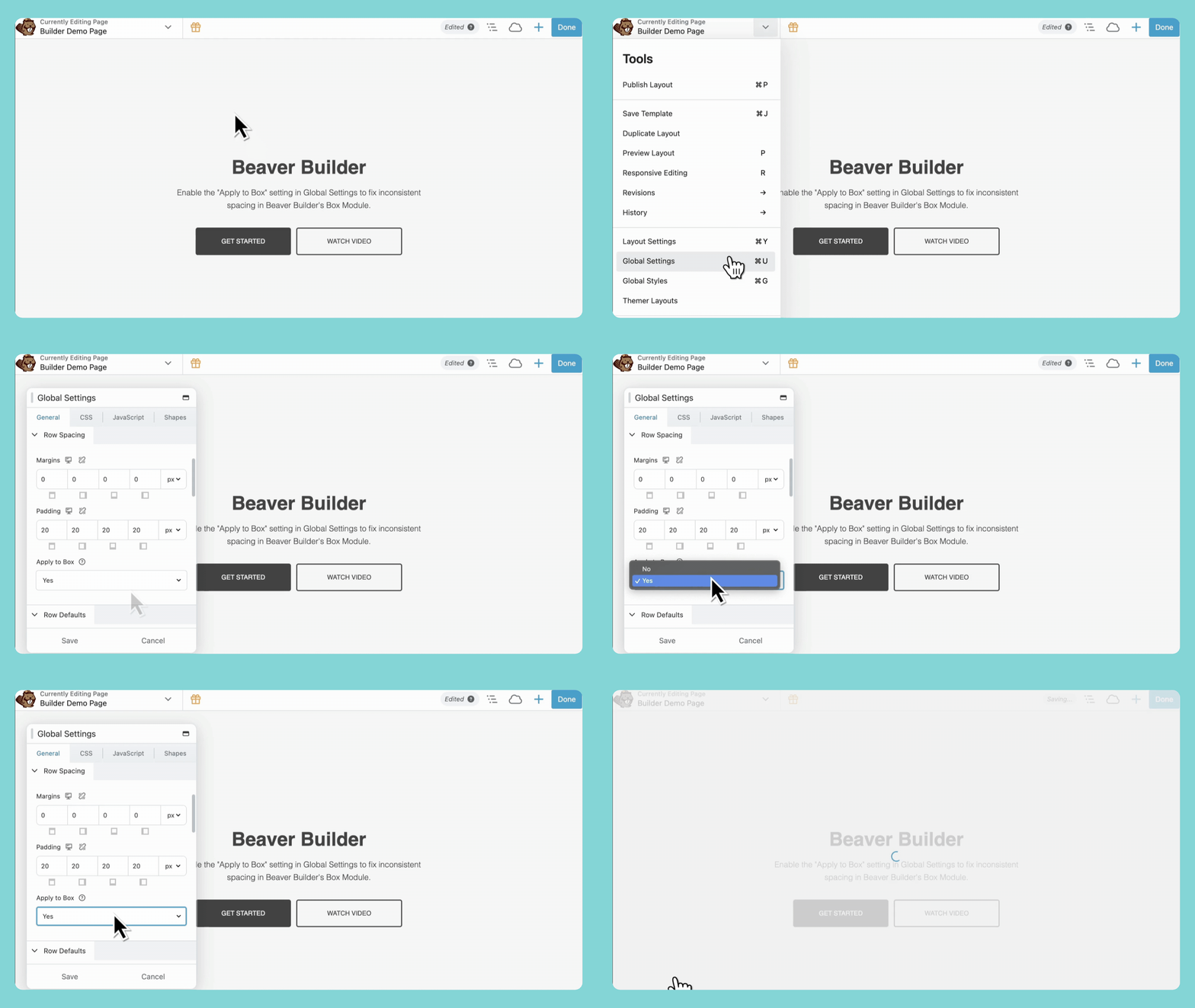
To enable it:
- Open the Beaver Builder editor
- Go to Tools → Global Settings
- Under the General tab, scroll to Row Spacing
- Toggle on “Apply to Box”
Once enabled, any Box Module added at the top level of your layout will follow your global row spacing rules automatically.
New Sites vs Existing Sites
For new sites, “Apply to Box” is enabled by default. Just set your global row spacing, start building, and the Box Modules follow suit.
For existing sites upgrading to 2.10+, the setting is disabled by default. If you’ve already built pages with manually configured spacing inside Box Modules, enabling this option could add unexpected spacing or shift your layouts visually.
Before you enable it on a live site, test it on staging first. Pull up your key pages, check them at different breakpoints, and see what, if anything, shifts. Most sites will need minimal adjustments. A few, particularly those with heavily customized Box Module spacing, may need more attention before going live.
Best Practices for Using Global Spacing With Box Modules
Once you enable “Apply to Box,” here are a few tips to help you get the most out of it:
Define your spacing system before you start building. Decide on your spacing early. Whether you’re working with 40px, 60px, or something in between, set your global row spacing to match that decision before you place a single module. This becomes your foundation, and everything else builds on it.
Let global settings do the work. Resist the temptation to add padding everywhere out of habit. If you’ve enabled “Apply to Box” and set your global spacing correctly, most of your Box Modules won’t need any manual adjustment. Trust the system, then override only when you have a specific reason to.
Use Box Modules for structure, not spacing. Think of Box Modules as containers for organizing content and layout, not as your go-to tool for adding breathing room. Let global settings handle the spacing so Box Modules can focus on structure.
Test across page types after enabling. Once the setting is live, check more than one page type. Landing pages, blog layouts, and interior pages often have different layouts and may respond differently.
Why This Feature Matters
It sounds like a small toggle, but inconsistent spacing is one of the most common things that makes a web page feel slightly off, even when everything else looks good. Consistent spacing makes a website feel more intentional, keeps content flowing naturally, and makes your layouts look more polished without extra work on your end.

Start here

Beaver Builder AI Demo
Build a page with AI on a site that already has Beaver Builder and Beaver Themer installed. Free AI credits included.
Our Newsletter
Our newsletter is personally written and sent out about once a month. It's not the least bit annoying or spammy.
We promise.
Try Beaver Builder Today
Related articles
Create a Dark Mode Toggle in WordPress
 -
October 15, 2026
-
October 15, 2026
Add a light and dark mode toggle to your WordPress site with Beaver Builder AI and the free Dark Mode…
How to Convert Base44 design to WordPress using Claude and Beaver Builder AI
 -
October 13, 2026
-
October 13, 2026
In this article, I share how I moved a landing page design from Base44 to WordPress using Claude and Beaver…
How to Convert Figma Design to WordPress (Claude + Beaver Builder AI)
 -
October 9, 2026
-
October 9, 2026
How do you turn a Figma design into a WordPress site without rebuilding every section by hand? It’s a common…
Join the community
We're here for you
There's a thriving community of builders and we'd love for you to join us. Come by and show off a project, network, or ask a question.


Since 2014
Ready to build?
The WordPress page builder agencies and freelancers have trusted since 2014. Now with AI.