

Beaver Builder AI 1.1 is Here! Generate Images, Build Dynamic Content, Manage WordPress
 -
November 19, 2026
Beaver Builder AI 1.1 is here, and it’s a big update. You can now generate images right inside Beaver Builder, chat with Google Gemini, and connect your custom modules to the content already on your site.
And the best part? AI agents like Claude and ChatGPT can now handle everyday WordPress work for you, like writing draft posts and building menus.
Released 11/12/2026. Works with the Beaver Builder page builder plugin (version 2.11 or later) or on its own in the WordPress block editor. Full technical changelog: wpbeaverbuilder.com/change-logs
The video below walks through all five features. This post follows the same order, so you can read along or skip to the part you need.
Table of Contents
- Generate Images Right Inside Beaver Builder
- Google Gemini Joins the Chat
- Connect Custom Module Fields to Your Content
- Repeaters and Queries That List Almost Anything
- AI Agents Can Handle Everyday WordPress Work
- More in Beaver Builder AI 1.1
- Frequently Asked Questions
- Get Started with Beaver Builder AI 1.1
Generate Images Right Inside Beaver Builder
Ever leave the builder just to hunt for a stock photo? Now you can make the image without leaving the page.
Beaver Builder AI creates images with Google’s Nano Banana model. You just need a Google Gemini API key on the Settings tab, and every image you make is saved to your Media Library.
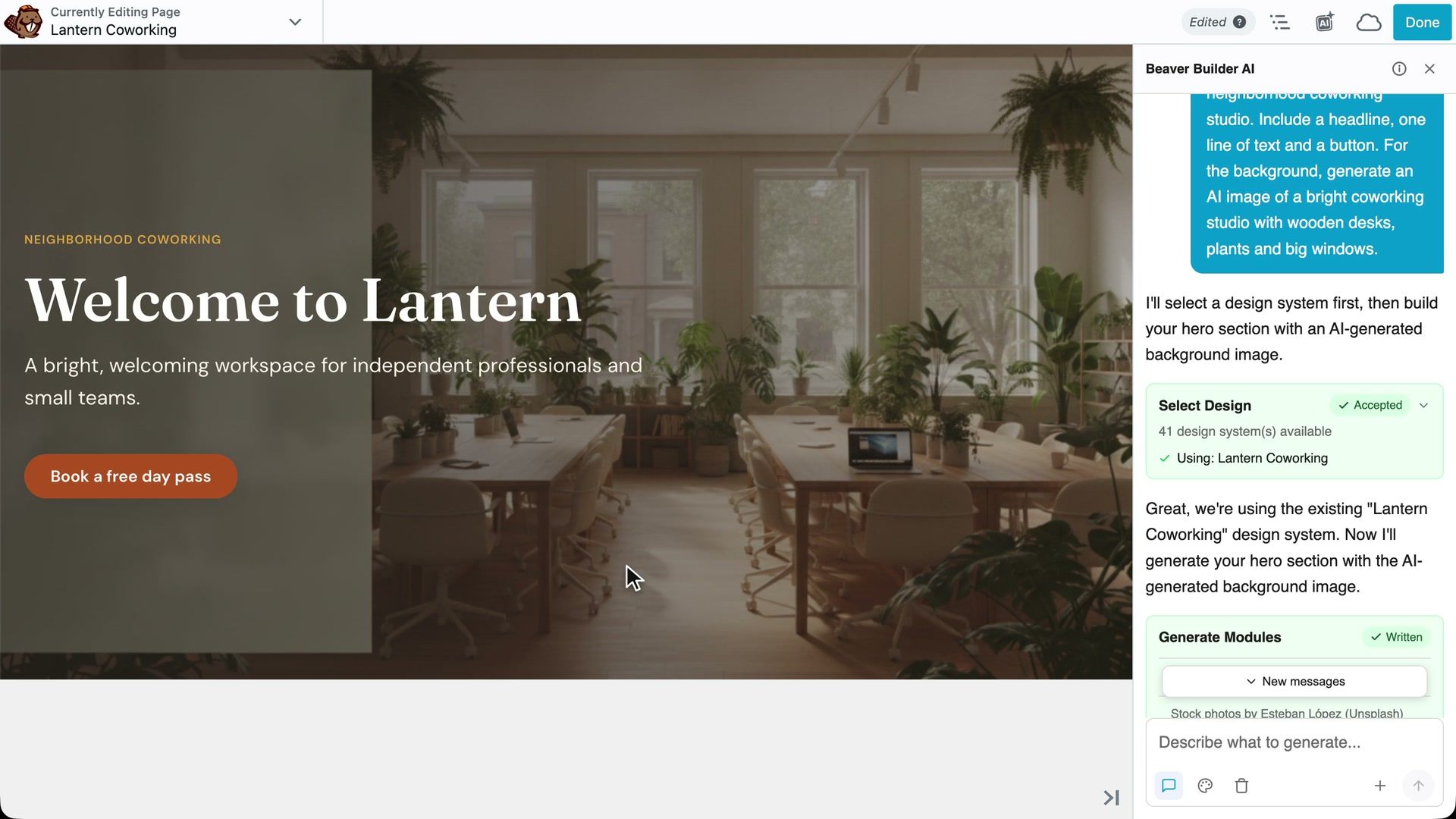
To try it out, we made up a business called Lantern Coworking. We asked the chat to build a hero section with an AI image of the studio as the background. The chat built the hero, then generated the image.
Generate an Image by Hand
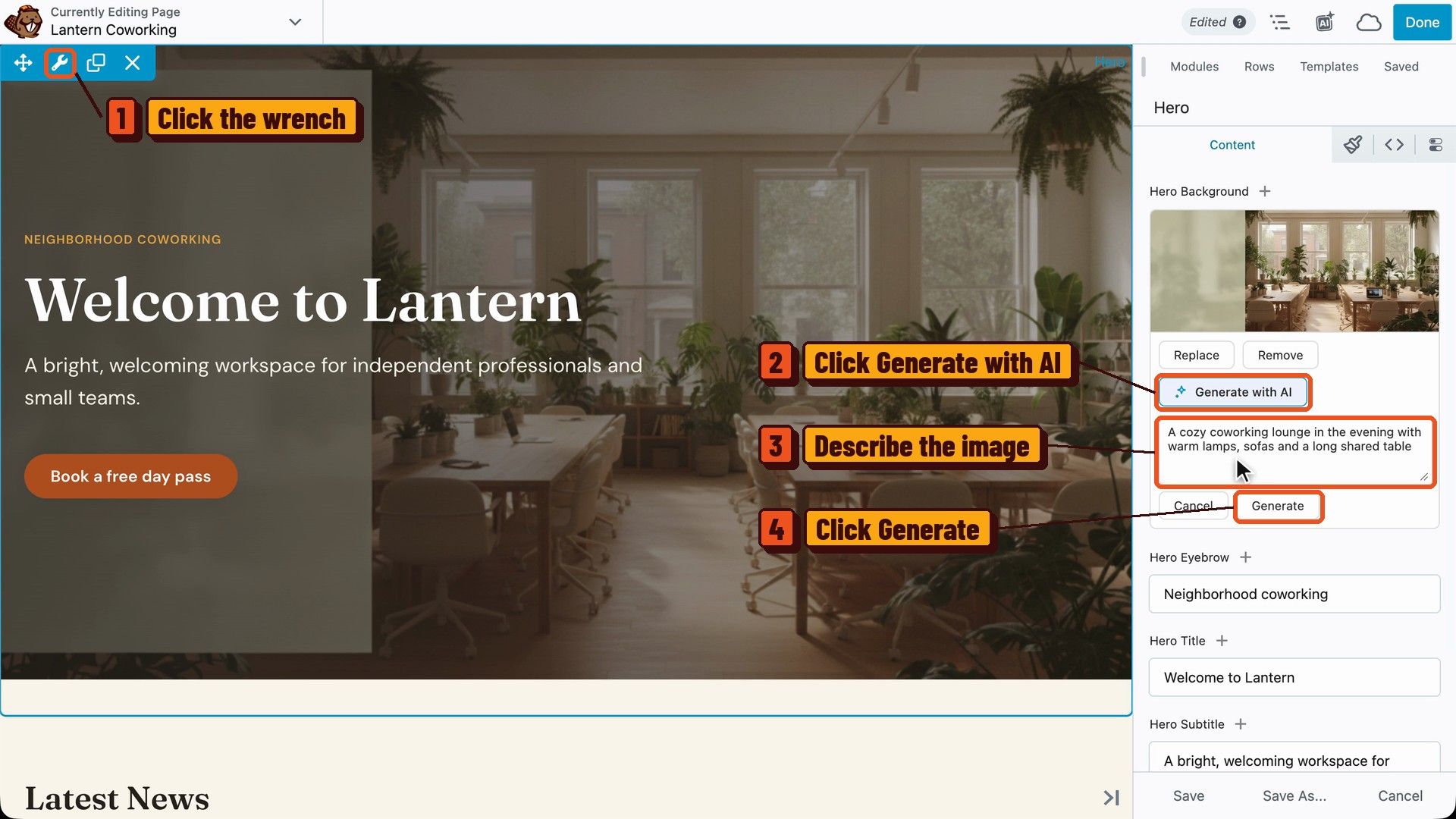
You can also make an image for any image field yourself. Here’s how:
- Hover over the module and click the wrench to open its settings.
- Click Generate with AI below the image field.
- Describe the image you want.
- Click Generate.
We asked for a cozy coworking lounge in the evening, with warm lamps, sofas, and a long shared table.
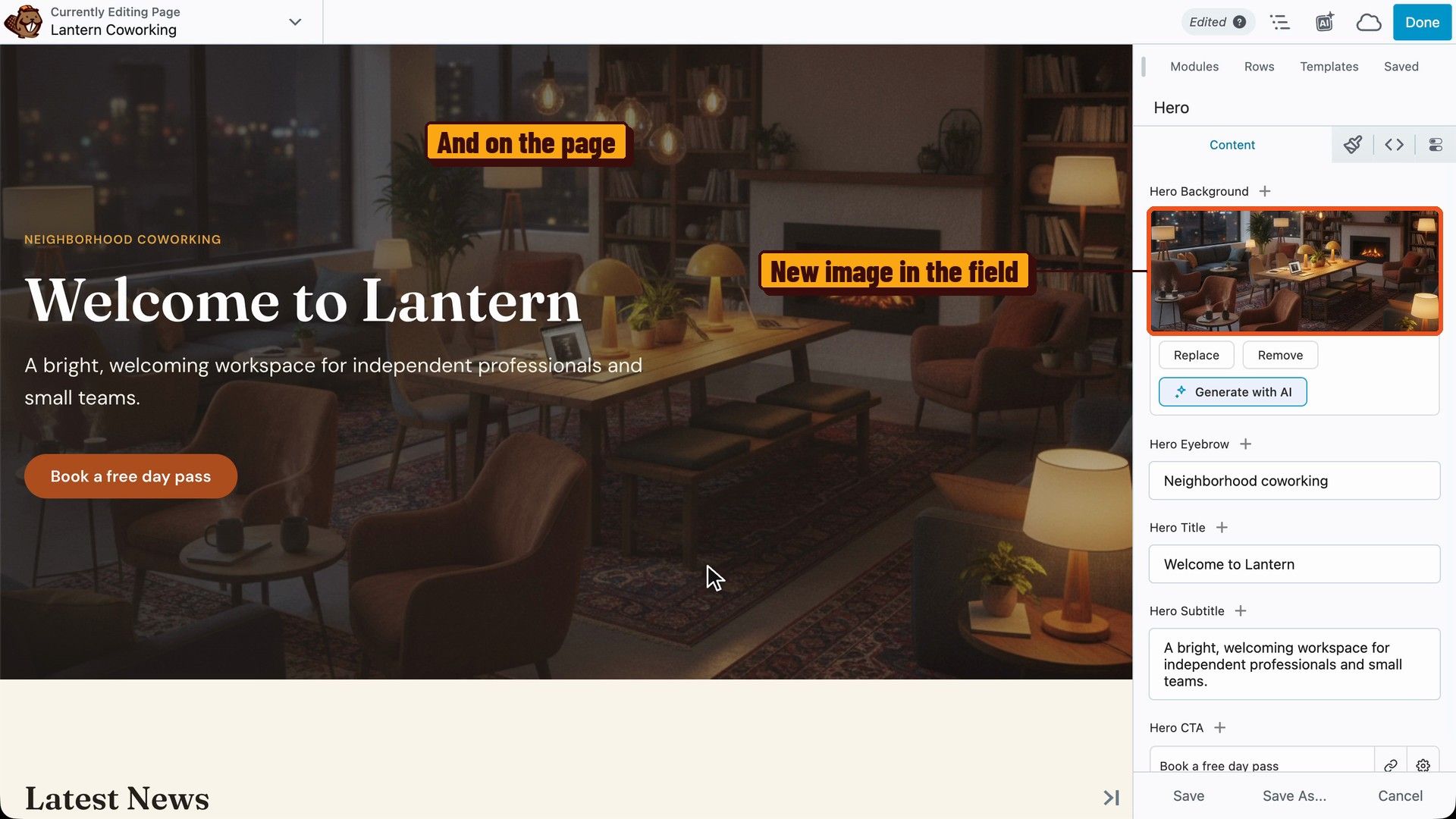
A few seconds later, the new image showed up in the field and on the page.
You’ll also find Generate with AI in the toolbar when you click an image on the canvas. That’s handy when you want to swap one picture without opening the settings.
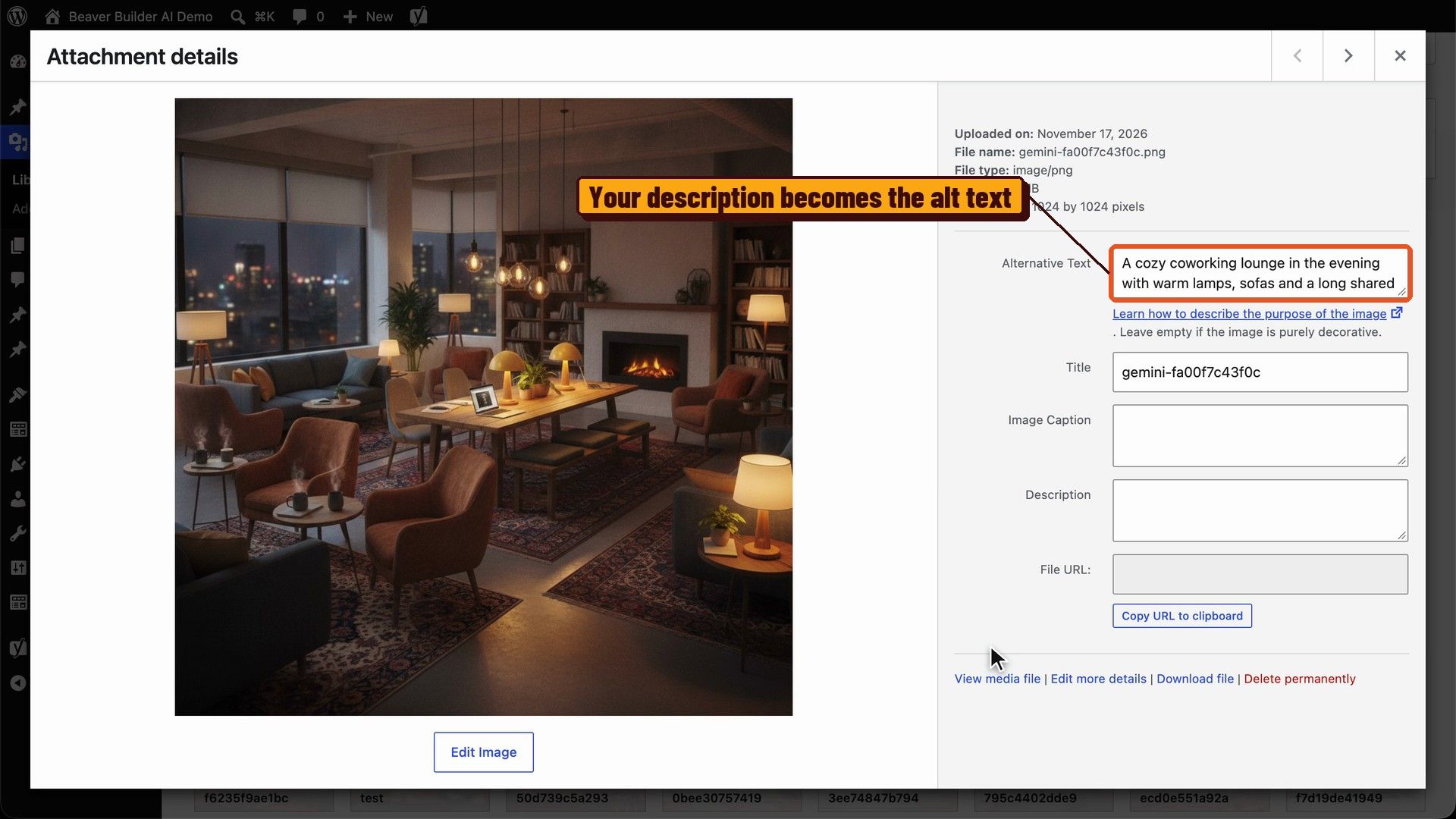
The image is saved to your Media Library, and the description you typed is already filled in as its alt text. You can change it like any other image.
Choose When Images Get Created
There’s also a new Image Generation Timing setting. It decides when images get created for the pages AI builds. You get three options:
- Automatically while building the page creates images as the page is built.
- Ask me after the page is built is the recommended option.
- Only when I ask waits until you ask for an image.
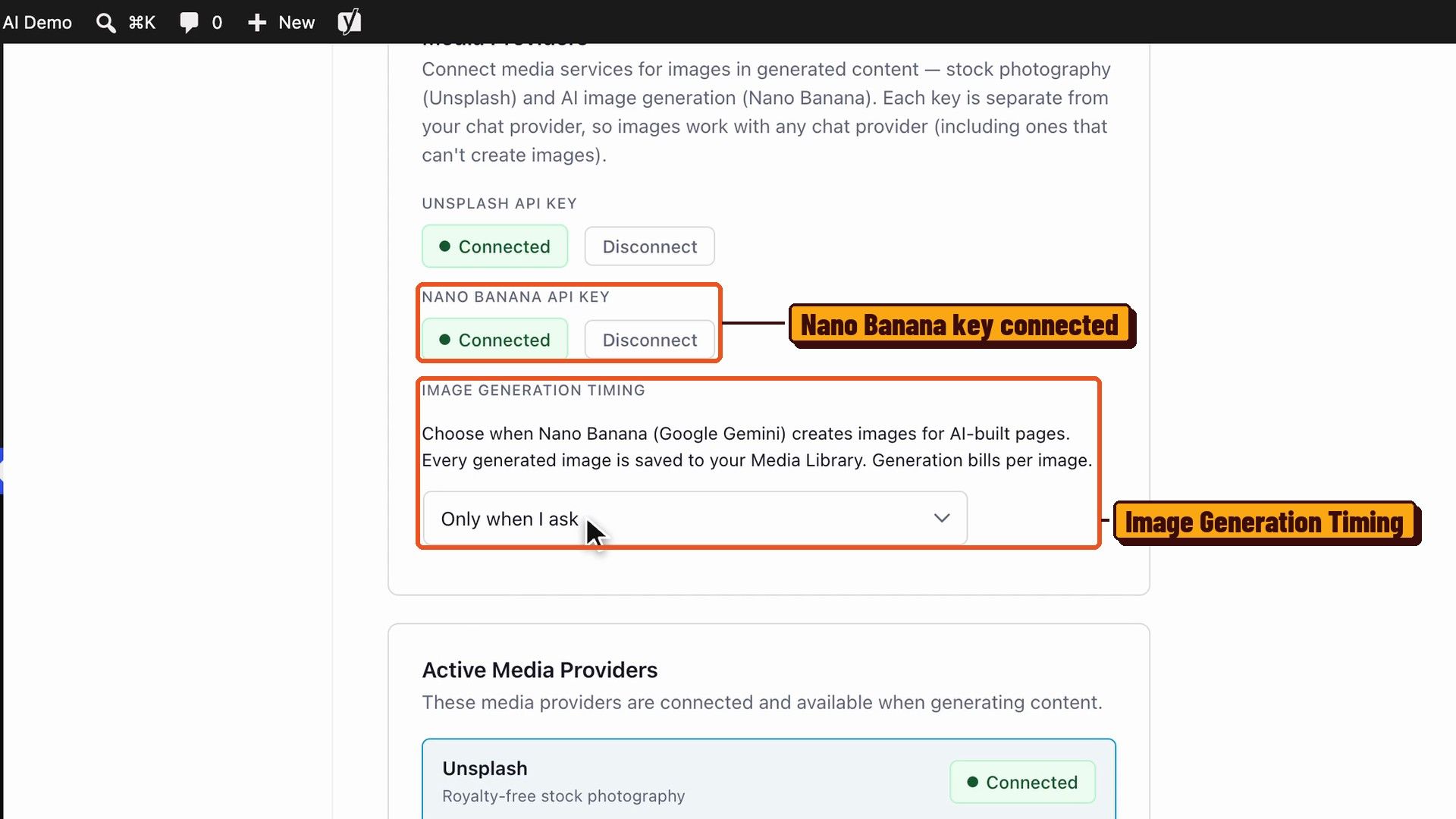
Good news: image generation has its own key, so it works with any chat provider, including Claude and OpenAI.
Each image is billed to your Google account, so I’d set a monthly spending limit in Google’s billing dashboard before you start. The docs cover the setup in Generating images with AI.
Google Gemini Joins the Chat
Want more choice in which AI runs the chat? Google Gemini now sits next to Anthropic, OpenAI, and OpenRouter on the Settings tab, with its own API key.
Here’s how to switch:
- Under Active AI Provider, choose Google Gemini.
- Pick a model from the dropdown.
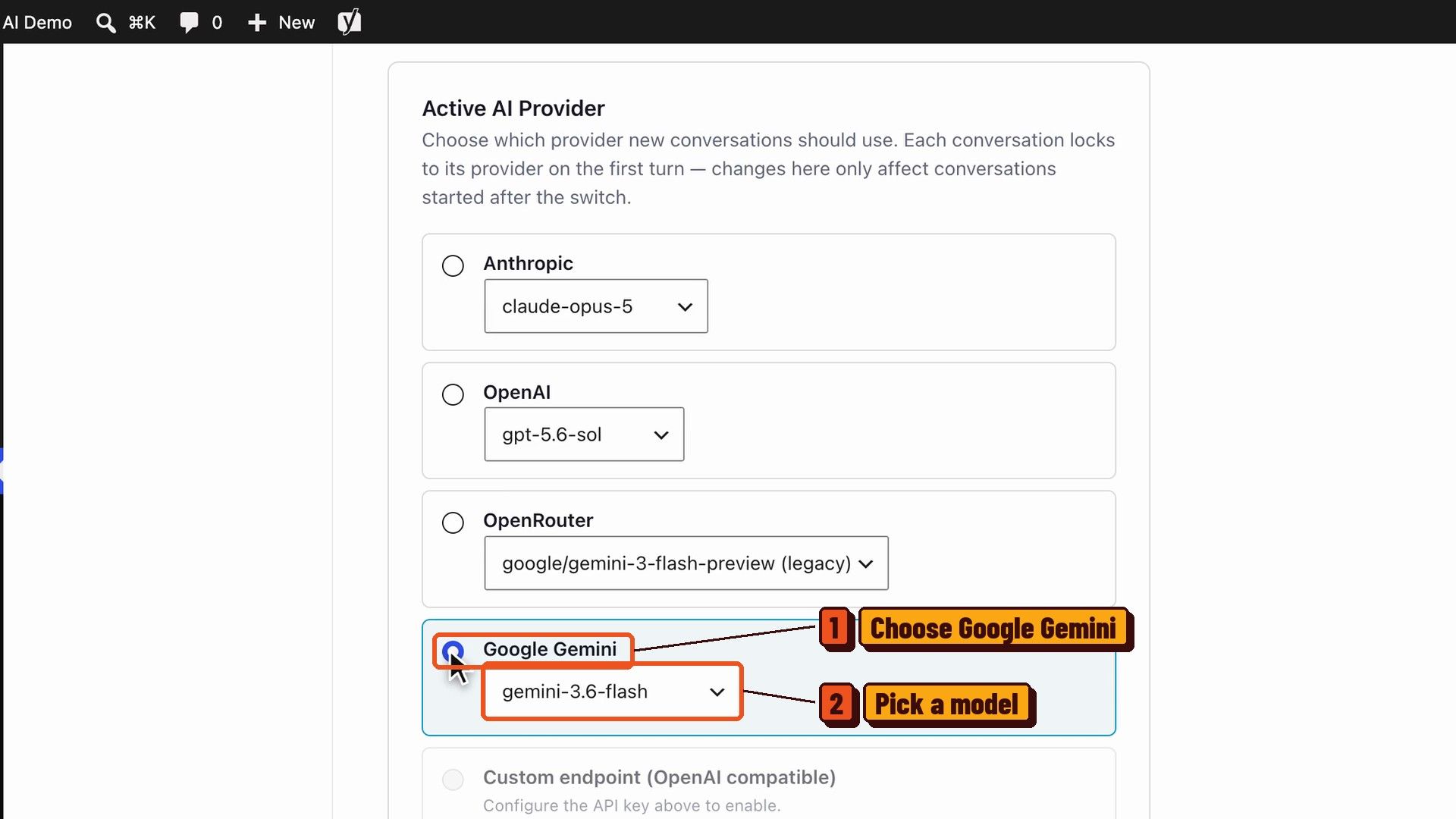
New conversations use Gemini from then on. Chats you already started keep the provider they began with.
So you can pick the provider and pricing that work for you. You’re not tied to one vendor.
New to the chat? My teammate Jennifer’s guide on how to set up Beaver Builder AI Chat walks through connecting a provider.
Connect Custom Module Fields to Your Content
If you build with Beaver Themer or ACF, you’re going to like this one. Text, link, and image fields in a custom module can now connect to the current post, the site, or an archive.
Think of it like a mail merge. You design the layout once, and each post fills in its own details.
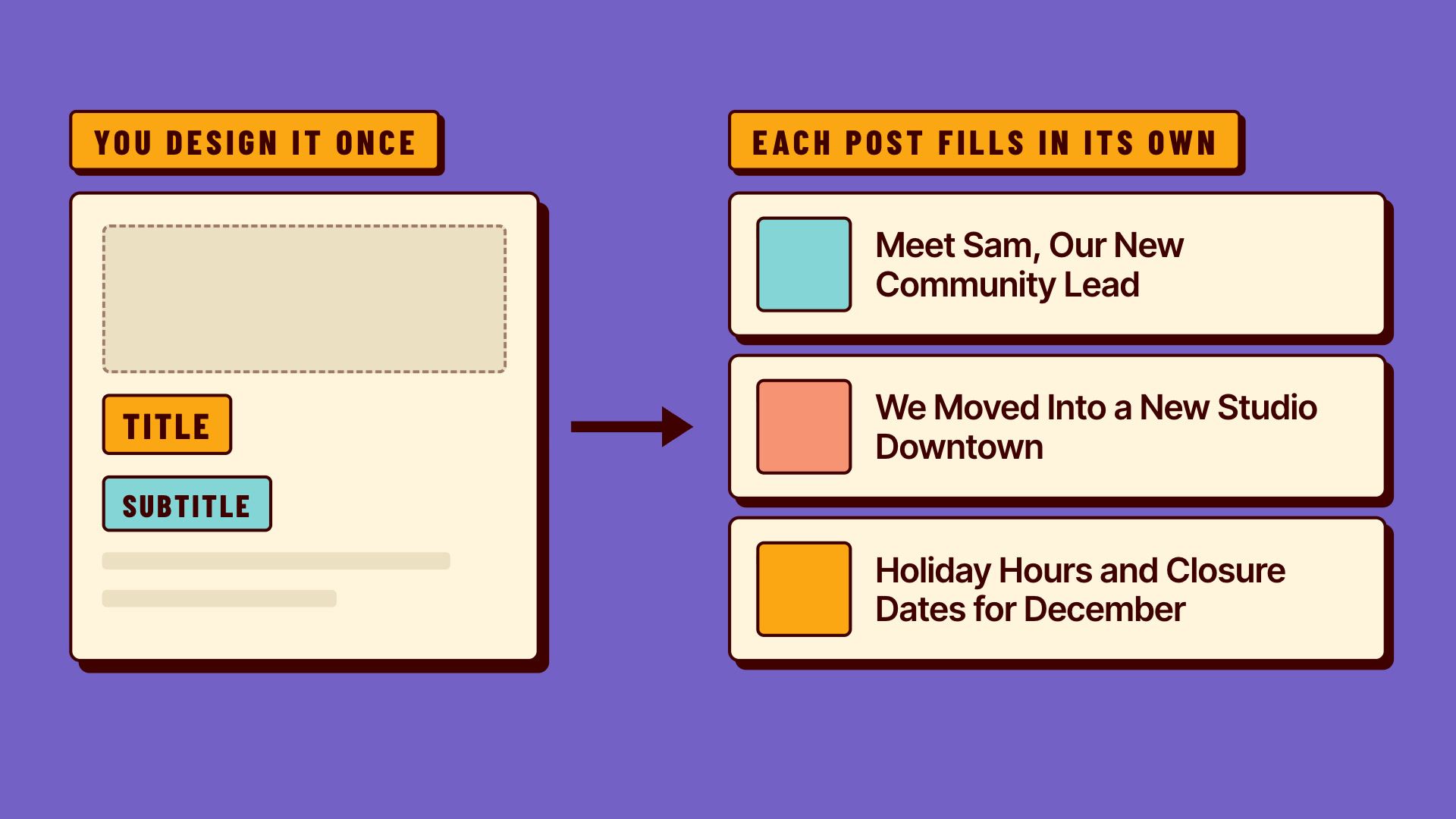
Here’s how it works in a Beaver Themer layout for single posts:
- Open the custom module’s settings. Each field has a small plus button next to its label.
- Click the plus next to Title, then choose Title. The placeholder turns into the title of the post you’re previewing.
- For a value stored in ACF, click the plus, scroll to ACF, choose Field, and type the field’s name. The name box suggests field names from your site.
- Click Save.
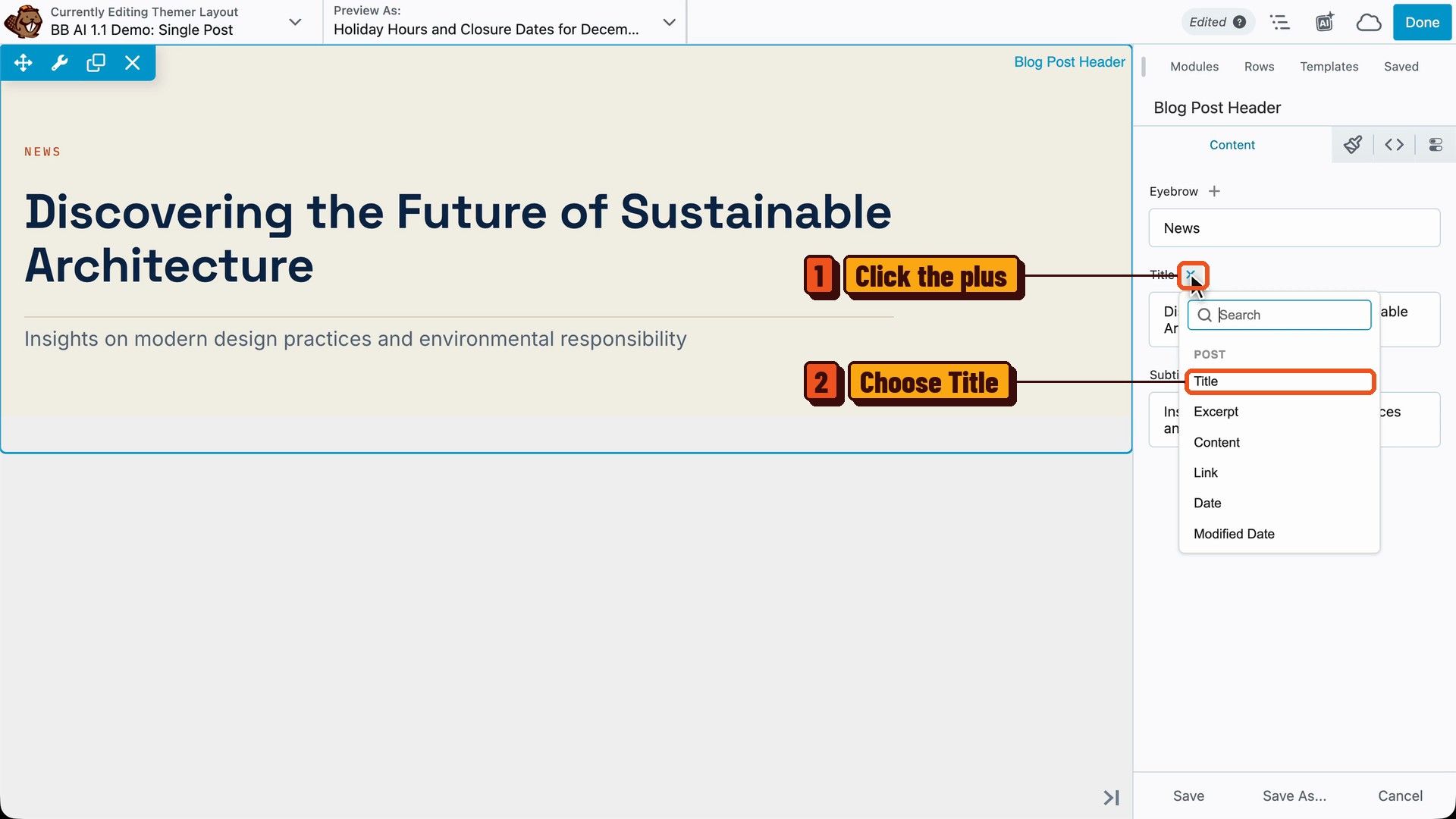
The picker covers the post, its author, comments, the site, the current user, and archive pages. The docs have the full list in Connecting fields to your content.
Repeaters and Queries That List Almost Anything
Building blogs, directories, team pages, or portfolios? Repeaters and queries can now list almost anything, the way you want.
Back on our Lantern Coworking page, we typed this into the chat: “Add a section below the hero with my latest 6 posts in the News category.”
The chat found the posts, generated the module, and connected it to the data. Every photo, title, and excerpt in the cards comes from a post on the site.
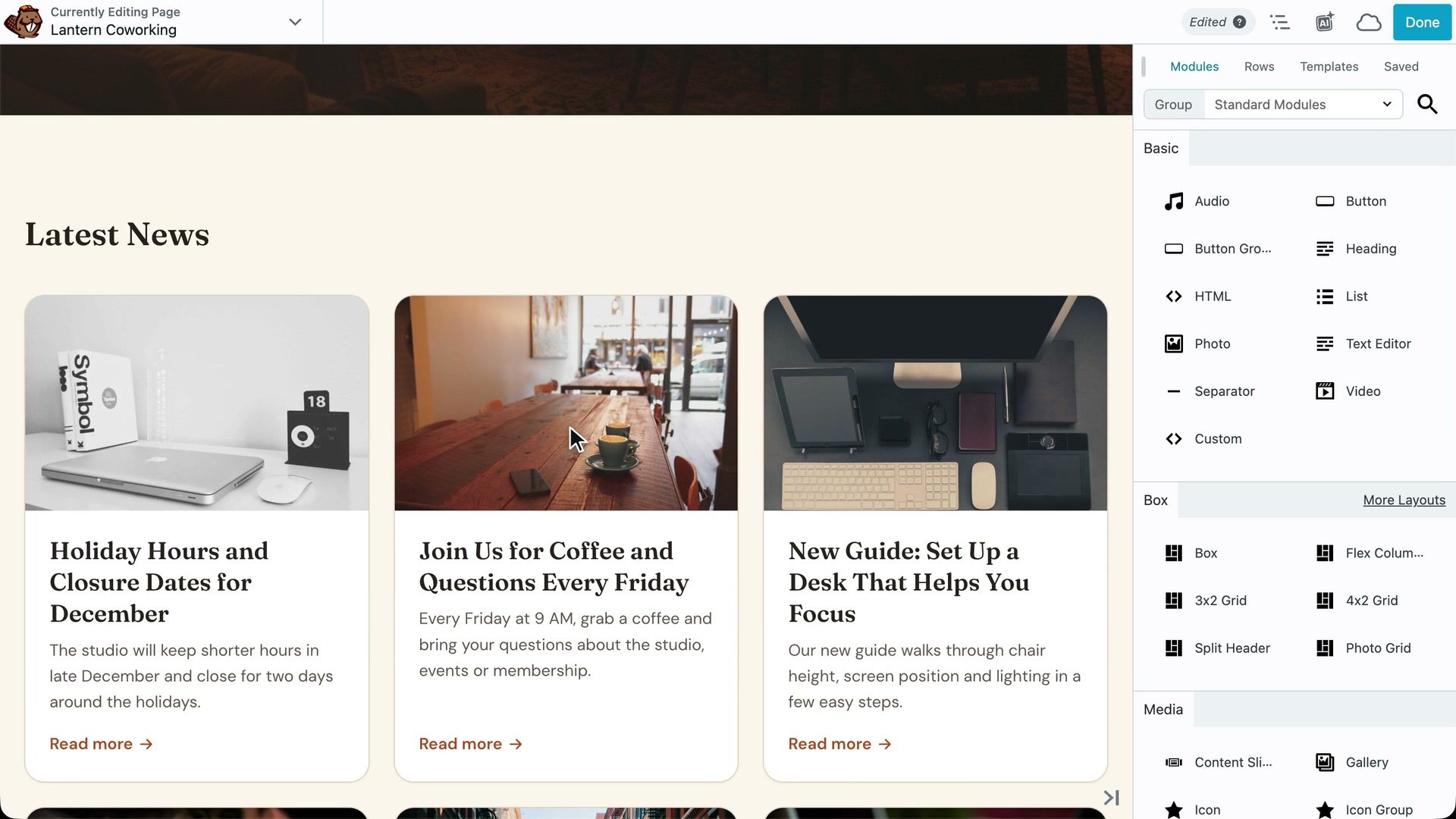
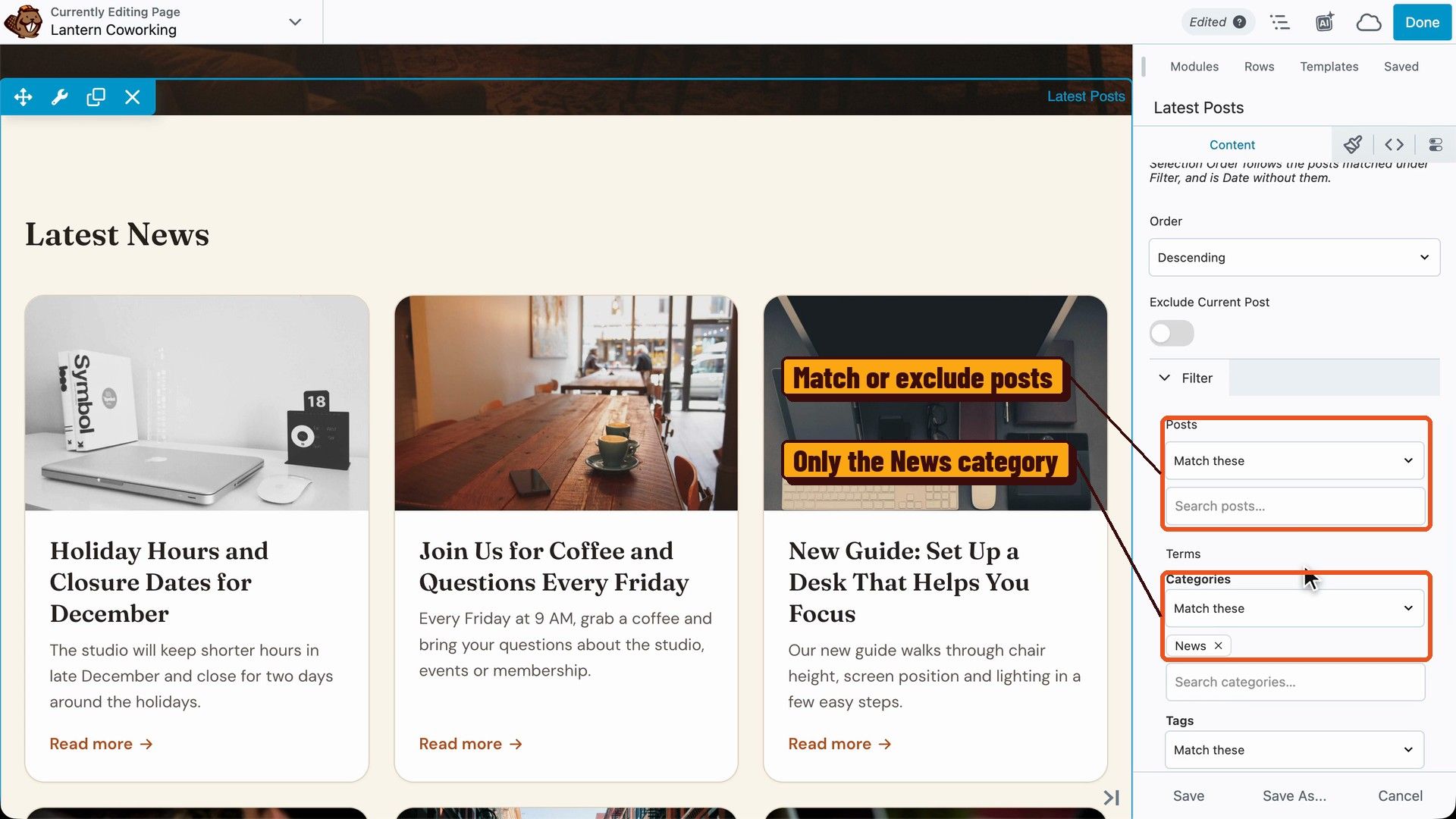
So how does it pick the posts? Open the module’s settings and click the Data Source button next to Posts. The source is a Custom Query, where you can:
- Choose the post types, the number of items, an offset, and the sort order.
- Turn on Paginate so visitors can page through every match.
- Match or exclude specific posts, terms, and authors under Filter.
- Match the current post’s terms to build a “more from this category” list.
A repeater isn’t limited to posts, either. It can list taxonomy terms like categories and tags, users, comments, or rows you type in yourself.
And if you ask the chat for live filtering, it points you to the new Filter module in Beaver Builder 2.12. The docs cover every option in Dynamic data in repeaters.
AI Agents Can Handle Everyday WordPress Work
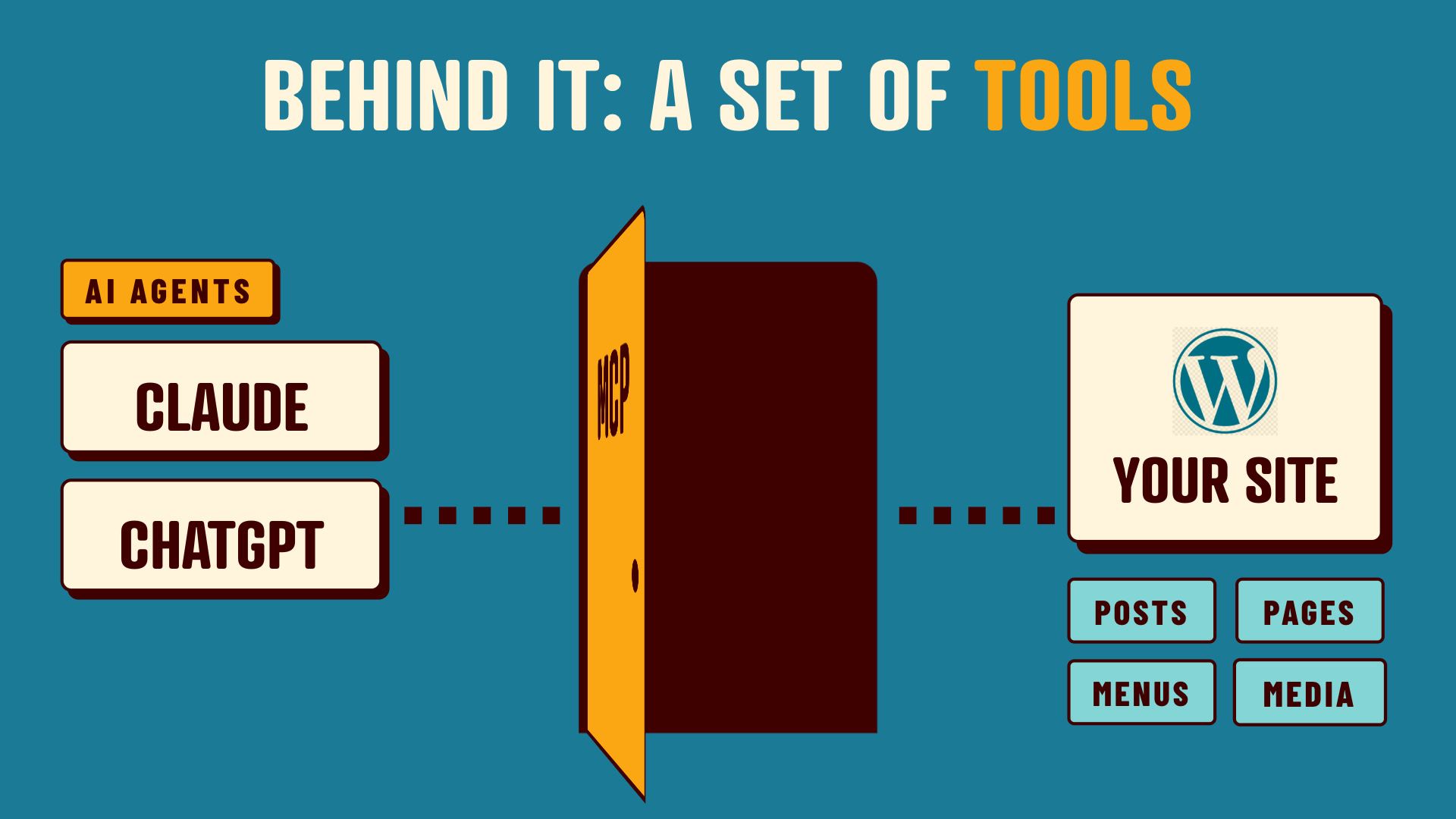
This one’s for anyone who connects an AI agent, like Claude or ChatGPT, to their site through MCP.
Think of MCP as a doorway between your AI agent and your site. On the other side of that door is a set of tools.
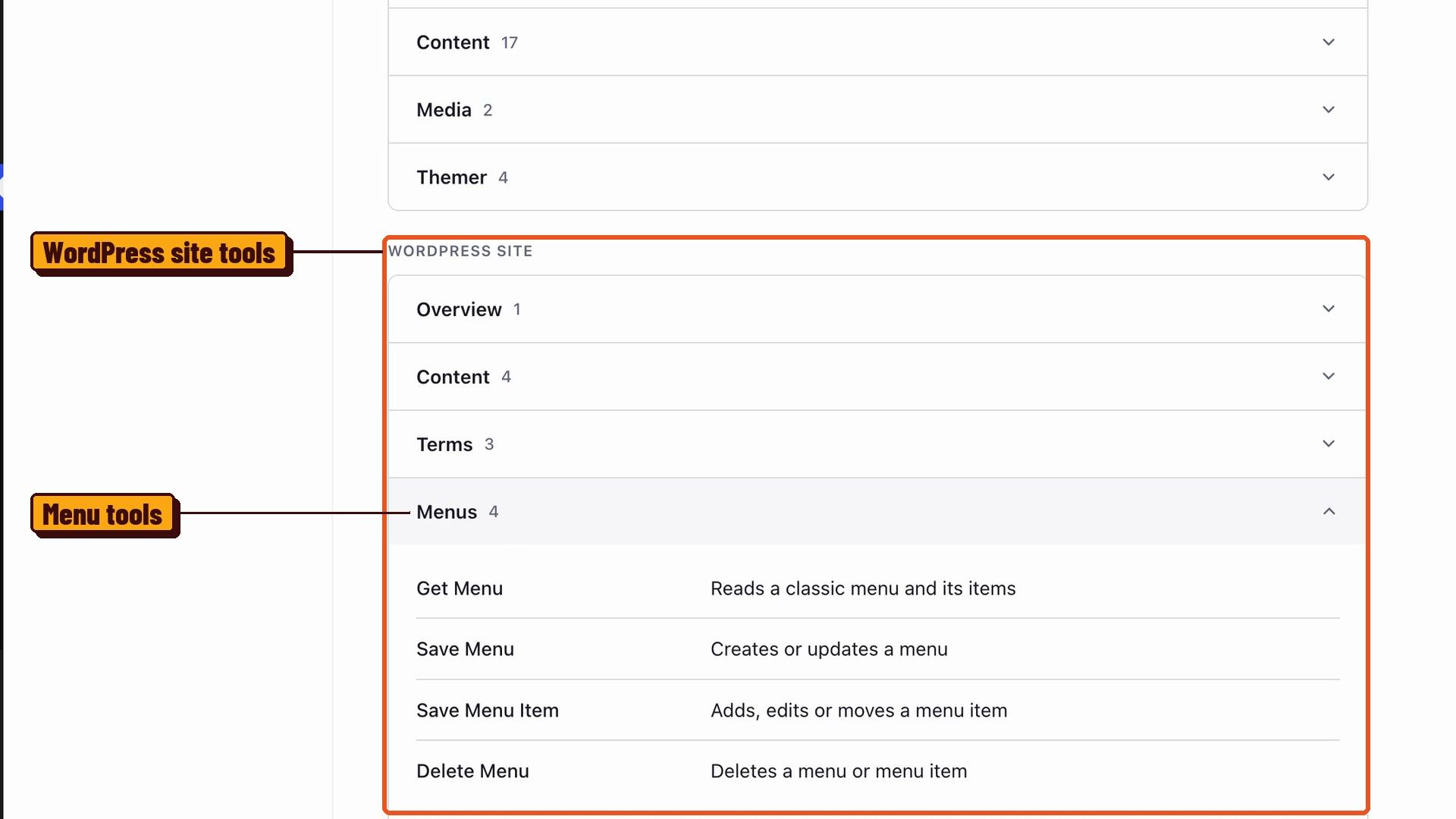
In 1.1, those tools cover posts and pages, categories and tags, menus, and the Media Library. AI agents can also read and update your Beaver Builder Global Styles.
The MCP Connection tab now lists every tool, grouped by Beaver Builder and by your WordPress site.
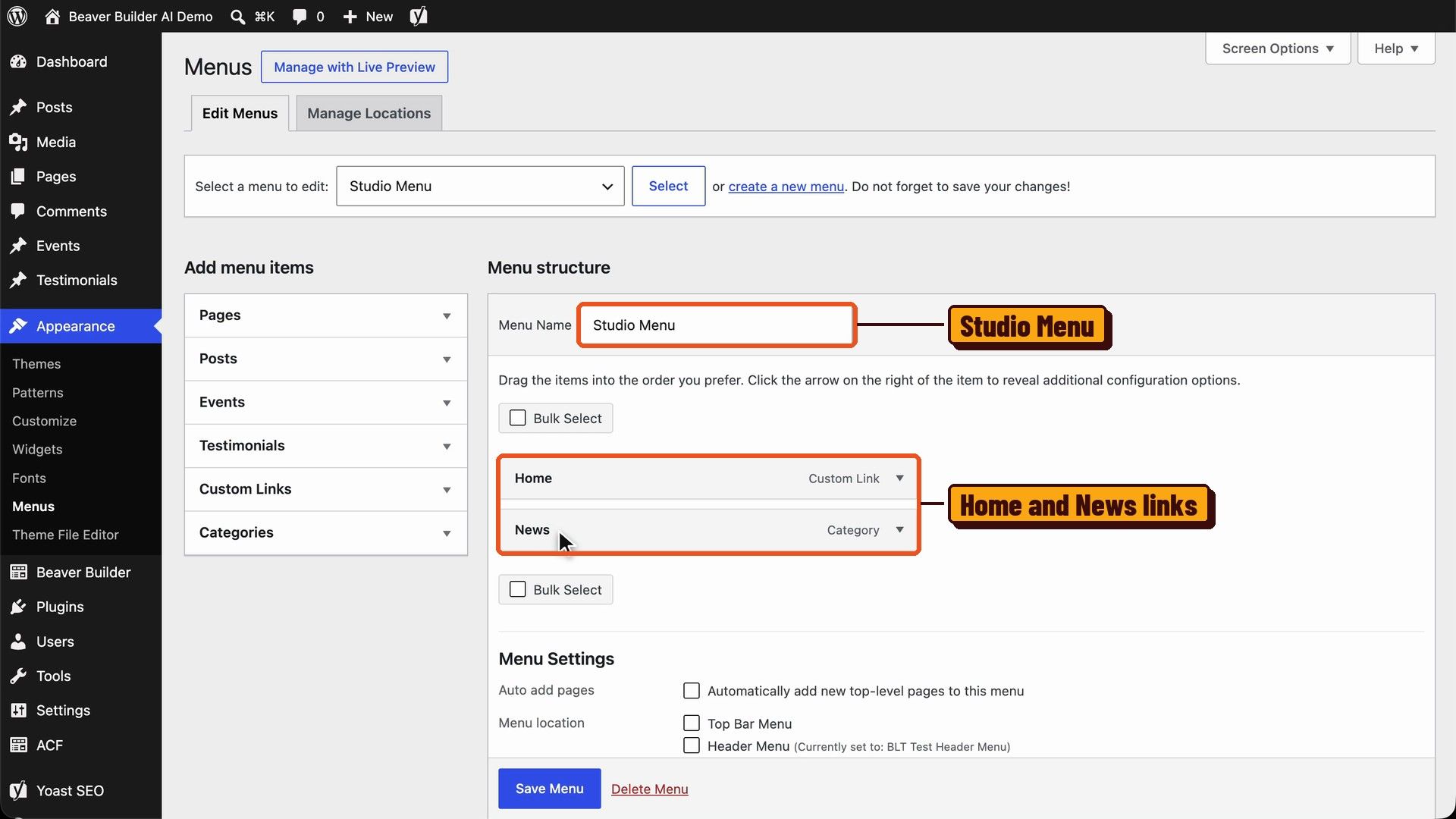
To test it, we gave Claude this request: “Write a short draft post for the News category about our new podcast room opening in January. Then create a menu called Studio Menu with links to Home and the News category.”
Claude saved the post as a draft, filed it under News, and built Studio Menu with both links in place.
Every action runs through the same checks and permissions as WordPress itself. The agent acts as the WordPress user it connected with, so it can only do what that user can do.
Want to set it up? Start with MCP connection in the docs. Not sure which way to build? Jennifer compares the options in Beaver Builder AI Chat vs MCP vs Design Kits.
More in Beaver Builder AI 1.1
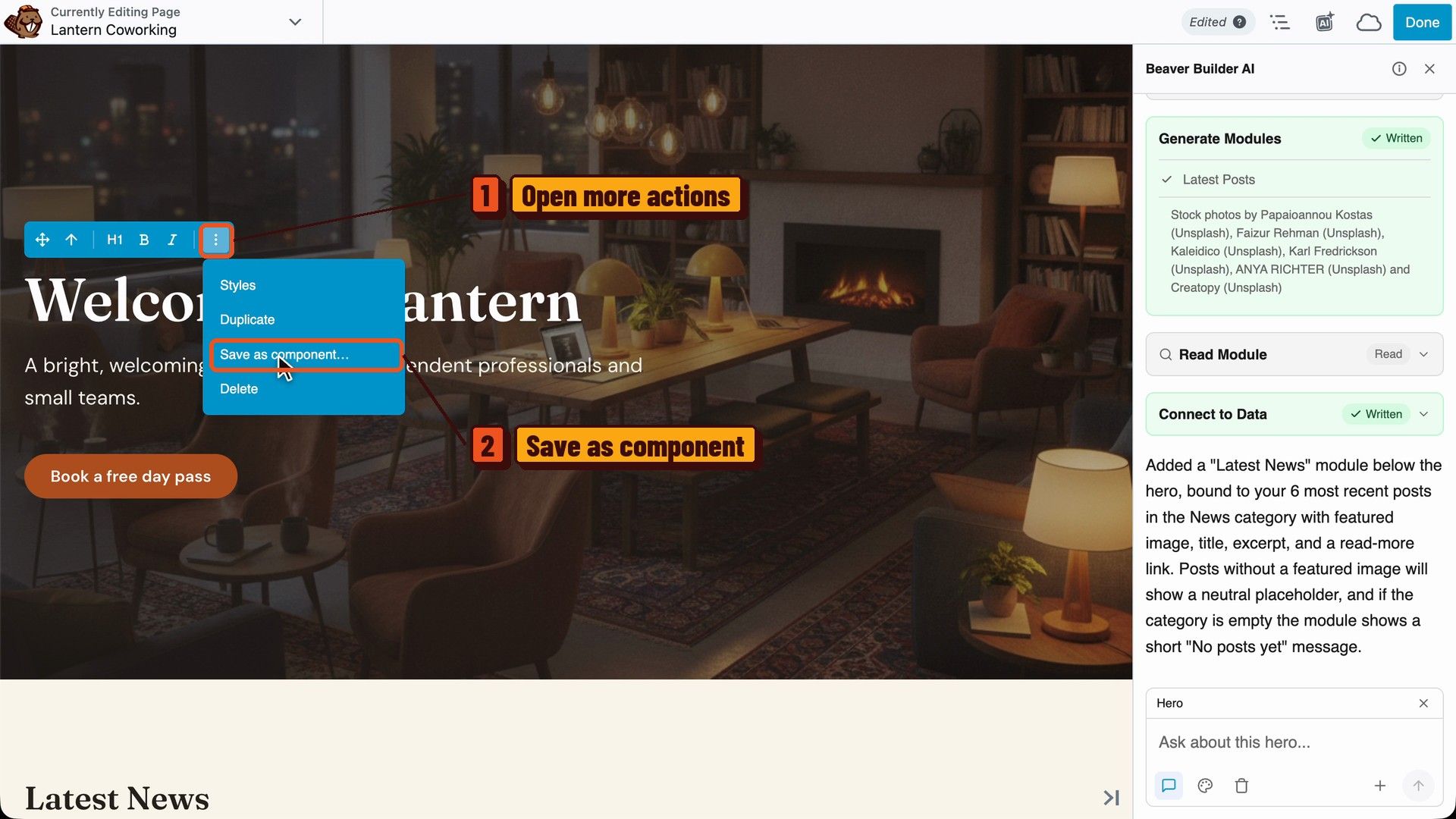
You can now save part of a custom module as a reusable component. Here’s how:
- Select an element inside the module and click the more actions button in its toolbar.
- Choose Save as component.
This is the first version, and it will keep getting better based on your feedback.
A few more changes worth knowing:
- In the Design panel, hold Shift and click to style several elements at once.
- Each background layer now has its own position, size, repeat, and attachment settings.
- A new experimental Custom Endpoint provider connects OpenAI compatible servers, such as Ollama and LM Studio. Results may not match the listed providers.
- Ask the chat for your categories, authors, or latest comments, and it builds the section from your site’s data.
- 1.1 includes security improvements, so I recommend updating.
For the full list, see What’s new in Beaver Builder AI 1.1 in the docs and the change logs.
Frequently Asked Questions
Beaver Builder AI 1.1 adds AI image generation with Google’s Nano Banana, Google Gemini as a chat provider, custom module fields that connect to your content, repeaters and Custom Queries that list almost anything, and WordPress tools for AI agents connected over MCP. It also adds components inside custom modules, Shift+Click multi-select, per-layer background settings, an experimental Custom Endpoint provider, and security improvements.
Yes. Image generation runs through Google Gemini, so you need a Gemini API key on the Settings tab. It works no matter which provider runs your chat.
Beaver Builder AI uses your own API keys, so each generated image is billed to your Google account at Google’s rates. Set a monthly spending limit in Google’s billing dashboard before you add the key.
You need WordPress 6.9 or later, the MCP Adapter plugin installed and active, and Beaver Builder AI. Then follow the steps on the MCP Connection tab.
Beaver Builder 2.11 or later for the page builder integration. You can also use Beaver Builder AI in the WordPress block editor without Beaver Builder.
Yes. Click the plus next to a field, choose ACF, then Field, and enter the field name. The name box suggests ACF field names from your site.
Get Started with Beaver Builder AI 1.1
- Already using Beaver Builder AI? Update now.
- New to Beaver Builder AI? Try it free on a demo site that already has Beaver Builder and Beaver Themer installed. No download required, and free AI credits are included.
Want to dig deeper? Start here:
- Beaver Builder AI documentation
- Free Beaver Builder AI course
- Beaver Builder Support
- Beaver Builder tutorials on YouTube
- Beaver Builder Community Facebook Group
Which feature are you trying first? Let me know in the comments. Happy building!

Start here

Beaver Builder AI Demo
Build a page with AI on a site that already has Beaver Builder and Beaver Themer installed. Free AI credits included.
Our Newsletter
Our newsletter is personally written and sent out about once a month. It's not the least bit annoying or spammy.
We promise.
Try Beaver Builder Today

Related articles

Beaver Builder Black Friday 2026: Save 50%
 -
November 18, 2026
Happy holidays! My oh my, this year has gone by fast. My daughter turned one at the beginning of October,…
Beaver Builder 2.12: Filter Module, Design & Code Tabs, and a New Icon Picker
 -
November 13, 2026
Beaver Builder 2.12, also known as Tarbela, is now available. It adds a Filter module that lets visitors search, filter,…

How to Turn a Screenshot Into a WordPress Page With AI
-
October 29, 2026
Have you ever had a client send you a screenshot and ask you to make their website look like it?…
Join the community
We're here for you
There's a thriving community of builders and we'd love for you to join us. Come by and show off a project, network, or ask a question.


Since 2014
Ready to build?
The WordPress page builder agencies and freelancers have trusted since 2014. Now with AI.