
Beaver Builder Maintenance Mode helps you keep your website looking professional while you work behind the scenes. Whether you’re redesigning a page, updating plugins, or preparing a client site for launch, you don’t want visitors stumbling across broken layouts or unfinished content. Starting with Beaver Builder 2.11, Maintenance Mode is built directly into Beaver Builder settings, so you can quickly display a custom maintenance page without installing another plugin.
What Is Beaver Builder Maintenance Mode?
Beaver Builder Maintenance Mode is a built-in feature in Beaver Builder 2.11 and later that displays a custom maintenance page while you update your website. Visitors see the maintenance page, while users with bypass roles can continue accessing the live site, and search engines receive the proper maintenance status.
How to Set It Up
Setting up Beaver Builder Maintenance Mode only takes a few minutes. Follow these steps to display a custom maintenance page while your site updates are in progress:
Step 1: Create Your Maintenance Page
Create a new page in WordPress and design your maintenance page using Beaver Builder. Include a simple message explaining that your site is being updated and when visitors can expect it to be available again.
You can include details such as:
- Your logo and branding
- A short maintenance message
- Contact information
- Links to your social profiles
Once your page is ready, publish it so it can be selected in the Maintenance Mode settings.
Step 2: Open the Maintenance Settings
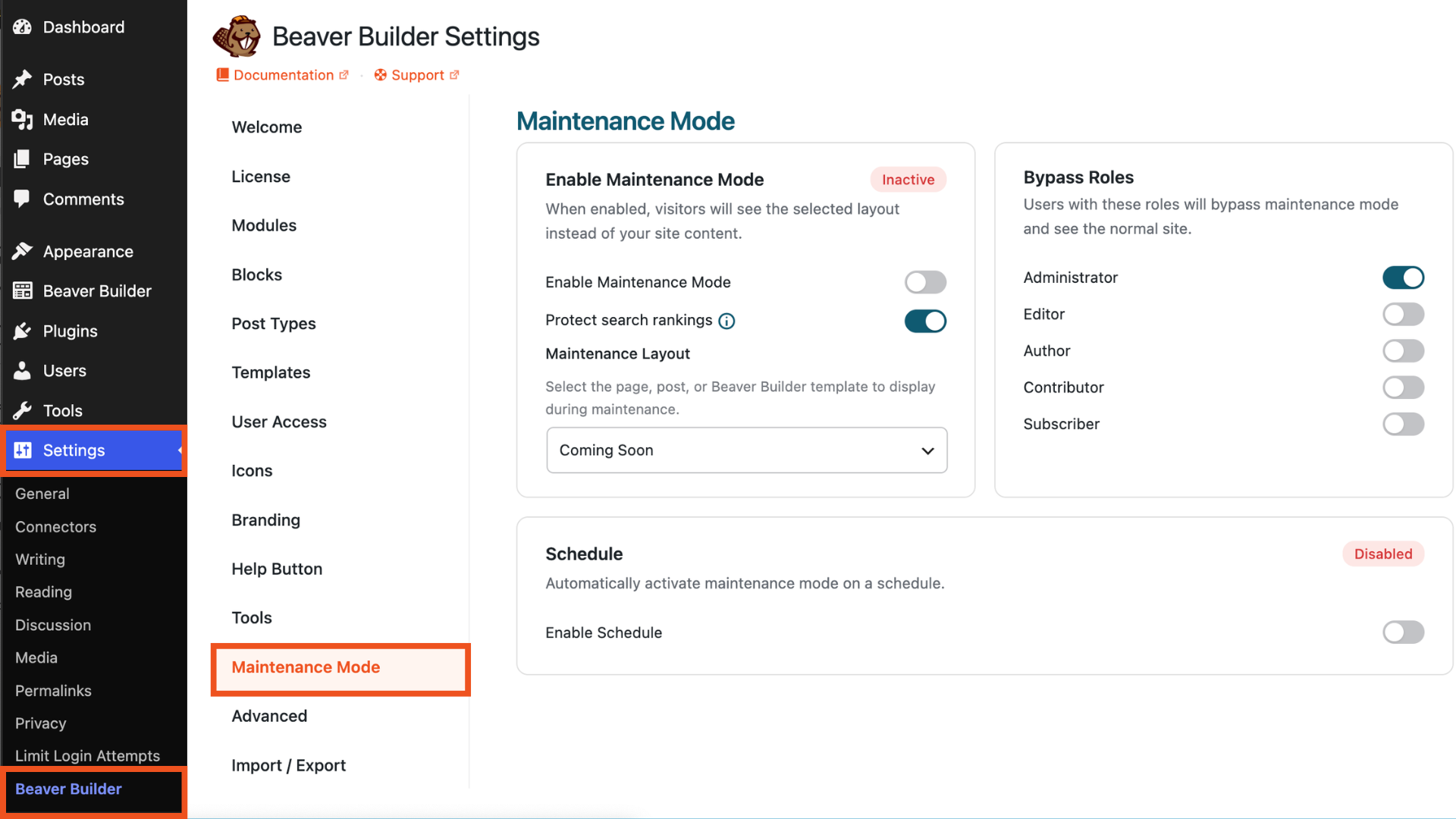
From your WordPress dashboard, go to Settings > Beaver Builder, then select the Maintenance tab:
Step 3: Choose Your Maintenance Page
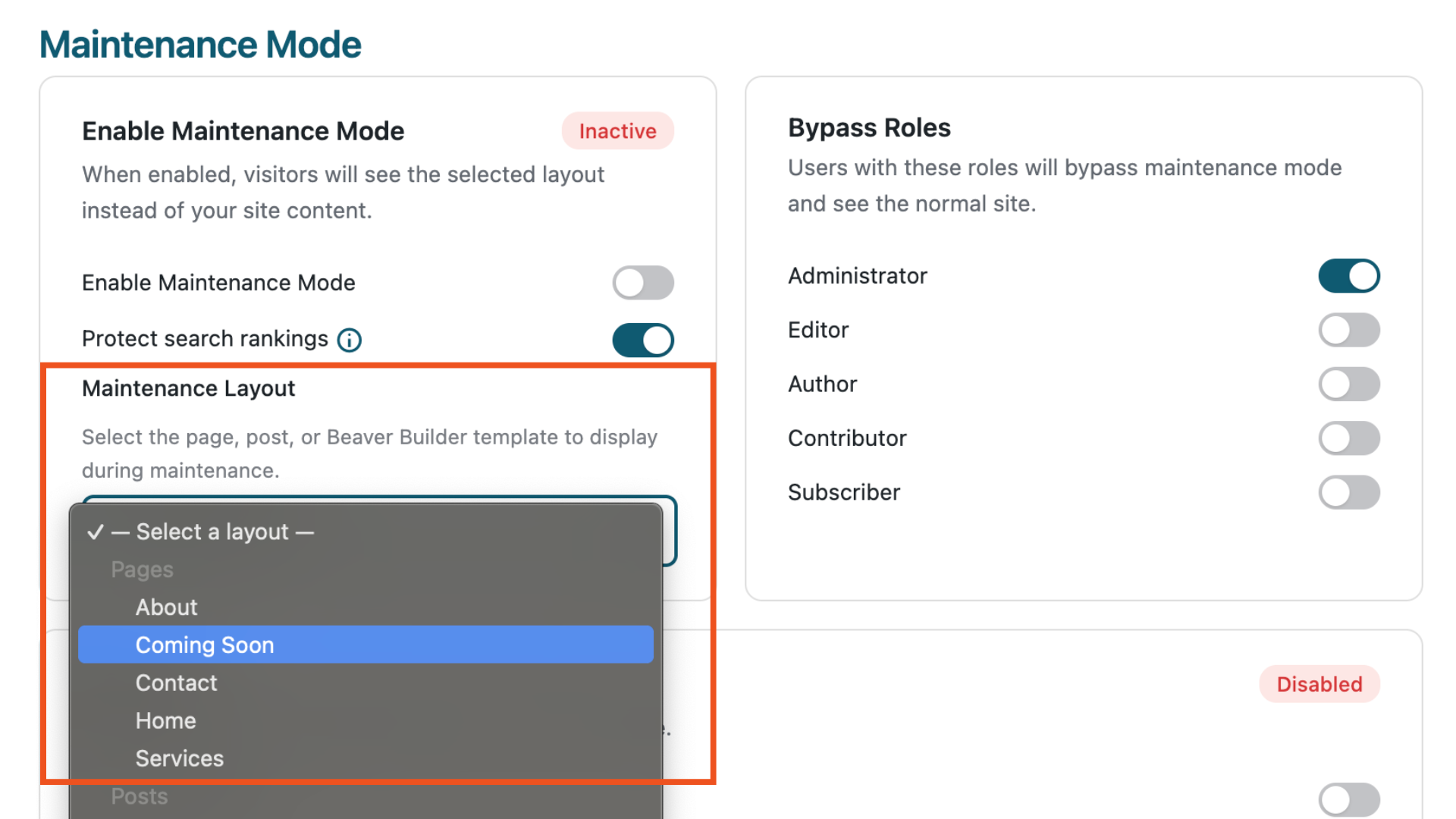
Under Enable Maintenance Mode, select the layout you want visitors to see while your website is unavailable. This can be any WordPress page, post, or Beaver Builder template you’ve created for your maintenance page. Using a custom Beaver Builder layout lets you create a branded experience that keeps visitors informed while your site is unavailable:
If you don’t select a layout, WordPress displays the default maintenance message:
“This site is currently undergoing maintenance. Please check back soon.”
Step 4: Configure Bypass Roles
In the Bypass Roles section you can select which user roles can bypass Maintenance Mode and continue viewing the live website:
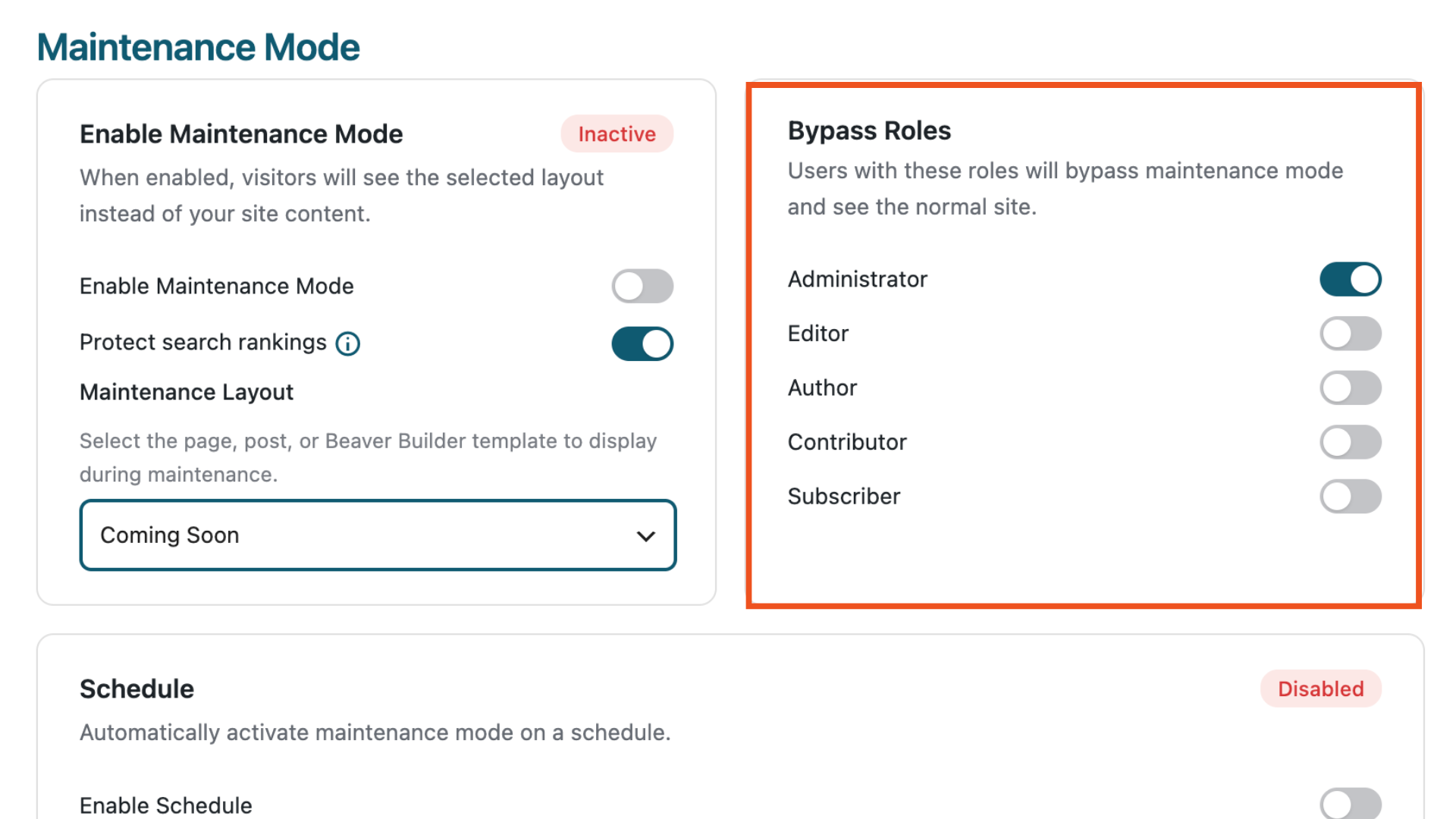
This is useful for website owners, administrators, developers, and clients who need to review changes while the site remains hidden from the public.
Step 5: Protect Your Search Rankings
The Protect Search Rankings option is enabled by default, and it’s recommended for most websites.
When enabled, Beaver Builder sends a 503 (Service Unavailable) status along with a Retry-After header, letting search engines know that your site downtime is temporary and should be checked again later. This helps prevent search engines from treating your site as permanently unavailable while maintenance is in progress.
Step 6: Enable Maintenance Mode
Turn on Enable Maintenance Mode to immediately display your selected maintenance page to visitors:
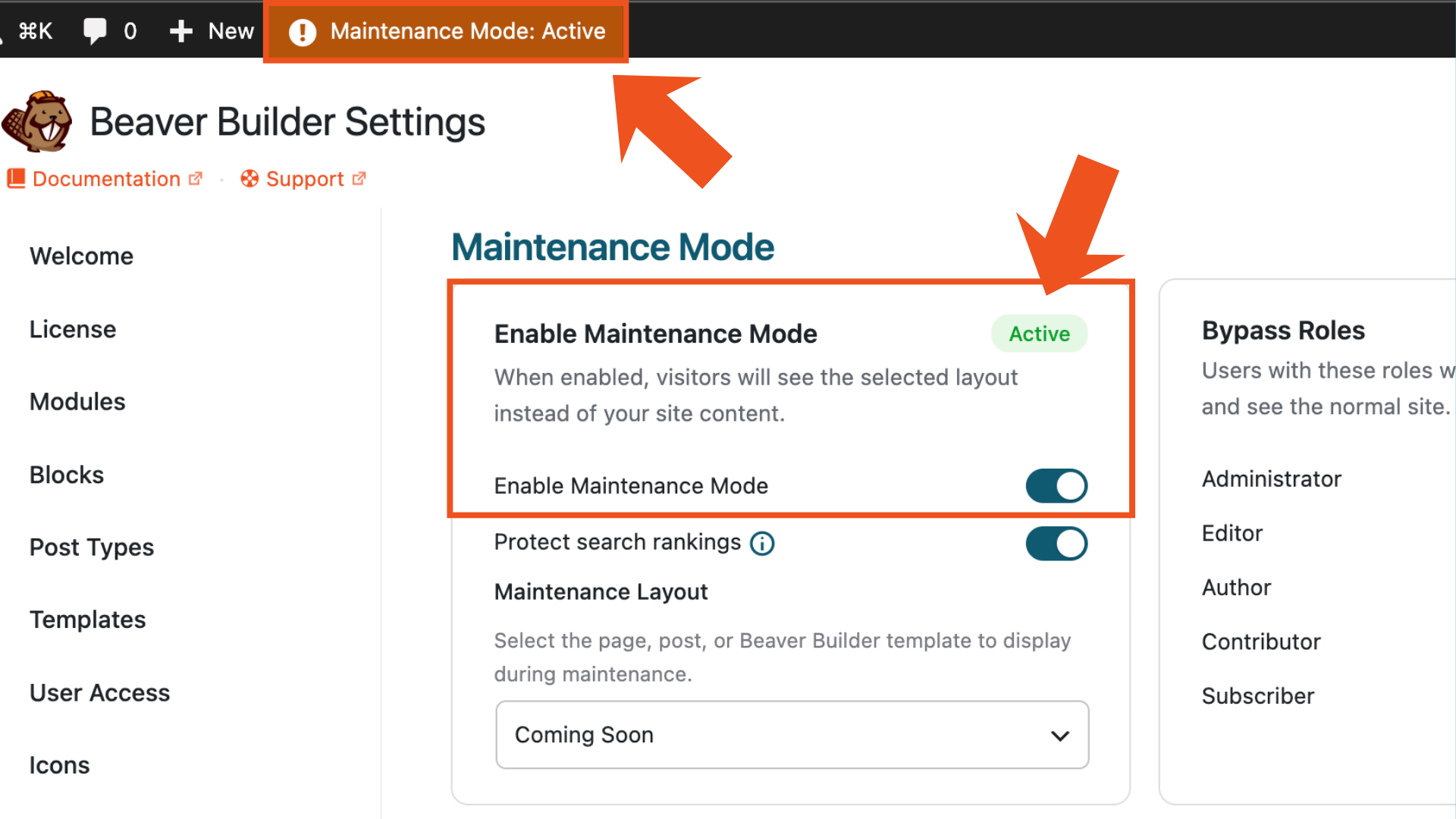
Authorized users can continue accessing the live site while visitors see the maintenance page.
Step 7: Schedule Maintenance Mode (Optional)
If you know when your updates will begin and end, you have the option to schedule Beaver Builder Maintenance Mode to turn on and off automatically:
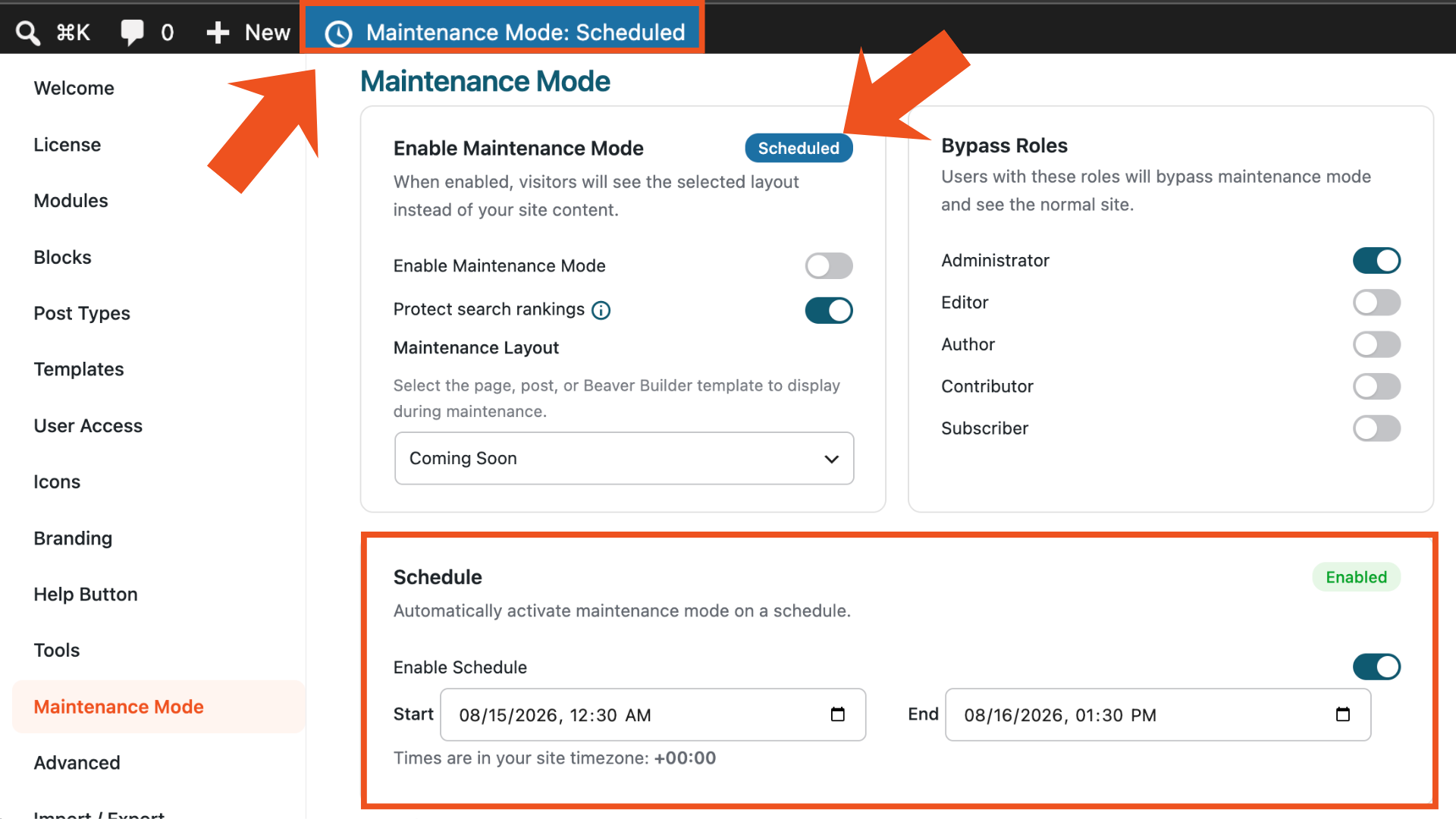
Use the Schedule section to enable this option. Then choose a Start and End date and time. Beaver Builder follows your site’s timezone settings found under Settings > General.
Scheduling maintenance is especially useful for planned website updates, client launches, or after-hours maintenance windows.
Keep Your Website Professional During Maintenance
Beaver Builder Maintenance Mode is a small feature that can make a big difference when updating your website. It helps you protect the user experience, maintain a professional brand image, and prevent visitors from seeing unfinished work.
If you regularly build or maintain WordPress websites, create a reusable maintenance page template in Beaver Builder. Then, whenever a project needs updates, you can enable Maintenance Mode in just a few clicks.
Frequently Asked Questions
Starting with Beaver Builder 2.11, Maintenance Mode is built directly into Beaver Builder settings. You can create a custom maintenance page, choose which users can bypass it, schedule maintenance windows, and help protect your search rankings without installing an additional plugin.
Beaver Builder Maintenance Mode is designed to minimize the SEO impact of temporary website downtime. When Protect Search Rankings is enabled, Beaver Builder sends a 503 (Service Unavailable) status with a Retry-After header, letting search engines know your site is temporarily unavailable and should be crawled again later.
Users assigned to a bypass role can continue accessing the live website while visitors see the maintenance page. This makes it easy for administrators, developers, and other team members to work on the site during maintenance.
Maintenance Mode is a core Beaver Builder feature, available whether you’re managing one site or fifty. Pick the plan that matches your site count, from Starter to Unlimited, and Maintenance Mode comes with it.

Our Newsletter
Our newsletter is personally written and sent out about once a month. It's not the least bit annoying or spammy.
We promise.
Try Beaver Builder Today

Related articles
Beaver Builder 2.11: Popup Module, Maintenance Mode, and Settings Snapshots
 -
July 7, 2026
-
July 7, 2026
Beaver Builder 2.11, also known as Kariba, is now available and delivers some exciting updates: a new Popup Module for…

Beaver Builder AI: Build WordPress Layouts with AI (Now in Alpha)
 -
June 10, 2026
-
June 10, 2026
Hey everyone! Big news. After a long time of building behind the scenes, Beaver Builder AI is here. The alpha…
How Beaver Builder Products Work Together to Build Flexible WordPress Websites
-
May 21, 2026
Building a WordPress website often means stitching together a theme from one developer, a page builder from another, and a…
Join the community
We're here for you
There's a thriving community of builders and we'd love for you to join us. Come by and show off a project, network, or ask a question.


Since 2014
Build Your Website in Minutes, Not Months
Join Over 1 Million+ Websites Powered By Beaver Builder.