
Debugging is part of everyday WordPress work. As websites grow, they start relying on more plugins, custom features, and page builder layouts working together. When something breaks or just feels ‘off,’ you’ve probably seen how quickly tracking down the cause can eat up your time.
That’s where WordPress debug plugins help. They give you a clearer view of what’s happening behind the scenes, helping you spot errors, performance issues, and plugin conflicts without guesswork. If you’re building sites with a page builder like Beaver Builder, these tools help you save time, reduce frustration, and keep projects moving forward.
In this post, we’ll look at five reliable WordPress debug plugins, explain why they’re useful, and highlight the key features that make each one worth using.
What to Look for in a WordPress Debug Plugin
Not all debug plugins are created equal. The best ones help you find problems quickly without slowing down your site or getting in the way of your workflow.
Clear error reporting
Errors and warnings should be easy to read and understand, not buried in logs.
Minimal performance impact
A good debug plugin gives you insight without noticeably slowing down the site.
Builder-friendly
If you are working in a page builder like Beaver Builder, the plugin should fit cleanly into a modular, developer-focused workflow.
Safe for staging and controlled live testing
The plugin should let you debug safely, especially when testing issues on live sites.
5 Top WordPress Debug Plugins
1. Query Monitor
What Is a Query Monitor?
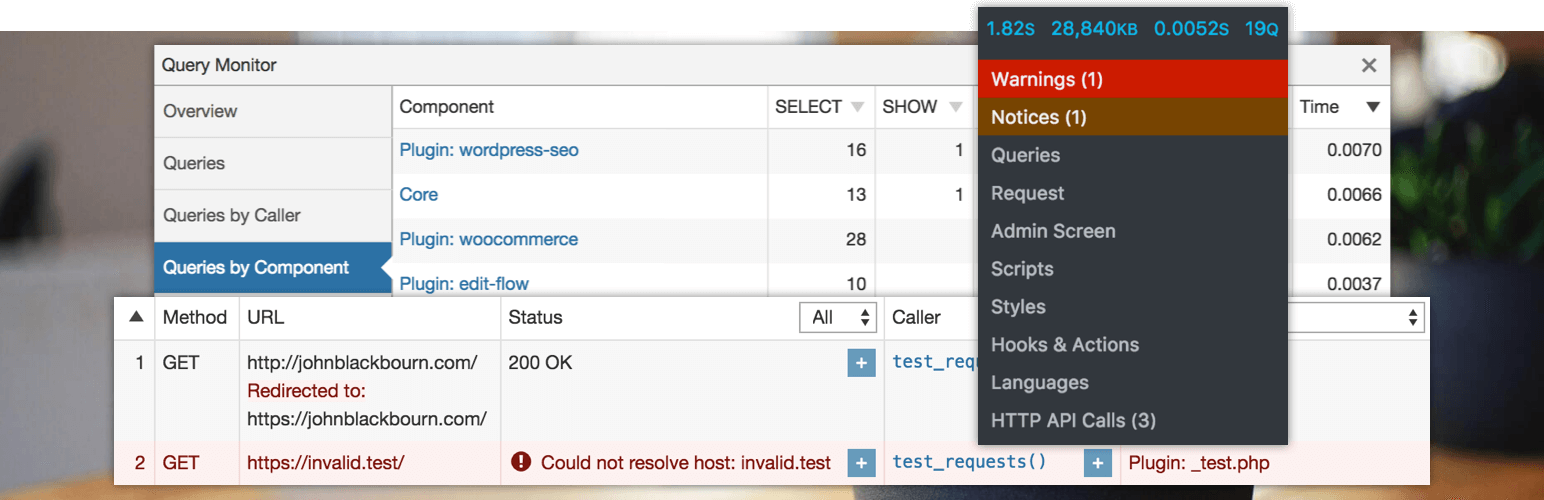
Query Monitor is a powerful debugging plugin that helps you see what’s happening behind the scenes on a WordPress site. It focuses on tracking database queries, PHP errors, hooks, and other technical details that are often hard to pinpoint during development.
Instead of guessing what’s slowing a page down or causing a conflict, Query Monitor shows you exactly where the issue is coming from, even when dealing with complex WordPress website themes and layouts.
Why Use Query Monitor?
You’ll usually reach for Query Monitor when a site feels slow, unstable, or unpredictable, and the cause isn’t obvious. It’s especially useful when working on pages built with multiple premium WordPress plugins, custom logic, or even advanced setups such as custom Beaver Builder plugins created with ChatGPT.
Common use cases include:
- Investigating slow-loading pages
- Tracking down plugin or theme conflicts
- Identifying performance issues in complex layouts or dynamic content
If you are working on client sites, it becomes a go-to tool when a problem isn’t obvious and needs deeper inspection.
Key Features
- Database query monitoring
- PHP error and warning tracking
- Hook and action inspection
- REST API and AJAX debugging
- Admin-bar based user interface
Are You Spending More Time Fixing Than Building?
Using the right plugins helps you catch issues early, reduce conflicts, and keep your builds stable as they grow.
Bonus Read – How to Use Beaver Builder to Make WordPress Responsive
2. WP Debugging

What Is WP Debugging?
WP Debugging is a simple plugin that helps you enable WordPress’s built-in debug features without editing configuration files. It’s designed to make error reporting easier to manage during development and testing.
Why Use WP Debugging?
This plugin is useful when you need quick access to WordPress debug mode without touching code. You’ll often use it while building or testing WordPress website templates in local or staging environments.
Common use cases include:
- Catching errors during theme or plugin development
- Testing updates before pushing them live
- Debugging issues without editing wp-config.php
Key Features
- One-click enabling of WordPress debug settings
- Control over error display and logging
- Ideal for local and staging environments
- Easy to enable and disable
Also Read – How to Export and Import Pages in WordPress
3. Debug Bar
What Is a Debug Bar?
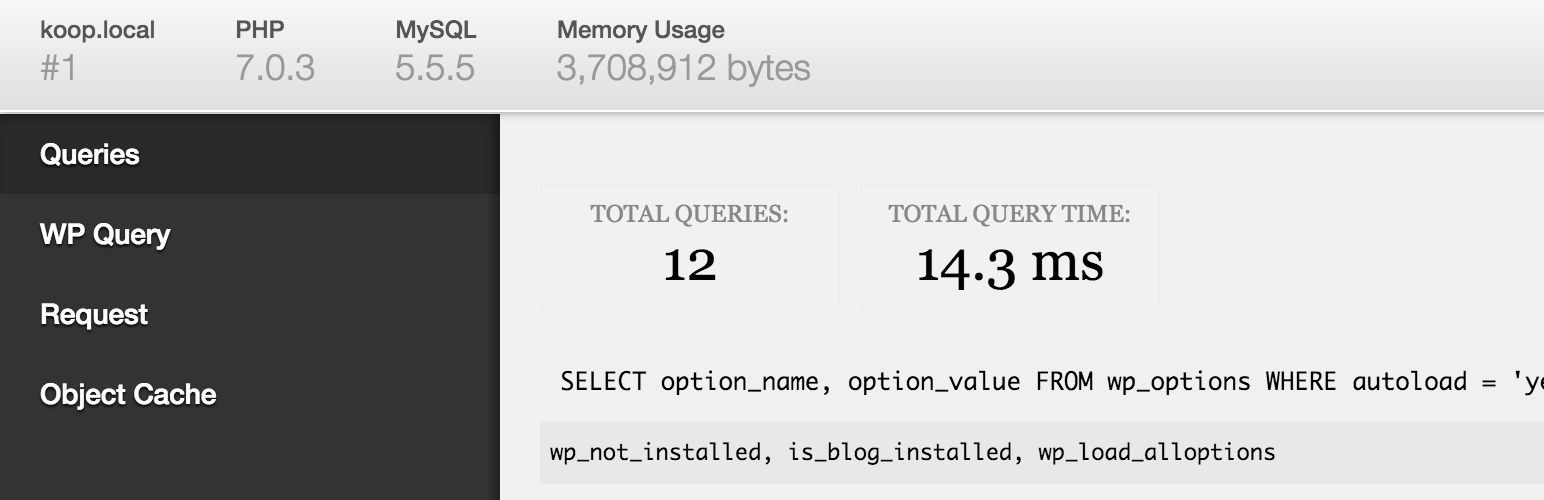
Debug Bar adds a debug menu to the WordPress admin bar, giving you quick access to basic debugging information while working in the dashboard or editor.
Why Use a Debug Bar?
You’ll choose Debug Bar when you want quick, lightweight insights without the overhead of heavier tools. It’s helpful for quick checks while adjusting layouts in a website builder for small business or testing minor changes.
Common use cases include:
- Reviewing PHP warnings and notices
- Checking queries during simple page edits
- Monitoring issues while working inside a page builder
Key Features
- PHP warnings and notices display
- Database query information
- Cache and object data panels
- Extendable with add-ons
4. Debug Log Manager
What Is a Debug Log Manager?
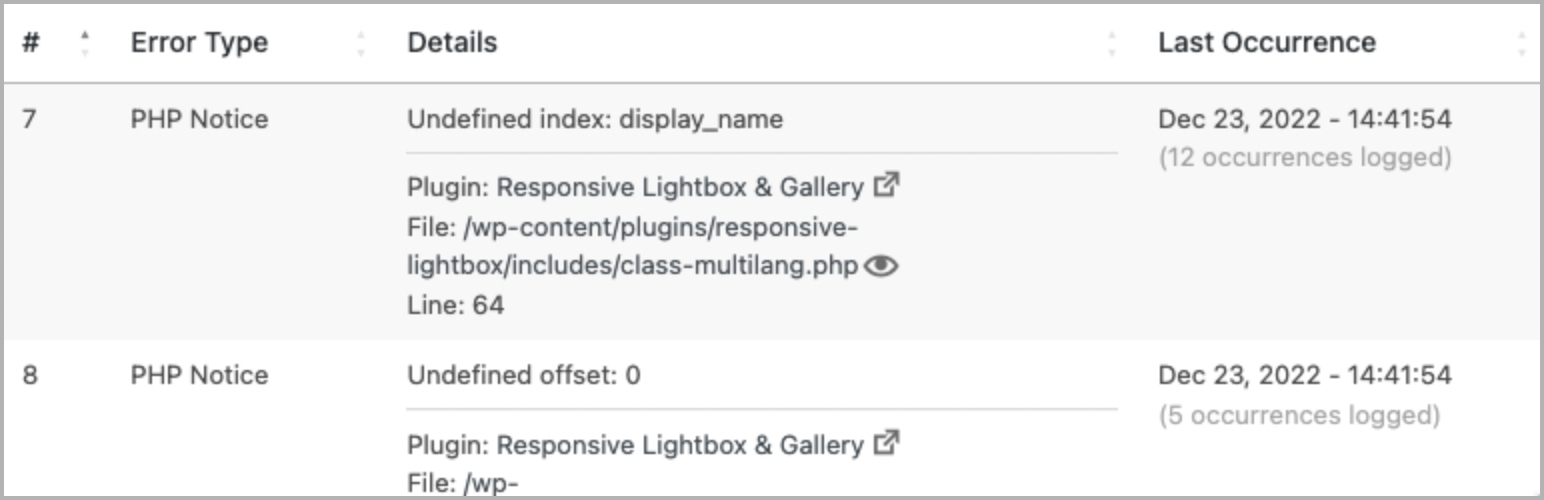
Debug Log Manager provides a clean interface for viewing and managing WordPress debug logs directly from the admin dashboard. It removes the need to access log files manually.
Why Use Debug Log Manager?
If you’re managing multiple client sites or maintaining long-term projects, this plugin makes reviewing errors far more manageable. It includes modern theme setups like the Automator Theme for WordPress.
Common use cases include:
- Reviewing logged errors after updates
- Monitoring recurring issues over time
- Simplifying log access for non-technical team members
Key Features
- View debug logs in the WordPress dashboard
- Search and filter logged errors
- Download or clear log files
- Simple, readable log interface
5. Error Log Monitor
What Is an Error Log Monitor?
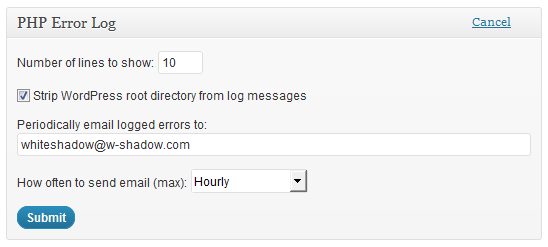
Error Log Monitor is a lightweight plugin that displays PHP error logs inside the WordPress admin area. It focuses on visibility, making sure errors don’t go unnoticed during development.
Why Use an Error Log Monitor?
Developers use Error Log Monitor when they want a no-frills way to keep an eye on errors without extra configuration. It works well alongside other WordPress debug plugins and is easy to add or remove as needed.
Common use cases include:
- Monitoring PHP errors during active development
- Spotting issues caused by plugin updates
- Keeping error visibility centralized in the dashboard
Key Features
- Displays PHP error logs in the admin panel
- Real-time error visibility
- Lightweight and easy to use
- Minimal setup required
How Developers & Agencies Use Debug Plugins Together
In practice, you’ll rarely solve WordPress issues with a single tool. Different problems show up at different stages of a project, which is why developers and agencies often use multiple debug plugins, each with a specific purpose.
Performance
Tools like Query Monitor help identify slow database queries, heavy scripts, and bottlenecks that affect page load times.
Compatibility
Plugins such as Debug Bar or Health-focused tools make it easier to spot conflicts between plugins, WordPress website themes, and page builder layouts.
Updates
Log-based plugins are useful for reviewing errors after WordPress core, plugin, or PHP updates, before clients notice a problem.
Instead of relying on one plugin for everything, experienced teams use a layered approach. Each tool provides a different view of the site, making it easier to diagnose issues quickly and fix them with confidence.
Best Practices for Using Debug Plugins
Debug plugins are most effective when they’re used intentionally and removed once the job is done. Following a few simple best practices helps keep sites stable and secure.
Use staging whenever possible
Whenever possible, you will want to test and troubleshoot issues in a staging environment before touching a live site.
Disable plugins after troubleshooting
Debug tools are meant for short-term use. Turn them off once the issue is resolved to avoid unnecessary overhead.
Log errors instead of showing them live
Displaying errors on live sites can confuse visitors. Logging keeps error details accessible without exposing them publicly.
Combine debugging with version control
Pair debugging tools with version control so fixes can be tracked, reviewed, and rolled back if needed.
Managing Too Many Sites to Debug One at a Time?
A structured WordPress page builder helps teams standardize layouts, reduce conflicts, and troubleshoot issues faster across all client projects.
Conclusion
Debugging doesn’t have to be frustrating or time-consuming. With the right WordPress debug plugins, developers and agencies can spot issues faster, understand what’s really happening on a site, and fix problems with confidence.
When working with the best WordPress website builder, reliable debugging tools become even more important as sites grow and complexity increases. The key is to debug with intention. Choose the right tool for the task, use it when needed, and keep your sites clean and stable once the work is done.
FAQ
Yes, but with caution. Many WordPress debug plugins are safe for controlled testing on live sites when errors are logged instead of displayed. Whenever possible, debug on staging first.
Yes. Many developers use a layered approach: one plugin for performance, another for logging, and another for compatibility. Just avoid overlapping tools that do the same job.
WP Debugging is a good starting point. It’s simple to use, requires no code changes, and works well during development and staging.

Our Newsletter
Our newsletter is personally written and sent out about once a month. It's not the least bit annoying or spammy.
We promise.
Try Beaver Builder Today

Related articles
Why You Should Avoid Nulled WordPress Plugins and Themes
 -
March 10, 2026
-
March 10, 2026
When you’re building a site, whether for yourself, a business owner, or a client, premium WordPress plugins can feel like…

How to Design Responsive Web Design Without Code
-
March 5, 2026
Responsive web design is no longer a “nice-to-have.” People move between phones, tablets, laptops, and desktops all day, and they…
25 Best Digital Marketing Tools to Grow Your Business Online
-
February 19, 2026
Digital marketing evolves quickly, and businesses that want to scale need the right set of tools to simplify workflows, automate…
Join the community
We're here for you
There's a thriving community of builders and we'd love for you to join us. Come by and show off a project, network, or ask a question.


Since 2014
Build Your Website in Minutes, Not Months
Join Over 1 Million+ Websites Powered By Beaver Builder.